
 Become a TechRadar Insider






-
 The TechRadar guide to World Cup 2026
World Cup 2026 is here — enjoy it all with TechRadar.
-
-
 World Cup 2026 LIVE: Free streams, TV guide & how to watch from anywhere in the world
All the ways you can stream the World Cup for free from anywhere in the world as we keep you up-to-date with the latest updates ahead of the tournament.
-
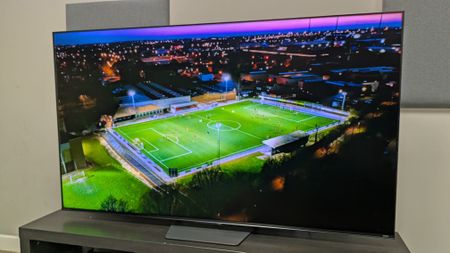 Here are 3 top value TVs I recommend for a last minute World Cup upgrade
World Cup fever is in full force and if you're looking for a great value TV for the tournament, these are 3 of my top recommendations
-
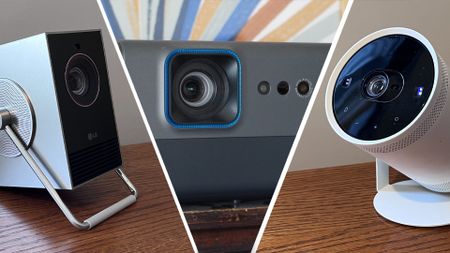 11 world-class projectors to scale up your World Cup viewing
A first XI of projectors to kick off your watch parties in style — all tried and tested by AV experts.
-
 NewsWorld Cup 2026 Fixture Finder – Kick-off times, Free streams
World Cup 2026 Fixture Finder – Search any team and see when they're playing and where to watch for free!
-
 NewsShould I use a VPN to watch the World Cup?
Should you use a VPN to watch the World Cup? A virtual private network will take your viewing experience to the next level this summer.
-
 The World Cup is about to kick off — here's my dream watch party setup
Plus stellar speakers, smart lights to amp up the atmosphere, and catering gadgets that won't drag me away from the action.
-


-
 HyperX Origins 2 1800 review: a satisfying mechanical board with versatile hardware but limited software
 -
-
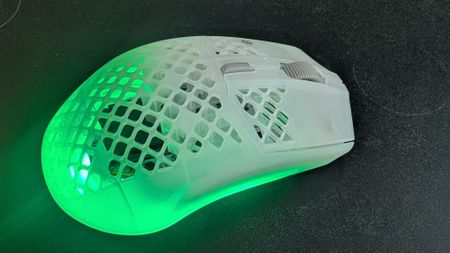 SteelSeries Aerox 3 Wireless Gen 2 review: same bones, sharper bite
 -
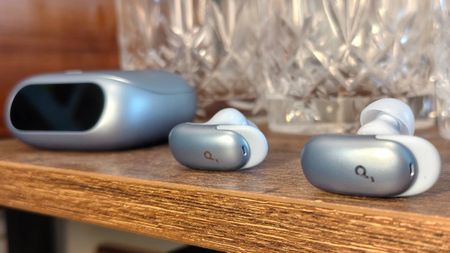 Anker Soundcore Liberty 5 Pro review: feature-packed, great fitting earbuds — highly recommended
 -
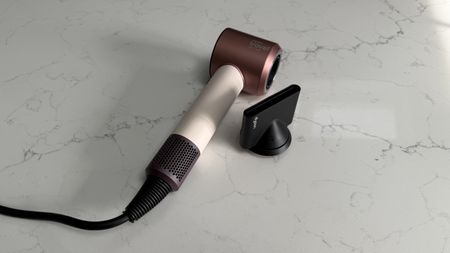 The Dyson Supersonic Travel is proof you don't have to sacrifice hair health on holiday
 -
 Shoks OpenDots 2 review: Comfortable, stable, long-lasting open-ear buds
 -
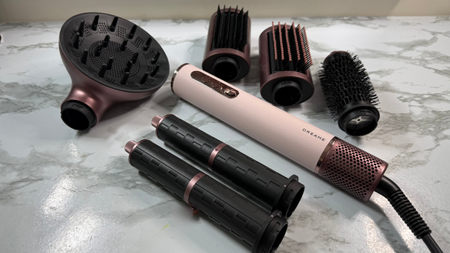 The Dreame AirStyle Era is an Airwrap alternative that almost has it all
 -
 The Cuisinart Power Blend Immersion Blender is a powerful and versatile four-in-one appliance
-


How TechRadar tests

Product testing for the real world
You need to know that the device or service you’re about to spend money on works as advertised - and that it works in the real world.
- We test properly: objective and subjective testing
- We use experienced experts for our reviews
- We always offer 100 per cent unbiased, independent opinions
reviews
hours' testing
buying guides
-
 Cricket Wireless' latest deals include the iPhone 17e, Galaxy S26, and dirt-cheap prepaid plans — get up to $590 off today
Sponsor Content Created With Cricket Wireless
-
-
 Mint Mobile just bumped up the data allowance on all its plans — and yes, that's for both new and existing customers
 -
 WWDC 2026 — here's exactly what you asked for and how Apple delivered
 -
 The iPhone 17 series is up to $300 off at Metro by T-Mobile this week — with only a cheap plan needed
 -
 Why the shiny new iOS 27 Screen Time features won't matter without a major bug fix
 -
 Congratulations, Apple Intelligence can now effectively generate fake images just like all the other AI and I hope you're happy
 -
 Spatial Reframing in iOS 27 might finally turn me into a photo pro
-


-
 NYT Wordle today — answer and my hints for game #1818, Thursday, June 112712 Comments
 -
-
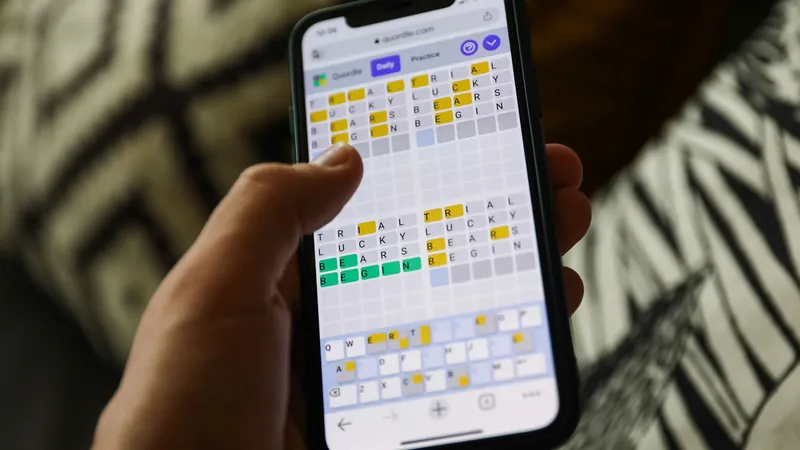
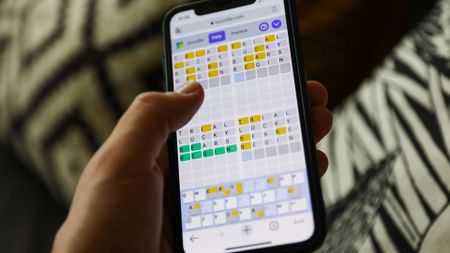 Quordle hints and answers for Thursday, June 11 (game #1599)
 -
 NYT Strands hints and answers for Thursday, June 11 (game #830)
 -
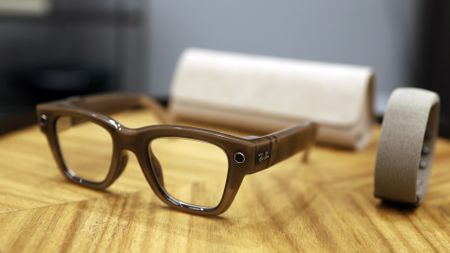 Pennsylvanian lawmakers want new smart glasses safety rules
 -
 UpdatedThe best laptops 2026 tested, reviewed and rated
 -
 HyperX Origins 2 1800 review: a satisfying mechanical board with versatile hardware but limited software
 -
WWDC 2026 — here's exactly what you asked for and how Apple delivered
-



-
 Google Gemini was down for many — here's what we know about the outage
Google Gemini was down for thousands of users today — here's what we know about the outage so far.
3 Comments -
-
WWDC 2026 — here's exactly what you asked for and how Apple delivered
Apple delivered almost exactly what users wanted at WWDC 2026, based on a combined poll with 1,500+ responses.
-
 After saying Mythos was too dangerous, Anthropic just launched a public version
Anthropic has released a public version of its Mythos model called Fable 5, but acknowledges that it 'comes with risks' despite providing guardrails.
-
 I let ChatGPT roast me, and it's clearly been trained well on insults
I asked ChatGPT to roast me, and it cut me to the quick.
-
Spatial Reframing in iOS 27 might finally turn me into a photo pro
iOS 27 users will get a Spatial Reframing AI tool to change their photos’ perspectives.
-


-
 Why the shiny new iOS 27 Screen Time features won't matter without a major bug fix
The new features are great, if it's harder to override them
-
-
Spatial Reframing in iOS 27 might finally turn me into a photo pro
iOS 27 users will get a Spatial Reframing AI tool to change their photos’ perspectives.
-
 iOS 27 to introduce high-detail 3D imagery for Apple Maps Flyover
Apple Maps' Flyover view will look even more detailed in iOS 27, and it could give Google a run for its money.
-
 Apple’s WWDC upgrades might protect your phone — this VPN deal will secure your connection
Apple is always keen to let you know about its privacy and security tools, but it’s still worth protecting your device with this VPN deal
-
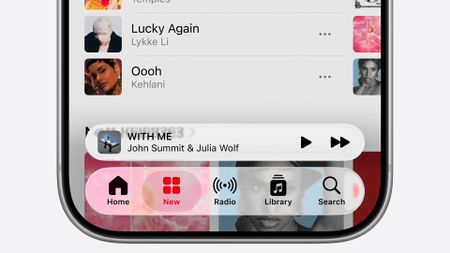 Apple Music's minor iOS 27 upgrades don't include continuity or social features
Apple Music's iOS 27 revamp isn't the most striking — and we're still waiting for playback continuity upgrades.
-


-
 BBC puts Doctor Who out to tender after Russell T Davies departs
Doctor Who is now "out to tender" following the departure of Russell T Davies.
-
-
 ExclusiveAmerican Horror Story season 13 teases spinoff episodes scarier than Coven
It's no secret that American Horror Story season 13 will be a direct spinoff of Coven — but one star has teaser 'freakier' things to come as production continues.
-
 Lioness season 3: everything we know about the hit Taylor Sheridan show's return
Lioness season 3 is ours in the next few months. Here's everything we know so far from release date, trailer, cast, plot rumors and more.
-
 Elle: everything we know about Prime Video's Legally Blonde prequel TV show
Legally Blonde prequel Elle arrives on Prime Video this July. Here's everything we know so far, including release date, trailer and full cast.
-
 Netflix's Scooby-Doo: Origins just introduced its canine star — but the live-action series is already dividing fans
Scooby-Doo: Origins marks the first time the famous dog will be played by a real-life animal — but not everyone is happy about the news.
-


-
-
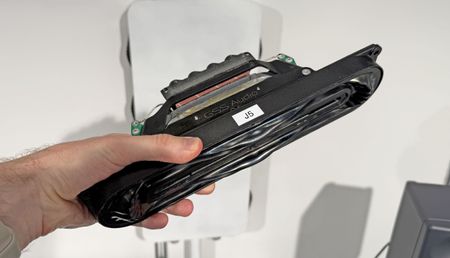 I heard a groundbreaking new subwoofer driver that fits in a tiny box 6x smaller than a regular sub
GSS Audio's innovative transducer can put the power of a 10-inch sub in a box the size of a microwave dinner — and it's designed to work in soundbars or wall-mounted speakers too.
-
Here are 3 top value TVs I recommend for a last minute World Cup upgrade
World Cup fever is in full force and if you're looking for a great value TV for the tournament, these are 3 of my top recommendations
-
 Sony is ending streaming support for key services on tons of speakers, soundbars and AV receivers
Nothing online lasts forever, but Sony's shutdown of services is especially severe, and affects over 70 products
-
 UpdatedThe best 75-inch TVs, all tested by our big-screen experts
The best 75-inch TVs offer a true big-screen experience, with a size befitting the greatest films and the most nail-biting sports matches.
-
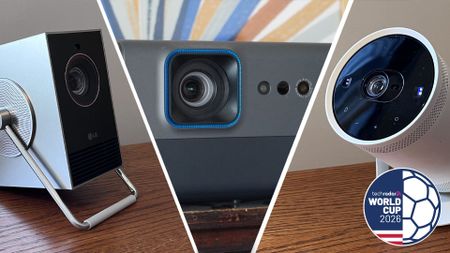 11 world-class projectors to scale up your World Cup viewing
A first XI of projectors to kick off your watch parties in style — all tried and tested by AV experts.
-
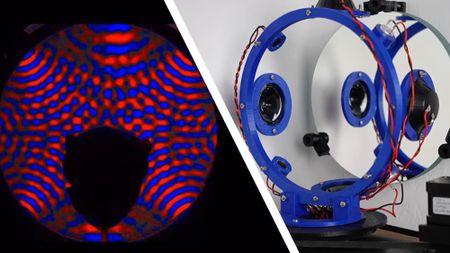 Someone built a way to 'see' the soundwaves in different home theater setups, but in miniature
YouTuber PlasmatronX has created a simulator to test how different surround sound setups move audio around your room, and what can affect the sound you hear
-
 Why I wouldn't buy a super-cheap huge-screen TV for the World Cup
Backlight uniformity issues on LCD 4K TVs have ruined many a football match for this AV dork — don't pick the wrong big-screen upgrade
-


-
-
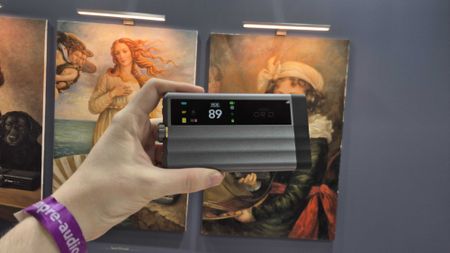 I heard iFi's new portable DAC and its bespoke I/V, added K2HD tech and bigger touchscreen display make it a clear step up on the original Gryphon
I went hands on with iFi’s new GR 2 DAC, and its exceptional specs and user friendly design make it feel like a worthy follow-up to its legendary predecessor.
-
I heard a groundbreaking new subwoofer driver that fits in a tiny box 6x smaller than a regular sub
GSS Audio's innovative transducer can put the power of a 10-inch sub in a box the size of a microwave dinner — and it's designed to work in soundbars or wall-mounted speakers too.
-
 No, Spotify isn't deliberately uploading AI artists and music
Spotify is facing more scrutiny over AI slop, but the accusations are getting out of hand.
-
Sony is ending streaming support for key services on tons of speakers, soundbars and AV receivers
Nothing online lasts forever, but Sony's shutdown of services is especially severe, and affects over 70 products
-
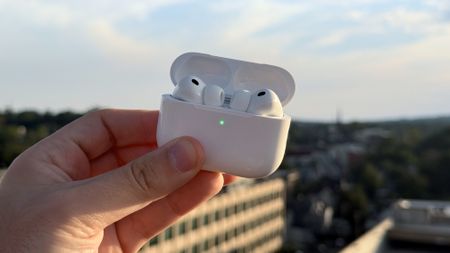 AirPods Pro 3 have hit a record-low price of $179 ahead of Prime Day — I doubt these 'near-perfect set of noise-cancelling earbuds' will get any cheaper
Walmart has just hit us with a brand new record-low price on the excellent AirPods Pro 3 ahead of Amazon Prime Day 2026.
-
 'Music is an art of time. Time flows without form': Technics releases a burgundy turntable, ties itself in knots over a matching 1930s lamp collab, we're all confused (but secretly I love it)
Fritz Hansen and Technics have released 'two objects with distinct origins that, together, form a setting that is considered and deeply human'. Quite.
-
 Your pre-Prime Day audio roundup: 8 awesome portable hi-fi products
With not long to go till Amazon Prime Day, here's my pick of the recent portable audio kit you should look out for when the big day(s) arrive
-


-
-
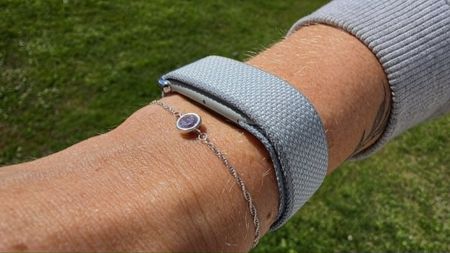 Garmin Cirqa certification suggests it lacks built-in GPS
A certification listing suggests the Garmin Cirqa might lack GPS, so you'll be reliant on your phone.
-
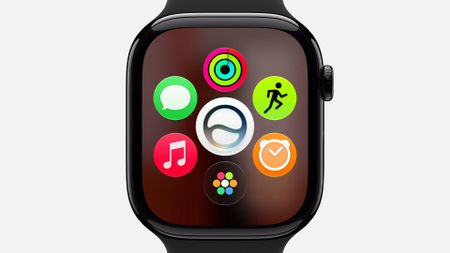 6 current-gen Apple Watches won't be able to run watchOS 27, including Ultra and SE models
Has your Apple Watch survived? These are all the models being cut off from a watchOS upgrade this year, and it's a much longer list than anticipated.
-
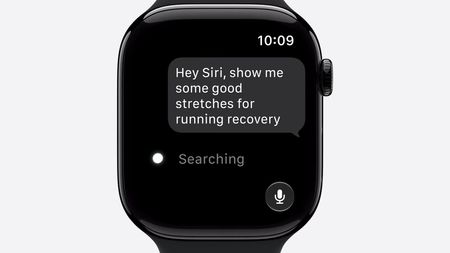 watchOS 27 may have improved the Apple Watch's AI features, but a Siri AI health coach was needed to rival the Google Fitbit Air
Sorry, Apple: I don't want to read reams of information about stretching on a 2-inch screen.
-


-
-
 California city approves the use of Flock drones as first responders
Stockton, California, just invested millions of dollars in Flock drones to act as first responders.
-
 Potensic's new Atom 3 might be the ultimate beginner drone for 2026
Potensic's best drone yet
-
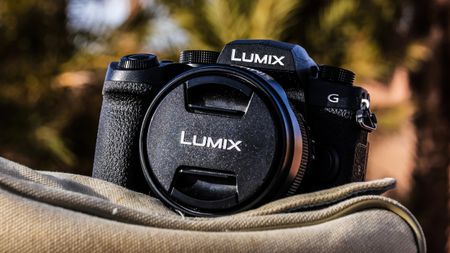 Looking for your first real camera? Try this unbeatable Lumix pre-Prime Day deal
If you're considering your first real camera, the Lumix G97 is hard to beat, thanks to its excellent handling and wide lens choice, especially for this new low price.
-
 My favorite camera backpack is now half price at B&H Photo
My favorite camera bag that doesn't look like a camera bag has to be the Wandrd Prvke series — and the previous V3 generation version is now 50% off.
-


-
-
 IKEA's understated picnic set is ultra-classy — I'm not surprised it's selling fast
Forget rainbow-hued crockery; this outdoor dining range is as sophisticated as it is practical.
-
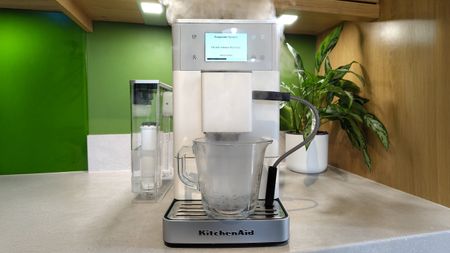 The new KitchenAid KF4 has a cleaning feature I wish other companies would copy
Automatic coffee makers can get pretty gross, but KitchenAid's latest model can evaporate all the water inside to keep itself fresh.
-
 Philips launches new ceiling light that mimics natural sunlight
Philips is launching an impressive ceiling light that mimics natural daylight, but it doesn't have smart home integration just yet.
-
 Ninja just released a compact version of the Luxe Café Pro
The Ninja Luxe Café Mini Plus is a semi-automatic espresso machine that offers almost all the same features as its full-size counterparts, for a lower price.
-


-
 UpdatedThe best laptops 2026 tested, reviewed and rated
 -
-
UpdatedThe best 75-inch TVs, all tested by our big-screen experts
-
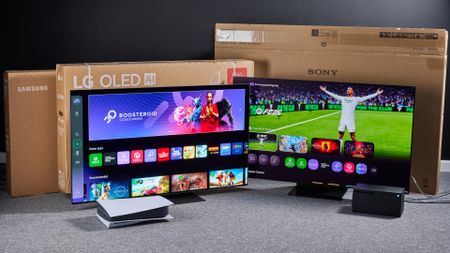 I’m a trained TV calibrator, and here are the best TVs you can buy today
 -
 Best wall-mount TVs: screens worthy of hanging at home
 -
 UpdatedThe best Windows laptop 2026
 -
 UpdatedThe best Bluetooth speakers you can buy, all tested by our experts
 -
 UpdatedThe best soundbars for all budgets
-


Why we're experts

We care passionately about tech
The TechRadar team has a life-long passion for the latest innovations – over 300 years of experience between us, in fact – and we’ve made it our mission to share that combined knowledge and expertise with you.
We’re here to provide an independent voice that cuts through all the noise to inspire, inform and entertain you; ensuring you get maximum enjoyment from your tech at all times. Technology is our passion, so let us be your expert guide.
years' experience
how-tos written
Apple events covered
-
-
 Cricket Wireless' latest deals include the iPhone 17e, Galaxy S26, and dirt-cheap prepaid plans — get up to $590 off today
Sponsor Content Created With Cricket Wireless
The best Cricket Wireless deals this week include the iPhone 17e for $299, $400 off the Galaxy S26, plus more
-
Mint Mobile just bumped up the data allowance on all its plans — and yes, that's for both new and existing customers
Mint Mobile's cheaper cell phone plans just got a nice little upgrade on the house, with more data for your hard-earned cash.
-
AirPods Pro 3 have hit a record-low price of $179 ahead of Prime Day — I doubt these 'near-perfect set of noise-cancelling earbuds' will get any cheaper
Walmart has just hit us with a brand new record-low price on the excellent AirPods Pro 3 ahead of Amazon Prime Day 2026.
-
The iPhone 17 series is up to $300 off at Metro by T-Mobile this week — with only a cheap plan needed
If you want one of the latest iPhone 17 series alongside a cheap plan, definitely check out Metro by T-Mobile's new deal.
-
 Traveling to North America for the World Cup? Boost your digital privacy and cut down on roaming fees with this VPN and eSIM combo
Smart privacy meets affordable data
-
Looking for your first real camera? Try this unbeatable Lumix pre-Prime Day deal
If you're considering your first real camera, the Lumix G97 is hard to beat, thanks to its excellent handling and wide lens choice, especially for this new low price.
-


-
-
 Sling TV promo codes for Jun 2026
SPONSORED With these Sling TV promo codes you can get discounted memberships and add access to extra channels for free on the streaming service.
-
 Trend Micro promo codes for Jun 2026 |
SPONSORED Find one of Trend Micro promo codes to lower the price of the brand's cybersecurity software, covering antivirus, identity protection & a VPN.
-
 LastPass coupons in Jun 2026 |
SPONSORED Use our LastPass coupons to save on the price of plans from the password manager software and manage your logins for less.
-
 Bitdefender Coupon Codes for Jun 2026 |
SPONSORED Use one of these tried & tested Bitdefender coupon codes to save on internet security, antivirus, VPN, and password management.
-
 Jackery discount codes for Jun 2026 |
SPONSORED Use one of Jackery discount codes to discount the brand's power stations & supplies, including solar generators, solar panels & accessories.
-
 Private Internet Access coupon codes for Jun 2026 |
SPONSORED These Private Internet Access coupon codes can lower the price of the brand's VPN and antivirus software plan to help protect you online.
-
 Dreame coupon codes for Jun 2026 |
SPONSORED Find Dreame coupon codes to add to your order to lower the price of handheld and robot vacuums, hair care and air purification devices and more.
-
 UGREEN coupons for Jun 2026 |
SPONSORED Browse these UGREEN coupons to get a discount on items such as power banks, hubs, chargers, docks and other tech & accessories.
-
 Network Solutions coupons for Jun 2026 |
SPONSORED Use one of these Network Solutions coupons at the checkout to lower the price of domains, web building & hosting, and online marketing services.
-


TechRadar's story

Our mission is unchanged
TechRadar was launched in January 2008 with the goal of helping regular people navigate the world of technology. It quickly grew to become the UK's biggest consumer technology site.
Expansions into the US and Australia followed in 2012 and we are now one of the biggest tech sites in the world.
- We've been covering tech since 2008
- 17 international editions from Mexico to New Zealand
- We're a globally respected brand worldwide
-
-
Pennsylvanian lawmakers want new smart glasses safety rules
Pennsylvanian lawmakers want to make private recording with smart glasses a crime.
-
 Windows 11's June update is here — these are the 3 most important features
The main addition here is part of Microsoft's drive to make Windows 11 feel much snappier and more responsive all round.
-
iOS 27 to introduce high-detail 3D imagery for Apple Maps Flyover
Apple Maps' Flyover view will look even more detailed in iOS 27, and it could give Google a run for its money.
-
 WWDC 2026Apple quietly kills off support for Intel Macs and MacBooks
It's an end of an era: Apple no longer supports any Mac with an Intel chip, as it quietly announces that macOS 27 Golden Gate will only work with devices with Apple silicon sold after 2020.
-


-
-
 Kingdom Hearts 4 trailer teases Hercules and Elemental worlds
The trailer also confirmed KH4 is coming to PlayStation 5, Xbox Series X, PC and the Nintendo Switch 2.
-
 Instead of a fourth Ocarina of Time re-release I want a sequel
Instead of a fourth Ocarina of Time re-release I want a sequel to the N64 classic, or at least as well.
-
 NYT Connections hints and answers for Thursday, June 11 (game #1096)
Looking for NYT Connections answers and hints? Here's all you need to know to solve today's game, plus my commentary on the puzzles.
-
HyperX Origins 2 1800 review: a satisfying mechanical board with versatile hardware but limited software
The HyperX Origins 2 1800 promises pure mechanical excellence — but how does it fare in the modern gaming keyboard landscape?
-


Between them, the TechRadar team have 300 years' experience in tech journalism. Here's why you should trust them.


-
-
 7 in 10 World Cup football fans are ready to put their digital privacy at risk, warns ExpressVPN
 -
 Major Russian mobile provider Beeline launches 'whitelist VPN' for Netflix and Spotify
 -
Traveling to North America for the World Cup? Boost your digital privacy and cut down on roaming fees with this VPN and eSIM combo
-
 Fake X-VPN installers found to spread credential-stealing malware — here's how to stay safe
 -
 Russia’s solution to its VPN crackdown breaking the internet? A state-owned VPN
 -
 ‘Surveillance is not safety’ — UK’s device scanning order faces privacy backlash
 -
Apple’s WWDC upgrades might protect your phone — this VPN deal will secure your connection
-


-
-
 OpenAI signs major Visa deal — so AI agents will soon be able to make payments and purchases for you
Visa payments to be integrated within OpenAI's ecosystem, paving the way for future agentic transactions and bookings.
-
 Nashville Zoo leads fight against mega AI data center — over 375,000 sign petition against 69,000 square foot building set to overlook animal habitats
Nashville Zoo collects 375k signatures against a proposed data center, citing potential animal welfare and conservation risks.
-
 Prince William's Homewards programme wants to use big data and AI to stop homelessness before it happens
Salesforce provides AI know-how to help power Homewards' fight against homelessness in the UK.
-
 LibreOffice slams rival Euro-Office as a 'de facto ally' of Microsoft lock-in — as concerns over possible Russian interference rise
LibreOffice slates Euro-Office for using Microsoft's proprietary OOXML format, as reports reveal its Russian dependency.
-


