Apple’s latest M5 Pro and M5 Max chips have taken Mac performance to a new level, and there’s no doubt that gaming on Apple’s computers is in better shape than it’s been in for years. The days of Mac gaming being a distant pipe dream are well and truly over.
But at the same time, we’d be remiss to say Mac gaming performance is anywhere near that of the best graphics cards like Nvidia’s RTX 5090. Chances are you’re still going to have to make a few accommodations on your Mac if you want to get good performance in any of the best and most demanding games.
And that’s what this guide is all about. Here, we’ll show you the little-known hacks and tweaks you can make in macOS that will improve your Mac gaming performance like never before. Put these changes into effect and you’ll get an enjoyable experience, no matter what your favorite Mac game is.
Start with Game Mode
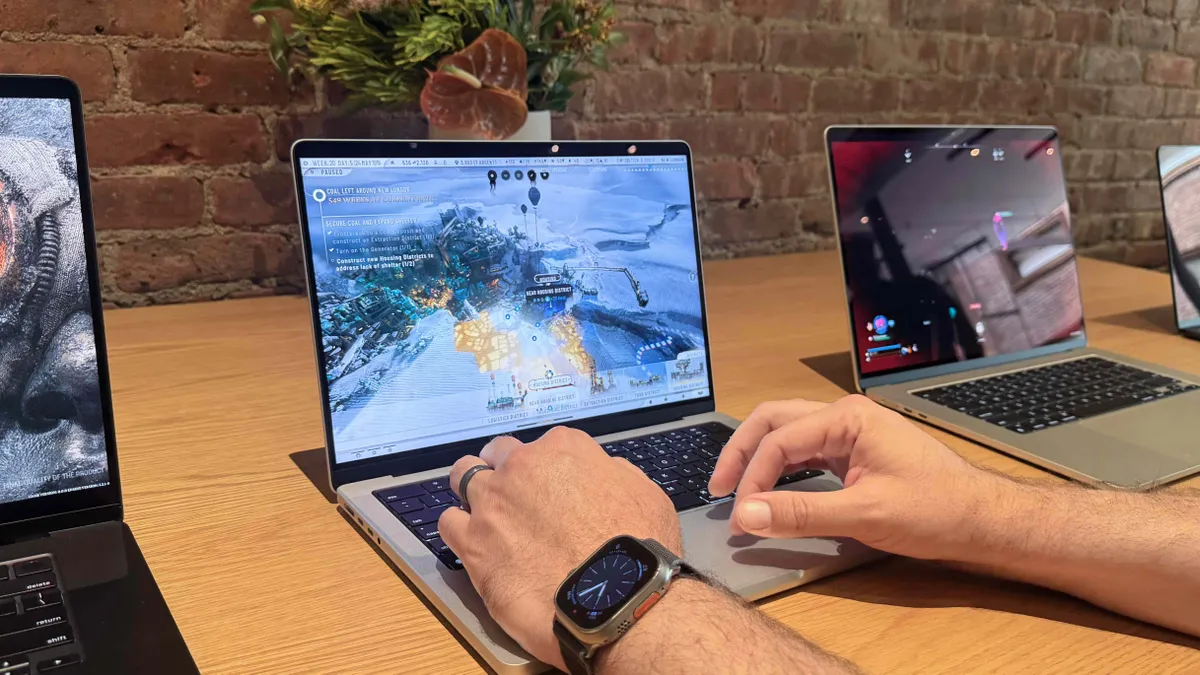
Back in 2023, Apple introduced Game Mode for Mac users. This feature makes a range of automatic adjustments – like giving the game priority access to your CPU and GPU, reducing background tasks, doubling the Bluetooth sampling rate, and more – in order to improve gaming performance.
Game Mode runs automatically, providing you’re playing a game in full screen mode and have macOS Sonoma or later installed on your Mac. Because of that, you might not realize it even exists.
Luckily, switching it on and off is easy. While your game is running, press Command + Esc or click the rocket ship icon in your menu bar to open the Game Overlay (the rocket icon is replaced by a controller icon in macOS Sonoma and macOS Sequoia).
In the Game Overlay, click the settings button, then click Game Mode to enable or disable it. Your Mac will remember your decision, so there’s no need to enable or disable Game Mode repeatedly.
Modify your game's settings

All games come with varying graphical demands, and while one game might run well on your Mac, that’s not a guarantee that another will. To ensure you consistently get smooth, playable frame rates across your favorite titles, it’s a good idea to delve into each game’s graphics settings and make a few adjustments.
The choices you get here will depend on the game in question. Often, games give you presets (such as Low, Medium and High, for example) that change a range of settings in one go. It’s a good idea to start on the lowest preset, see if the performance is good enough, then move up to a higher preset and test the performance again (some games have built-in benchmarks that show your performance at various settings). A good target to aim for is 60 frames per second (fps), although higher is always better if you can get there without sacrificing too much visual quality. Once you’re more or less happy, you can then start adjusting individual settings to your liking.
One of the most consequential settings you can change is the game’s resolution – simply put, the higher resolution, the more pixels your Mac has to render, leading to greater strain on your hardware. Many games are starting to integrate Apple’s MetalFX Upscaling, which renders the game at a lower resolution, then uses artificial intelligence (AI) to improve the graphical fidelity. It’s a good way to get a crisp picture while reducing the load on your Mac’s chip.
Some games, such as Cyberpunk 2077 and Crimson Desert, have a graphical setting called For This Mac. Click this and the game automatically adjusts settings based on your computer, providing a more tailored approach than the broad Low, Medium and High presets. Give it a try if it’s available.
Finally, many games are incorporating another AI technology that can help gamers: frame generation. This uses AI to add generated frames alongside those actually rendered by your hardware, giving you higher frame rates than you’d normally enjoy. Apple calls this MetalFX Frame Interpolation, but whether it’s called that or “frame generation,” try enabling it to see if you can get smoother gameplay.
Native Mac games

With Mac gaming gaining in popularity, increasing numbers of developers are starting to optimize their titles specifically for Apple’s computers. You can see that in both Cyberpunk 2077 and Crimson Desert, mentioned above, due to their For This Mac options. But there are plenty of other game developers that have worked hard to ensure their products work well on macOS.
The ideal situation is finding a game where the developers have worked directly with Apple to ensure their game takes advantage of Apple’s software, APIs and more, which will give you the best experience. After that, games optimized for macOS (without Apple’s direct involvement) should also offer good-quality performance.
But even a game that works natively on macOS – even if it’s not been painstakingly optimized for Apple fans – will perform better than one that only works on your Mac through a compatibility app like CrossOver.
A quick way to tell what kind of performance you can expect is to simply check the game’s compatibility information. If it has detailed Mac requirements, you know it’s compatible, although that doesn’t tell you if it’s well optimized. Once you know it works on macOS without needing software like CrossOver, you can research how well optimized it is. And if it is – well, that’s a good sign that performance should be up to par.
Opt for Ethernet

Not every game requires you to be online while playing, but those that do will obviously benefit from having a strong, stable connection. If you’re running up against lag spikes and frustratingly poor performance while gaming online, you might need to start looking beyond your Mac.
One of the best ways to improve your internet connection is to hook up an Ethernet cable directly into your Mac. A wired connection will almost always be more reliable than internet beamed over Wi-Fi, as it doesn’t get affected by thick walls and signal black spots.
That said, there is a significant caveat: many modern Macs have ditched their Ethernet ports. You won’t find Ethernet slots on any MacBook (of the Air, Pro or Neo variety), but desktop Macs – including the iMac, Mac mini, Mac Studio and Mac Pro – all either possess Ethernet by default or can be configured to come with it. Be sure to check before you buy.
The good news is that even if your Mac doesn’t have an Ethernet port, there are other ways of getting a wired connection. Ethernet can be run over USB-C and Thunderbolt ports, at least one of which is preset on every modern Mac. To get Ethernet running this way, you’ll just need an adapter or a docking station.
Try cloud gaming

These days, even the most affordable low-end Mac can run the most demanding games. How? By tapping into cloud gaming services like Nvidia’s GeForce Now and Microsoft’s Xbox Game Pass.
Instead of loading games locally on your Mac’s hardware, these services run on powerful computers connected to the internet, then stream the gameplay to your Mac. That takes your hardware out of the equation – as long as you have a reliable internet setup, you’re good to go.
Of course, this option puts even more emphasis on having stable internet than regular gaming (giving you another good reason to try Ethernet). Cloud gaming services can also quickly get expensive. The cheapest paid GeForce Now membership, for example, costs $9.99 a month and limits both your play time and frame rates. Higher tiers cost upwards of $19.99 a month, and while there is a free option, it’s ad-supported and cuts off your gaming sessions after an hour.
Still, cloud gaming could be a good option if your Mac hardware can’t handle the games you want to play. While it requires an ongoing payment, it might still be cheaper than buying a new Mac.
Bonus: Spec your Mac out for gaming

Speaking of buying a new Mac, there’s one more important consideration in all of this. So far, all of our tips focus on things you can do after you’ve got a Mac. But one of the most important decisions you can make for Mac gaming comes before you pull the trigger.
Simply put, make sure you configure your Mac with adequate hardware specs for the games you want to play. It’s no good cheaping out by picking the lowest-end components if you want to play Cyberpunk 2077 at 120fps, after all. And considering how difficult – or impossible – Macs are to upgrade post-purchase, you don’t want to make a costly mistake.
The key aspect here is your Mac’s graphics capability, indicated by the chip’s GPU. If gaming is your thing, you’ll probably want to opt for the most performant GPU – with the highest number of graphics cores – that you can afford.
The CPU is also of high importance, and many games rely more on this than the GPU. Again, choose the best CPU within Apple’s chips that you can afford, and make sure to research whether your favorite Mac games harness the GPU or CPU more before starting.
Both the GPU and CPU are built into your Mac’s chip (they’re not discrete components, as they are in the best gaming PCs), so that’s where you’ll want to look when speccing out these components.

Next, consider memory (also known as RAM). This is less important than your Mac’s chip but could have an impact. Thankfully, modern Macs all start with at least 16GB of memory, but the most demanding games might benefit from having more (do you research before needlessly spending extra here, though). Apple uses what it calls “unified memory,” which allows the CPU and GPU to draw from the same memory pool. This means that 16GB of unified memory often offers better performance than 16GB of regular PC memory, so be sure to check Mac benchmarks rather than PC ones when it comes to RAM in order to get an accurate idea of what you need.
Aside from that, consider your prospective Mac’s display. The MacBook Pro’s screen, for example, offers refresh rates up to 120Hz, while the MacBook Air tops out at 60Hz. The former costs more but will offer much smoother gameplay (provided your chosen chip can provide the power needed for high frame rates, of course).
Finally, there’s storage. Apple’s SSDs are incredibly fast, which should ensure speedy loading times when it comes to games. Just make sure you opt for enough capacity to hold all the games you want to play.
Take all those considerations into account and you should be well positioned for an enjoyable spot of Mac gaming, whatever titles you have in mind.
Follow TechRadar on Google News and add us as a preferred source to get our expert news, reviews, and opinion in your feeds. Make sure to click the Follow button!
And of course you can also follow TechRadar on TikTok for news, reviews, unboxings in video form, and get regular updates from us on WhatsApp too.