



 Become a TechRadar Insider


TechRadar Verdict
Pros
- +
On the right hardware, it's sleek, fast and fun
- +
Huge security improvements
- +
Better battery life, faster boot
- +
Great for touch
Cons
- -
Start menu gone
- -
Can't boot to the desktop
- -
You'll want a touchscreen/trackpad gestures/Touch Mouse
- -
Modern UI will annoy some
- -
Some older CPUs won't run it
Why you can trust TechRadar We spend hours testing every product or service we review, so you can be sure you're buying the best. Find out more about how we test.
We've now reviewed Windows 8.1, which has various new features and is a complete update of the software we've looked at in this review - Windows 8.
There is also yet another update in the form of the forthcoming Windows 8.1 Update 1.
So if you're considering whether or not the new look of Windows 8 or Windows 8.1 is for you, then keep reading this article. If you've already used Windows 8 at all, then do check out our Windows 8.1 review.

The new 8.1 update takes many of the disappointing aspects of Windows 8 and re-engineers them. In short, the blunt instrument has been sharpened somewhat.
And it's much needed - with new Windows 8 PCs and Windows 8 tablets having been released at the end of October 2012, the operating system has now been in stores for quite a while.
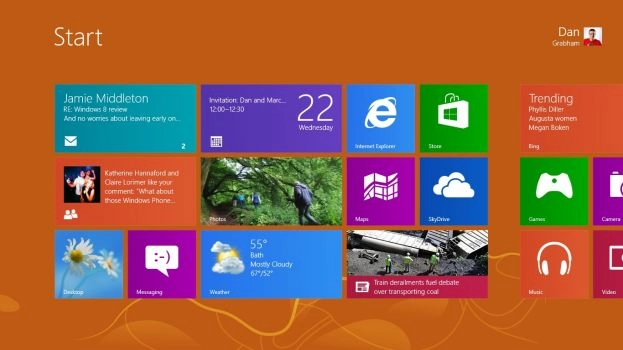
As well as including the traditional desktop, Windows 8 also ushers in a new Start Screen. This works in the same way as the old Start Menu, although it opens full screen and is also a place you can launch and use new Windows 8-style apps - essentially full-screen, tablet-style apps.
New to Windows 8?
Windows 8 represents a fundamental shift in the way Windows works and is far more touchscreen-orientated for use on tablets as well as traditional PCs. If you're completely new to Windows 8 and haven't used a preview version, we'd recommend you check out our guide to the new features you'll find in
and
Windows 8: what you'll need to relearn
. We've also got all the
you could possibly need.
Windows 8 hasn't done fantastically well in terms of public reception - even leading some at Microsoft to say that the company's "Start Screen first" mentality was wide of the mark. Sales of the software also struggled at first, but after 90 days, Microsoft indicated it has shifted enough licenses to equal that of Windows 7.
More than 100 million Windows 8 licenses have now been sold by Microsoft.
The first thing you should know about Windows 8 is the versions available - we have more guidance on that here: Windows 8 versions: which is right for you?.
Essentially the key information is that there are two Windows 8 versions available to buy - Windows 8 and Windows 8 Pro. Usually you'll find Windows 8 Pro more commonly available.
With the final version plus various updates since, the integrated Windows 8-style apps are now far, far better than they were originally. Even the previously disappointing apps such as Mail, Calendar, Messaging and People are sleek and more functional. More updates are on the way, notably with Windows 8.1, due over the coming months.
Check out our roundups of the latest Windows 8 devices to buy:
Running Windows 8
First of all, it's worth noting that the finished version of Windows 8 is still only for x86/64 PCs; there isn't a version of the specially-made Windows RT for ARM devices that you can download and install on existing devices. It's only available on released tablets such as Microsoft Surface RT. We've also looked at the newer Windows 8.1 RT version of that OS, too.

There's also a new Office
Office 2013 also gets the Windows 8 treatment, with a touch-friendly interface and a sparser look, as well as new features in every application. Read our
for more.
The vast majority of apps in the Windows Store will run on both. Microsoft has even confirmed it will offer Flash functionality for IE on Windows RT (at least on what it calls the "initial delivery of Windows RT PCs").
Windows 8 doesn't include the desktop Office apps that will be bundled with Windows RT either and of course it runs all the x86 desktop apps that won't work on RT. It also has the optional Windows Media Center.
Windows 8 system requirements
You need a 1GHz or faster CPU (it also needs to support PAE or PAE-NX Physical Address Extension for new security features in the Windows 8 kernel), 1GB of RAM (or 2GB for 64-bit systems), 20GB of hard drive space and a DirectX 9 graphics card with WDDM driver.
If you want to use the Windows Store to download WinRT apps, you need a screen resolution of at least 1024 x 768, and if you want to snap two WinRT apps side by side, that goes up to a minimum of 1366 x 768.

Installing and upgrading
When you buy Windows 8 online you'll get a step by step download and installation, complete with the Windows 8 Upgrade Assistant to warn you about program and hardware compatibility issues, or you can buy a DVD.

How much of a previous Windows system you can keep when you install Windows 8 depends on which version you're upgrading from; upgrade from Windows 7 and you can keep programs, Windows settings and files; upgrade from Vista and keep settings and files. Upgrading from Windows XP only gives you your personal files.
If you're installing Windows 8 Enterprise, you activate it once it's installed (and the system for that was still being set up when we started testing, so it wasn't seamless but this what you'll see as a normal user).

With Windows 8 Pro the installation is the same experience as you'll get if you buy a Windows 8 upgrade; it checks your system, tells you what you can keep and which programs won't be compatible (and removes them and then restarts the installation) and you enter your product key as a normal part of the installation.

Scanning a fully loaded Windows 7 system with a lot of apps installed and many gigabytes of files takes around 10 minutes, then another hour (or on a really loaded system, two) to set up Windows 8 with all your compatible programs intact. If you're doing a clean installation without keeping any applications, or an upgrade where you just keep files and settings, it's much faster.
On a variety of PCs it took 10 to 15 minutes from starting the installation and entering the licence key to get to picking the colour scheme and choosing whether to accept Express Settings or customise the setup.
One of the items under Express Settings is the controversial default of turning on the Do Not Track setting in Internet Explorer 10. Choose Customize and you can change that, but there's an on-going argument about both what Do Not Track means and how websites will treat the IE10 setting because it is the default. It's clearly marked and you can easily change it, but advertisers and some ad-funded organisations remain unhappy.
After this you can set up a local account or log in with a Microsoft account like a Hotmail address, which synchronises settings with any other Windows8 PCs you use and give you access to the Windows Store.
While Windows 8 finishes the setup, which takes a couple more minutes, you get a brief onscreen tutorial showing you how to move your mouse into the corners of the screen to open the charm bar.
if you have a touchscreen, it also shows you how to swipe for the charm bar but only if you have the right screen – so an older tablet PC with only an active digitiser only shows the mouse tutorial. If you've picked a colour scheme, the tutorial uses that for the image of the screen, a little thing but it's a subtle way of making it feel more like your PC.
Once the mini tutorial has played a few times, the setup screen starts switching between various different colours – presumably to show you the other colour choices as well as reassuring you that it's still working. Everyone who has an account gets to see the tutorial when they first log in, making good use of the short time it takes to create the desktop the first time. (They don't get the colour show though).
If you do an upgrade install starting with Windows running, you'll never see the option to set the language for your keyboard or settings for date and time formats. If you boot from USB to do a clean install, you're asked to choose these settings but that's it, apart from Express Settings.
In neither case do you get to choose the time zone. Windows 8 either keeps the current timezone if you do an upgrade or sets it up automatically based on the language of the installer for a clean installation. A UK Windows 8 image kept the UK time even on a clean installation; a US image set the timezone to Pacific when we did a clean installation. And as always, you can change that quickly enough inside Windows without needing an admin account.
On a Sandy Bridge Core i5 with an SSD, 15 minutes after putting in the USB stick, we were running Windows 8 and ready to sync content with the content in our Microsoft Account.