





Sponsored by

How to choose a powerful GPU for video editing, and why you need one


Building a PC for video editing used to be a case of just throwing CPU grunt and sticks of RAM at the problem. If you kept adding more processor cores you'd get there eventually. That's changed significantly over the past few years though. In 2026, if you're still treating a graphics card as an afterthought for editing, you're likely leaving serious performance on the table.
Believe it or not, there was a time not so long ago when leaning on your graphics card could actually slow things down rather than speed them up. Now, however, modern editing workflows lean heavily on GPU acceleration to boost performance.
Adobe Premiere Pro's Mercury Playback Engine, DaVinci Resolve's colour grading pipeline, and even something as basic as timeline scrubbing through 4K footage, all of it benefits from a capable graphics card.

Alex has been creating let's play content and streaming games on Twitch for more than a decade. Playing games to what he'd describe as "a vaguely acceptable standard", he's usually stressing over traffic in Cities Skylines 2 or fishing a tractor out of a river in Farming Simulator (don't ask). You'll also find him chatting about Formula 1 on the Lap Down Podcast.
What your GPU actually does in an editing workflow
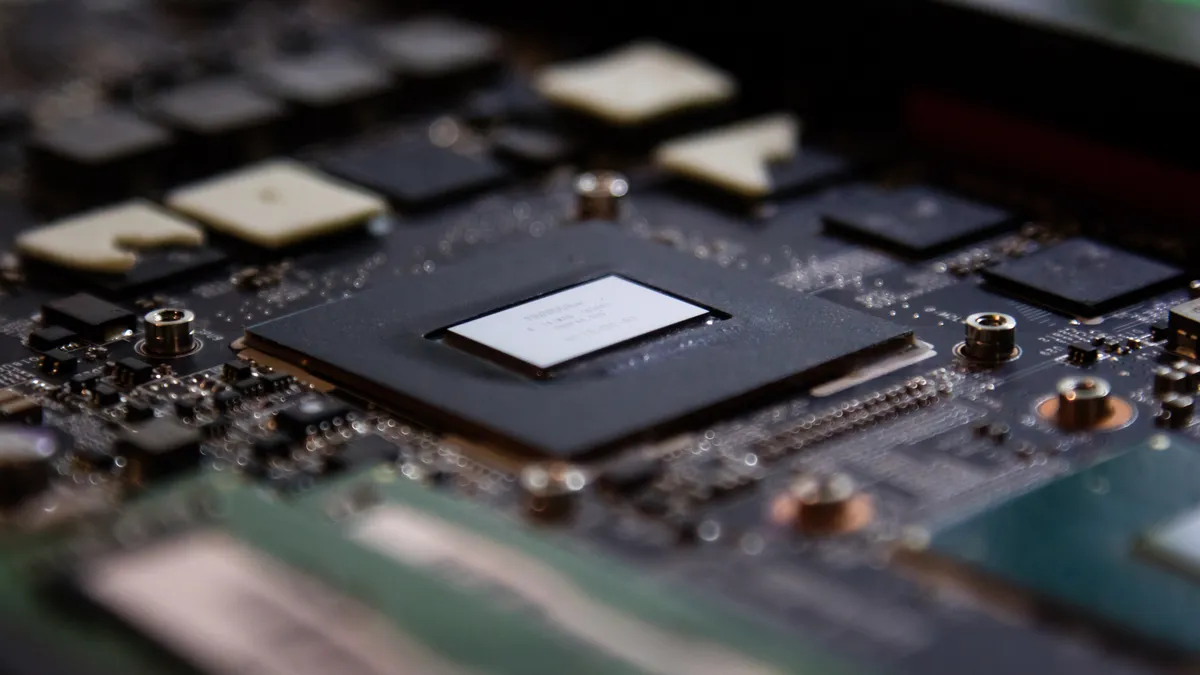
Before you go shopping, it’s important to understand how your choice of graphics card fits in the bigger picture. Your CPU and GPU need to work together because they’re both in charge of handling different things.
Think of your CPU as a small team of skilled handymen. They jump from job to job and are capable of juggling pretty much whatever you throw at them, but they prefer to focus on one task at a time. Your GPU, on the other hand, is like a tiny army of factory workers: in isolation they each only focus on one simple thing, but together they’re capable of completing many tasks simultaneously.
To oversimplify it somewhat, video editing is just millions of individual tasks that need doing at once. A single frame of 4K video has more than eight million pixels, so that’s eight million jobs that need doing for every frame. A CPU wants to finish one pixel’s job and move on to the next, while a GPU can work on thousands of pixels at once.
So what does this mean day to day? Well, the smoothness of your timeline playback is the one thing you’ll notice straight away. When you're scrubbing through high-resolution footage or reviewing clips with effects applied, your GPU handles most of the heavy lifting of decoding frames and rendering those adjustments in real time. Without that extra GPU horsepower, you'll be reaching for the pre-render button constantly just to preview your changes.
Then there's exporting your finished work. Modern NVIDIA cards include NVENC, a dedicated hardware encoder that handles video compression independently of both the main graphics cores and your CPU. AMD offers similar functionality but calls it VCN (Video Core Next). These hardware encoders can cut export times dramatically, so no more overnight renders the leave you hoping to wake up to a successful export in the morning.
The GPU specs that matter most for video editing
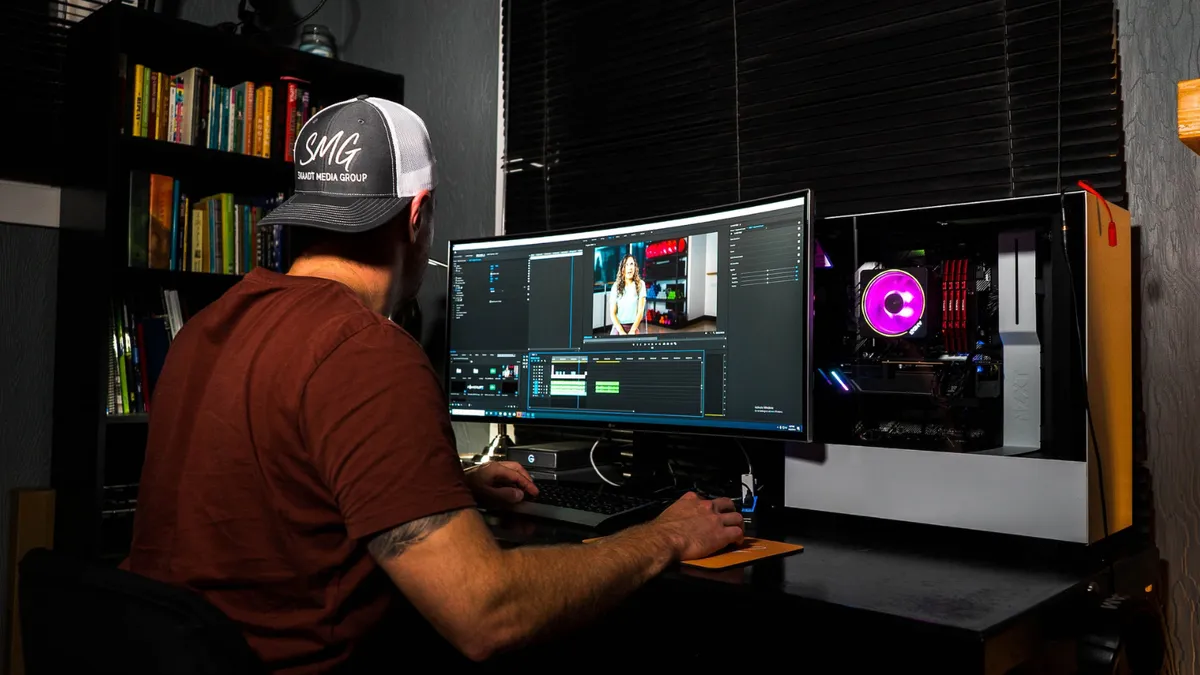
Marketing people love big numbers, but for video editing specifically there’s one number that matters more than the rest: VRAM.
VRAM determines how much data your GPU can hold close at hand. When you're editing, your card needs to store decoded frames, effect calculations, and preview data simultaneously. Run out of VRAM and everything grinds to a halt.
These days 8GB of VRAM is the realistic minimum for comfortably handling 4K video work. 12-16GB gives you a little added headroom for complex effects, multiple streams, or starting to push into 6K territory. 24GB and above is where you want to be for maximum responsiveness, 8K workflows, or heavy colour grading and effects.
Beyond VRAM, double-check that any card you're considering includes a current-generation hardware encoder. NVENC has improved substantially with each NVIDIA architecture, and you'll want support for HEVC at a minimum. AV1 encoding, for example, requires RTX 40-series or newer on NVIDIA cards, RX 7000 or newer for AMD.
Don’t get caught out by chasing the highest core count possible, in fact, you’ll largely want to ignore this number altogether unless all other specs are identical between two options. NVIDIA calls these CUDA cores while AMD refers to them as Stream Processors, and they’ll quickly send you down the wrong path if you’re not careful.
Not only are they not like-for-like across architectures (1000 CUDA cores does not equal 1000 Stream Processors for example), but efficiencies change across generations, so an older series card might have more cores but offer worse performance than a newer series' offering.
NVIDIA or AMD or Intel?

The market used to be a two-horse race, but Intel has jumped into the saddle with its Arc GPUs in recent years. Each brand has its strengths, and the right choice depends on your workflow.
NVIDIA is generally the go-to choice for professional video editing for one reason: CUDA. Both Adobe Premiere Pro and DaVinci Resolve lean heavily on NVIDIA's parallel computing platform, and years of development have made those implementations mature and reliable.
Driver stability for creative applications is generally excellent, particularly if you opt to install NVIDIA's Studio drivers rather than the gaming-focused alternatives. If you want the safest, most predictable experience, NVIDIA is probably the best choice.
Don’t discount AMD though as it has closed the gap considerably. AMD cards often offer better VRAM per pound spent, and the RX 7000 series brought real improvements to VCN encoding quality.
The catch is software support and drivers. While both Premiere Pro and Resolve will work with AMD cards via OpenCL, the implementations aren't quite as polished as their CUDA counterparts. If you're primarily editing video and your software supports it properly, AMD can deliver excellent value. Just make sure you’re clear on compatibility before committing.
Intel Arc is the wildcard. Cards like the B580 offer 12GB of VRAM at budget prices, strong AV1 encoding support, and they feature 4:2:2 10-bit HEVC decoding which is a rarity in other cards. Pair an Arc card with an Intel Core CPU and you can use Deep Link to combine both GPUs for faster exports.
The drawback is the maturity of the ecosystem and its drivers. A quick skim online and you’ll find more talk of crashes and instability than with other brands, particularly in DaVinci Resolve's Fusion and Adobe After Effects. Arc cards are certainly an interesting budget option for more basic editing tasks, but not one I’d recommend for more serious work yet.
Don't forget the rest of your system

A powerful GPU can handle a heavy load, but it won't fix bottlenecks elsewhere.
Whichever you choose, if you’re planning to edit 4K video you’ll want to make sure to pair it with at least 32GB of RAM, fast NVMe storage for your media and cache files, and a CPU that’s not far behind on performance. A system that’s out of balance when it comes to specs will be held back by the weak link and you won’t see the benefit of your lovely new GPU.
It’s the least exciting part of any build, but high-end cards also draw significant power so budget for an 850W PSU at a minimum, preferably more for flagship GPUs.
Follow TechRadar on Google News and add us as a preferred source to get our expert news, reviews, and opinion in your feeds. Make sure to click the Follow button!
And of course, you can also follow TechRadar on YouTube and TikTok for news, reviews, unboxings in video form, and get regular updates from us on WhatsApp too.