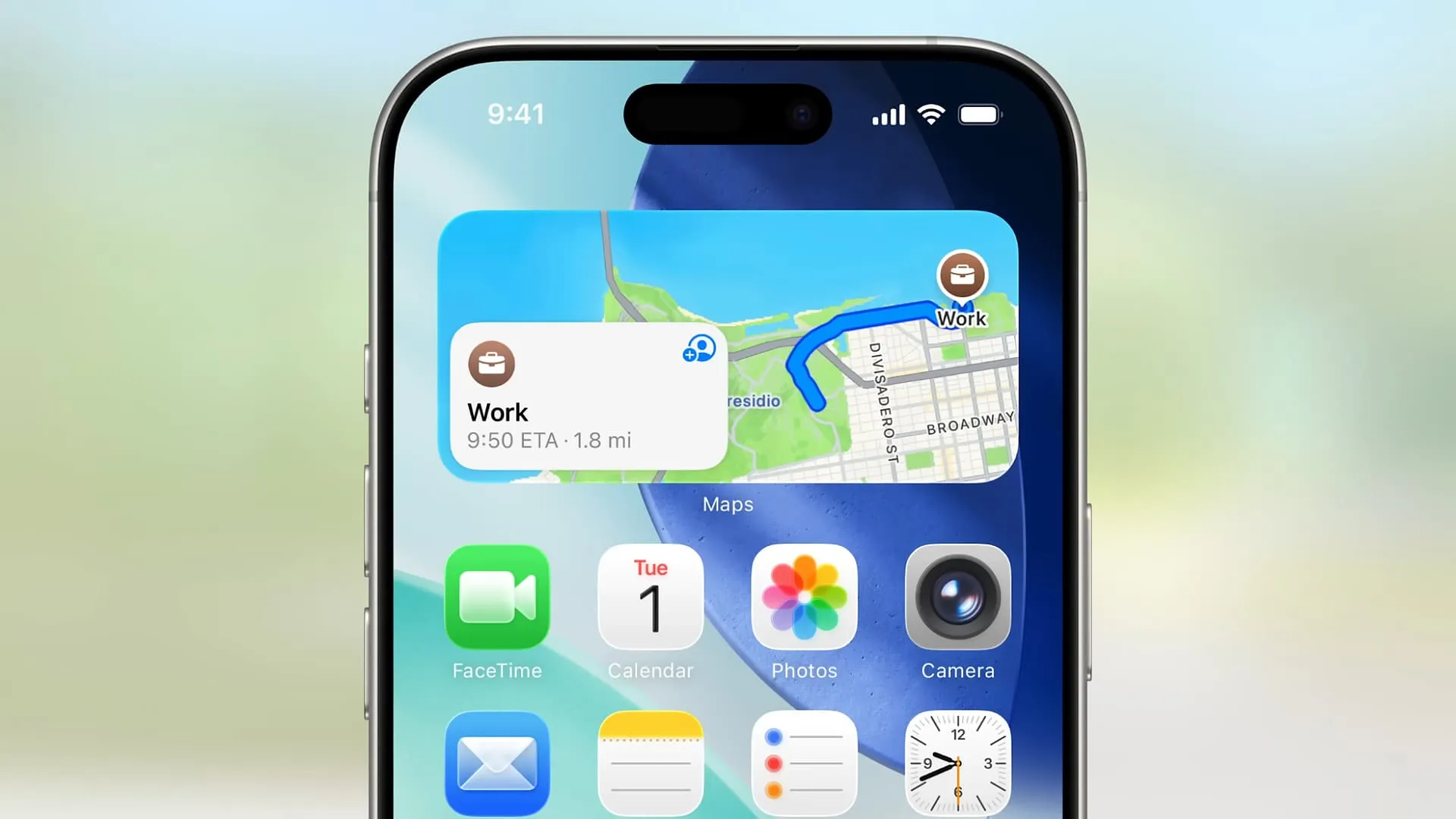
Picture the scene: you’ve just driven into town for a spot of essential shopping and a bite to eat. You park on a side street and walk to the shops, then spend a few hours wrapped up in the day’s tasks. As the sun starts to set, you head back to your car… or at least, where you thought it was. Where did you park it again?
We’ve all been there, and forgetting where you parked your car is a depressingly familiar feeling for many of us. But reuniting with your ride home doesn’t have to be an exercise in exasperation. No, there’s a brilliant tool in one of the best map apps that puts an end to lost car misery, yet hardly anyone seems to be talking about it.
You’ll find it in Apple Maps, and it contains a feature that perfectly solves this problem. In fact, it’s one of my favorite features in Apple’s mapping app. Put it to good use and you need never lose your car again.
Find my car

The beauty of this tool lies in its simplicity. As long as your iPhone is connected to your car’s Bluetooth or CarPlay system, you’ll be able to find it in Apple Maps.
In fact, you don’t need to do anything else to make it work. There’s no setup process and no buttons you need to remember to press, and all of the required settings (see below) should be enabled by default.
As soon as your phone disconnects from your car’s Bluetooth or CarPlay – as usually happens when you switch off the engine, for example – Apple Maps automatically drops a pin on your map showing the location of your car. It’s effortless, which is perfect for those times when you need to jump out of the car in a rush.
Finding your car again is just as straightforward. Just open the Apple Maps app, then tap Parked Car under Siri Suggestions (it’s located under the search bar). Or tap the search bar and enter Parked Car, then tap the result. As well as that, you can also browse the map for the general area where you think you parked, then tap the Parked Car pin when you find it. There are plenty of options.
Once you’ve selected your car, just tap Directions to get navigational steps back to your vehicle. And with that, you’ll be reunited with your car in next to no time, whether you remember where you parked it or not.
As a bonus, one of the easiest ways to get back to your vehicle is to simply invoke Siri, then say, “Where did I park my car?” Siri will then show you where your car is located on a map and offer to give you directions back to it. It doesn’t get much simpler than that.
Don’t forget these settings

There are a few things you’ve got to check to ensure the Parked Car navigation works in Apple Maps. First, remember to connect your iPhone to your car’s Bluetooth or CarPlay. After that, open the Settings app in iOS and head to Apps > Maps, then make sure that Show Parked Location is switched on at the bottom of the page. In the Maps section, you should also tap Apple Intelligence & Siri and make sure Show in App is enabled, which will display Siri Suggestions for your parked car.
Still in the Settings app, go to Privacy & Security > Location Services and turn on the toggle next to Location Services. Finally, scroll to the bottom of the Location Services window, tap System Services, then switch on the toggle next to Significant Locations & Routes.
The good news is that most of these settings should be enabled by default, meaning you likely won’t need to adjust them yourself. That makes the Parked Car feature pretty much plug and play, and it all works automatically without you needing to set a location or activate it manually.
With all that out of the way, you’ll be on track to start enjoying the Parked Car feature in Apple Maps. Make it a habit, and you’ll never lose your vehicle again.
Follow TechRadar on Google News and add us as a preferred source to get our expert news, reviews, and opinion in your feeds. Make sure to click the Follow button!
And of course you can also follow TechRadar on TikTok for news, reviews, unboxings in video form, and get regular updates from us on WhatsApp too.