


I’d wager almost no one is using every iOS feature, and even the big ones won’t appeal to everyone, so it’s perhaps unsurprising that there’s at least one massive mode that I don’t use at all.
That mode is the always-on display – it’s one of the first things that I ensure is toggled off on any iPhone I use, and there are several reasons for that. But I don’t actually think this is necessarily a bad feature, it’s just one that I personally don’t need, and one where the trade-offs aren’t worth it for me.
Below, I’ve explained why I don’t use this feature that some people swear by, followed by instructions on how to turn it off if you feel similarly.
Why I turn off the always-on display
There are a few reasons why I don’t like Apple’s always-on display feature, but the biggest is perhaps that it drains the battery faster than not having it on.
Now, iPhones – particularly larger models like the iPhone 17 Pro Max – tend to have fairly good battery life these days, but it still feels like one of the weak links, so anything that can further increase their stamina is beneficial to me.
Tests – such as this video from PhoneBuff – suggest the always-on display feature can use roughly between 0.6% and 0.8% of your phone’s battery per hour, with the difference mostly coming down to whether you have the wallpaper displayed. That might not sound like much, but it can really add up over time.
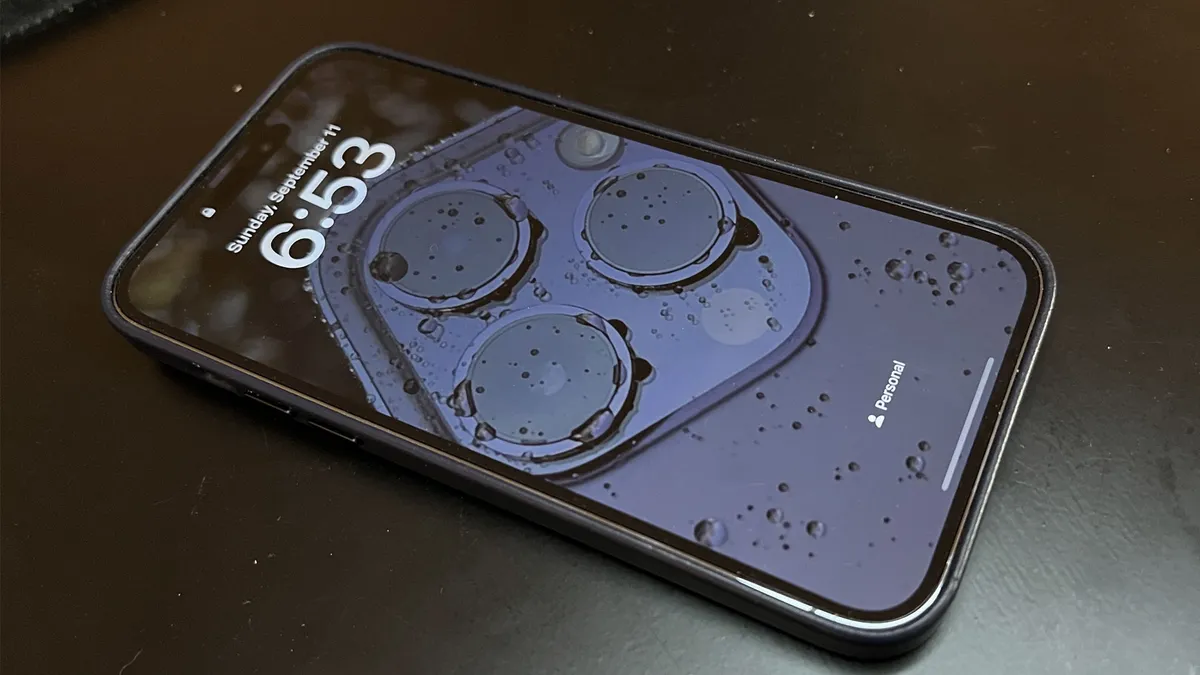
So as someone who prioritizes battery life over – almost – anything else, it’s an easy decision to keep the always-on display off.
But that’s not the only reason I don’t use it. I also frankly don’t find it that useful. Sure, it provides a fast way to see notifications and the time, but you know what else provides that? My Apple Watch, so if you’re wearing a smartwatch – or for the time element any kind of watch – there’s not much here that you can’t already see at a glance.
There is some information from widgets that may not be displayed on your wearable, but I can easily live without that – it only takes a second to turn my phone’s screen on and check those anyway.
Finally, I simply find the always-on display a little distracting. Yes, it’s dimmed, but it’s still on, and that leads me to keep glancing at it in case there’s a new notification. Which is a distraction I can live without.
How to turn the always-on display off

If you’re feeling similar, then it’s easy to turn the always-on display off. To do so, just follow these steps:
- 1. Open Settings
- 2. Tap Display & Brightness
- 3. Scroll down and tap Always On Display
- 4. Then turn the Always On Display toggle off
Pro tip: customize it instead

The iPhone’s always-on display isn’t an all or nothing feature, so if you like the idea of it always displaying the time but not notifications, or of it not showing the wallpaper to slightly lessen the hit on the battery, then those are options.
So to take a middle ground and have it on but not with every toggle enabled, do this:
- 1. Open Settings
- 2. Tap Display & Brightness
- 3. Scroll down and tap Always On Display
- 4. Then turn the Always On Display toggle on if it’s currently off
- 5. Then enable or disable the toggles in the ‘Customize’ section to your liking
Other battery-saving tips

If your main reason for thinking twice about the always-on display is to save battery, then there are other battery-saving steps you can take as well or instead.
These include lowering the screen brightness, using adaptive power mode or low power mode, turning off haptics, disabling the ‘Hey Siri’ wake up method for Siri, and – if you have an iPhone with an OLED screen – enabling dark mode.
Doing any or all of these should have an impact on your phone’s battery life, and help it last longer between charges.
Follow TechRadar on Google News and add us as a preferred source to get our expert news, reviews, and opinion in your feeds. Make sure to click the Follow button!
And of course you can also follow TechRadar on TikTok for news, reviews, unboxings in video form, and get regular updates from us on WhatsApp too.