


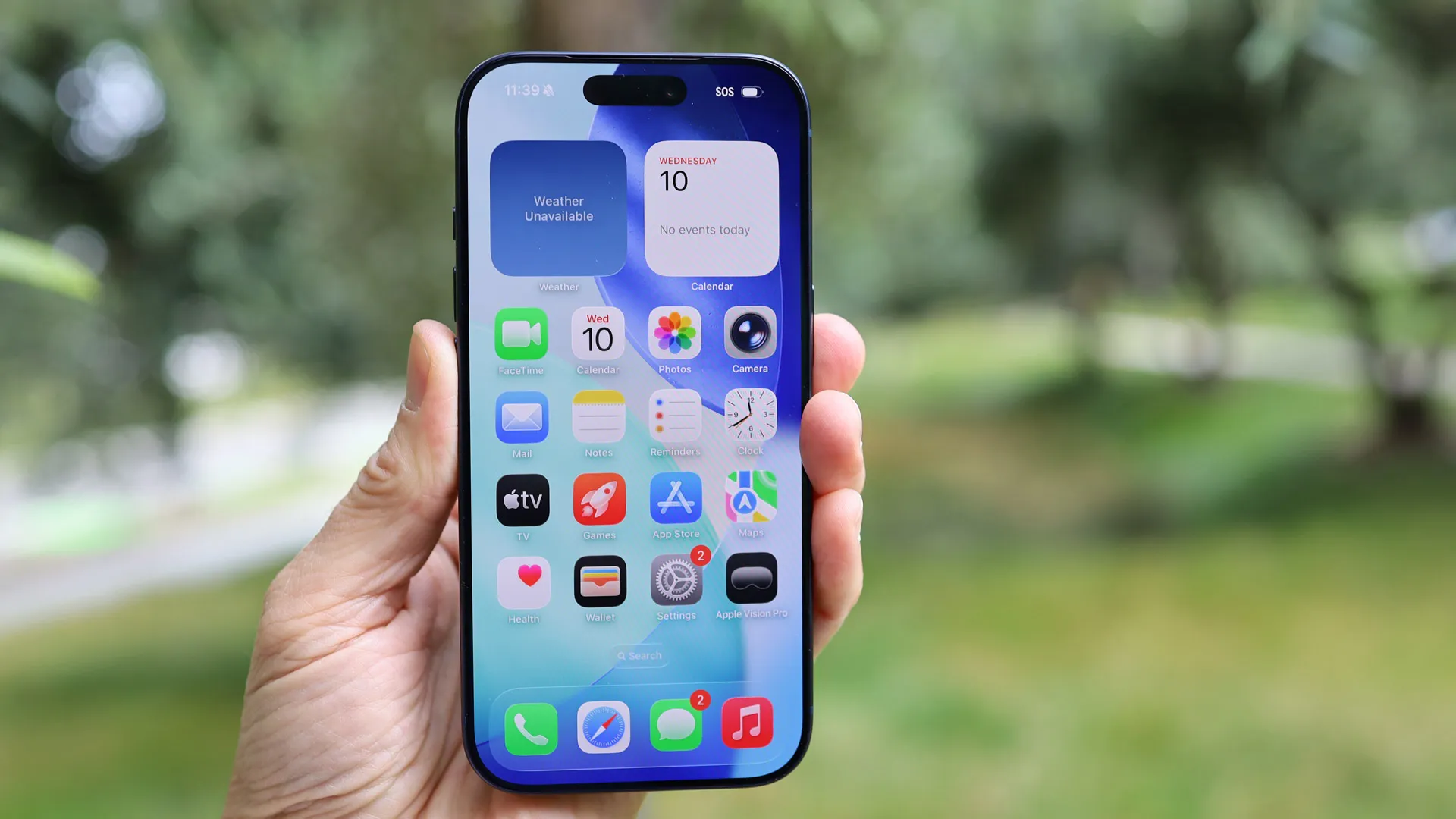
One of the best parts of using an iPhone is getting to use its display – Apple’s mobile screens are renowned for their sharpness, color accuracy, and, on ProMotion-enabled devices, smooth refresh rates.
However, powering that display can drain a lot of battery life – especially if you’re outdoors or in another environment that requires high brightness.
iPhones are pretty efficient devices, but their batteries are typically a touch smaller than comparable phones from other brands, which means battery-saving tips can be especially useful for Apple users.
Keep scrolling for five simple and easy display settings you can change to extend your iPhone’s battery life.
Turn down the brightness

Turning down your display brightness is a tried-and-tested way to conserve battery life on any phone, including iPhones. It might be a well-known tip, but it’s as true now as it ever was, especially since maximum brightness levels have steadily increased over the years.
Luckily, it’s incredibly easy to turn down your brightness. Just head to the Control Center by swiping down on the top-right corner of the phone’s screen, and pull the slider with a sun icon down to a lower level.
Your phone’s backlight is a major power draw, so keeping brightness low (but still visible enough that you aren’t straining your eyes) is a great way to conserve some battery.
Disable auto-brightness

Turning down your display brightness can get annoying after a while, as your iPhone will automatically adjust brightness based on ambient light.
Luckily, you can head to Settings > Accessibility > Display & Text Size to find and disable the Auto-brightness switch, which stops your iPhone from automatically changing the brightness in response to ambient light levels.
This allows you to have much greater control over your brightness level and means you won’t automatically use more battery power when using your phone in brighter rooms or outdoors.
Low Power Mode

optionsNaturally, Low Power Mode reduces the amount of power your iPhone consumes – and part of the way it does so is by altering the way your display behaves. You’ll see pop-ups with the option to enable low-power mode at 20%, 10%, and 5% battery life, or you can enable it manually in the Control Center.
As well as limiting your iPhone's performance, Low Power Mode dims the screen, reduces the effect of auto-brightness, turns off the display after 30 seconds of inactivity, and, on ProMotion-enabled phones, limits the adaptive refresh rate to 1-60Hz rather than 1-120Hz.
For ProMotion-enabled iPhones, you can manually lock the refresh rate to 60Hz by heading to Settings > Accessibility > Motion and selecting the Frame Rate option.
Reduce the Auto Lock time

You can also manually adjust how long it takes for your iPhone to automatically go to sleep when left inactive, ensuring the screen doesn’t stay on and drain power if you set your phone down without pressing the lock button.
You can find this option in Settings > Display & Brightness, under the Auto Lock menu. As with the brightness slider, this gives you more control over your iPhone’s behavior and allows for a quicker Auto Lock without using Low Power Mode (which also affects phone performance).
Dark Mode

Dark Mode flips the iPhone’s usual bright color scheme, replacing white and lighter colors with black and darker colors in most menus and default UI elements.
This especially reduces power consumption on iPhones with OLED displays, which every iPhone has had since the iPhone X, except the iPhone XR and the base-model iPhone 11. OLED displays don’t illuminate black pixels, which makes Dark Mode a useful way to conserve battery power.
Those using older iPhones with LCD panels may not notice much difference in battery life with Dark Mode switched on, as LCDs illuminate all pixels regardless of color.
To activate Dark Mode, you can either head to the Control Center, hold down the brightness slider, and tap the Dark Mode icon that appears, or head to Settings > Display & Brightness and tap Dark in the Appearance tab.
Hopefully, these five tips can help you get more out of your iPhone’s battery life – and if you’re thinking of picking up a new Apple handset yourself, be sure to check out our guide to the best iPhones.
Follow TechRadar on Google News and add us as a preferred source to get our expert news, reviews, and opinion in your feeds. Make sure to click the Follow button!
And of course you can also follow TechRadar on TikTok for news, reviews, unboxings in video form, and get regular updates from us on WhatsApp too.
