Drawing in 3D inside an Apple Vision Pro with the fairly excellent Logitech Muse accessory is making me rethink what I know about art.
I've been drawing for most of my life, and I'm an okay, if not passable, draftsman. As a child, I worked with crayons, graduating to pens and pencils in my teens, and charcoal and paint in college. In the late 1980s, I started drawing on the computer using a mouse, and later a Wacom tablet and digital stylus. For the last dozen years or so I've been drawing on the iPad and with an Apple Pencil.
When VR arrived, I tried a few 3D drawing apps, but struggled with the interfaces and, especially, using the controllers to place lines in virtual three-dimensional space.
I've even tried it in the Vision Pro, usually pinching my thumb and index finger to indicate where the point of my virtual drawing implement is supposed to be; it's never been a great experience.
Now, though, the arrival of the Logitech Muse ($129.95 / £119.95 / A$229.95) for Vision Pro is set to change the creative experience in Apple's spatial computing headset.


The cigar-sized, Bluetooth digital drawing accessory, which arrived on my desk last week, months after Logitech first announced it, is custom-built for Vision Pro, and can work with a variety of native visionOS apps.
Roughly the same length as a standard Apple Pencil, the all-black Logitech Muse is considerably thicker, but it achieves some level of ergonomic comfort thanks to its light weight and tapered cylindrical shape. There are two buttons on one side and one large button on the back end, which I only used in combination with one of the other buttons for pairing with my Vision Pro.
Getting started
Setup is straightforward. I charged it via the exposed USB-C port, and when it was done I held those two buttons down until the Logitech Muse buzzed into life.
Inside my Vision Pro (M5 edition), I navigated to the Bluetooth settings, located the Muse in the listing, and paired it with the headset.


Logitech recommended a few different test apps, including Spatial Analogue, an almost CAD-level project-based design app for collaborating on complex projects. In it, I could use the Muse to mark up designs. I drew some straight lines in 3D space, but none of it got my creative juices flowing.
I gave Crayon a shot, but it kept telling me to put down the Logitech Muse for better control of the interface. Finally, I loaded AirDraw, a powerful 3D art tool that seems almost perfectly built for the Logitech Muse.
Drawing in space
Your experience drawing within AriDraw is defined largely by the menu choices you make. You can have smooth, continuous lines that float in space, for instance, or ones that react to gravity and drop to the floor as soon as you stop drawing.

To start drawing a line, you hold one of the two side buttons. In AirDraw, the one nearer the plastic tip created a thinner line, and the larger button made a larger blob. AirDraw also provides ample controls to choose line thickness, which was also, in my experience, defined by the speed of my stroke. I appreciated that my gold ink blob appeared to emanate directly from the Logitech Muse tip. I tried, by the way, to move quickly enough to keep my lines relatively thin.
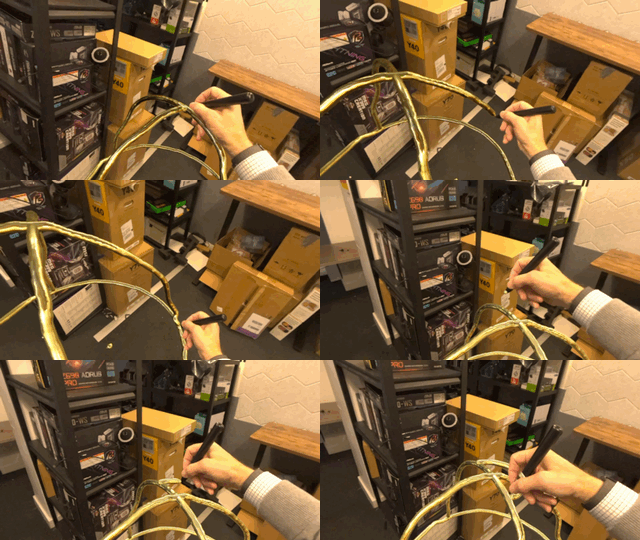
Many of the lines, colors, and line skins offer highly reflective surfaces. If you look closely, you'll notice that the lines are reflecting your environment, as the Vision Pro's many cameras deliver real-world details to the app.
Drawing in three dimensions is a challenge, especially when I switched from drawing a rudimentary gold cage to trying my hand at drawing a human head.

First, I switched the color to a non-reflective black, and then chose the thinnest line thickness. To help orient myself, I held the Muse over a tabletop and drew a circle that would serve as the head's base.
I forced myself to step back and stop looking at the lines from a typical forward perspective and started looking from side to side, and from the top down. This let me see my project as more of the wireframe I hoped to construct.
Next, I drew a series of vertical lines trailing from that base to the neck and then to the back, sides, and front of the head. Next, I moved to one side and drew an ear, and then circled 180 degrees and drew another ear on the opposite side.
It was not great, but as some of it started coming together I got excited, realizing that if I thought and worked differently, I could make 3D VR art, and I do credit Logitech Muse with the result.
There's no way I could have ever achieved even this rather messy result by pinching my fingers and tracing out lines; my vision would've been partially occluded by my fist. The pen made it easier to see where the digital ink would appear, and whether or not I was achieving the desired result.

I'm not saying that the Logitech Muse finally makes the Vision Pro worth it — the headset is still far too expensive for most consumers. However, digital artists looking to push the envelope, and perhaps create one-of-a-kind 3D artwork, might be intrigued — and if they give it a try, I'd wager they won't want to stop.