





Presented by

Just upgraded to Windows 11 Pro? Here’s 7 things to do right away

Upgrading to Windows 11 Pro isn’t just a box-tick over the Home edition – it unlocks a set of tools that can make a noticeable difference whether you're freelance or a small business.
The trick is that many of the best Pro features aren’t on by default, and it’s easy to keep using your PC exactly as you did before, missing the security and productivity wins you’ve just paid for.
This guide is aimed at the real-world setup: a new (or freshly upgraded) Windows PC with no IT department, no device management, and no complicated policies.
Through these 7 tips and tricks, you’ll lock down the essentials, make sign-ins quicker and safer, reduce your risk from ransomware, and hopefully set yourself up for smoother remote work.
Please note: All of the information is correct as of February 2026. Microsoft regularly updates its products, so some steps or features may change.
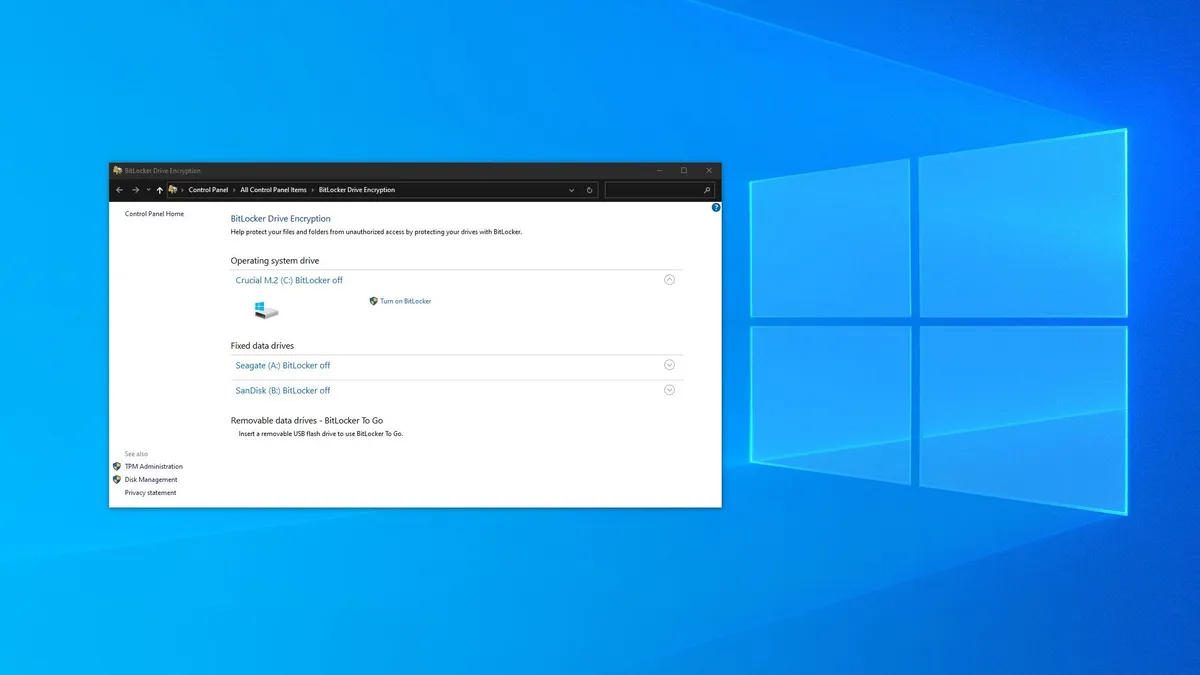
Turn on BitLocker
If you do one thing first, make it this.
BitLocker encrypts your drive so that if your laptop is lost or stolen, the data on it is far harder to access, which is a big deal if you’ve got client documents, contracts, and so on stored locally.
To switch it on, head to Settings → Privacy & Security → Device Encryption (on some PCs you’ll see BitLocker drive encryption instead), then enable encryption for your main drive.
Windows will then walk you through the process, and you can carry on using your PC while it runs in the background.
The crucial bit is the recovery key. Save it somewhere you can actually retrieve later – ideally in your Microsoft account, a reputable password manager, or a secure offline location.
If you ever forget your sign-in or your PC has a hardware change that triggers a recovery prompt, that key is what gets you back in.

Join your PC to Microsoft Entra ID
Windows 11 Pro is at its best when your work identity is set up cleanly.
Even as a sole trader, this helps keep business files, licences, and sign-ins consistent across Microsoft 365 apps, OneDrive, Teams, and Edge, and it makes it much easier to tighten security later.
Start with Settings → Accounts → Access work or school → Connect. If you have a work or school account, add it here rather than only signing in inside individual apps, to let Windows use the same identity system-wide.
If your organization supports it (or you’ve set up a business tenant yourself), you may also see the option to join this device to Microsoft Entra ID.
If you don’t have that option, don’t worry: adding the work account still gives you most of the day-to-day benefits.

Switch on Windows Hello
Passwords are a pain on a good day, and a liability on a bad one. Windows Hello is one of those features that sounds basic, but it’s genuinely useful for doing work on the move.
Go to Settings → Accounts → Sign-in Options and set up Windows Hello PIN first. If your laptop supports it, add fingerprint or facial recognition as well.
The key point is that a Hello PIN is tied to your device (as opposed to a reusable password you might accidentally type into a phishing page), which makes it a smart everyday option for business use.
Once it’s enabled, you’ll also find it plays nicely with other security features you’ve likely seen discussed across Windows and Microsoft accounts, including stronger sign-in flows for services and apps.

Turn on ransomware protection
Ransomware isn’t just a problem for big companies with huge IT budgets.
For a sole trader, one encrypted Documents folder can mean lost client work, delayed invoices, and a miserable week trying to recover what you can.
Windows 11 Pro includes a built-in layer that can help: Controlled Folder Access, which blocks untrusted apps from making changes to protected folders.
To enable it, open Windows Security, then go to Virus & Threat Protection → Ransomware Protection → Manage Ransomware Protection.
Turn on Controlled Folder Access. From here, Windows will help protect common locations like Documents, Pictures, and Desktop, which is where a lot of business-critical files end up by default.
Set an update strategy
Keeping Windows up to date is one of the simplest ways to reduce your exposure to security bugs, but the default behaviour can be a bit too eager.
A couple of quick tweaks make updates far less disruptive without training you to ignore them.
Go to Settings → Windows Update and start with Active Hours. Set these to match your working day (and extend them if you keep odd hours) so Windows is less likely to restart at the worst moment.
If you’ve got a deadline-heavy week, Pause updates is useful in short bursts, but treat it as only as a temporary measure.
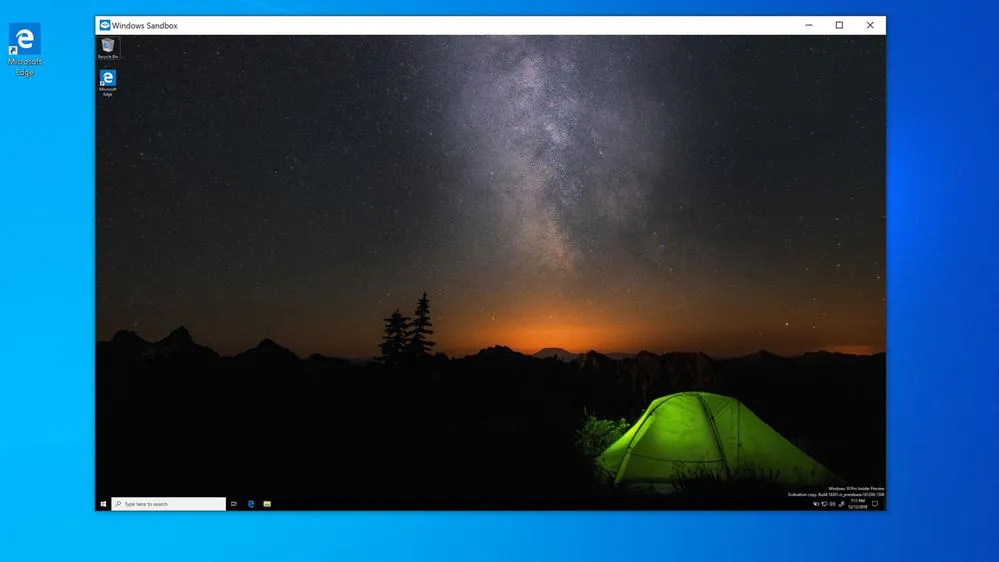
Enable Windows Sandbox
If you ever download niche utilities, open unfamiliar attachments, or need to test a settings change without risking your main setup, Windows Sandbox is one of the most useful Pro-only tools.
To turn it on, search for Turn Windows Features on or off, then tick Windows Sandbox (you may also want Hyper-V if you plan on running more persistent virtual machines).
Restart when prompted, then open Windows Sandbox from the Start menu.
A few practical ways to use it: checking whether an installer looks legitimate before you run it on your real system, opening a file you’re not totally sure about, or reproducing a glitch without cluttering your PC with test apps.
If Sandbox refuses to launch, it’s usually down to virtualization settings or Windows updates.
Decide on Remote Desktop now
Remote Desktop can be genuinely useful for business, whether that’s logging into your main PC from a laptop when you’re travelling or jumping into a machine in another room.
Go to Settings → System → Remote Desktop. If you want to use it, switch it on, then check which accounts are allowed to connect (keep this list tight).
It’s also worth making sure your sign-in is strong – Windows Hello helps here – and avoiding any quick-and-dirty shortcuts. With great power comes great responsibility, as they say.
If you don’t have a clear use case, we recommend leaving Remote Desktop off, as you can always enable it later.