- macOS 26.5 lets you switch on your Mac mini in a new way
- It no longer requires pressing the power button
- Some users feel the power button is in an awkward position
Apple’s M4 Mac mini is a brilliant little device — it’s one of the best mini PCs money can buy, in fact — but there’s one feature that has led to its fair share of criticism: the power button. Located on the underside of the device, it means you have to either flip the Mac mini over or blindly fumble around for it whenever you want to switch on the pint-sized computer.
But now that macOS 26.5 is here, users are discovering that there’s a handy way to bypass this irksome drawback. And it might mean you never have to worry about that bothersome button placement again.
As spotted by 9to5Mac, a new support document on Apple’s website details how you can switch on a Mac mini, Mac Studio or iMac without having to touch a physical button on the device. Instead, your Mac can be turned on by simply connecting it to power. That works providing you have a Mac mini or iMac from 2024 or later, or a Mac Studio from 2025 or later. You’ll also need to be running macOS 26.5 or later on your computer.
Once that’s sorted, you just need to open the System Settings app, then click Energy in the sidebar. Next to ‘Start up when power is connected,’ choose Always from the menu. Now, you can switch on your Mac whenever you connect a charging lead or power on an already-connected cable. Apple just advises that you should wait around 30 seconds between switching off your Mac and turning it on again to give the power supply time to discharge.
Apple’s odd design choice
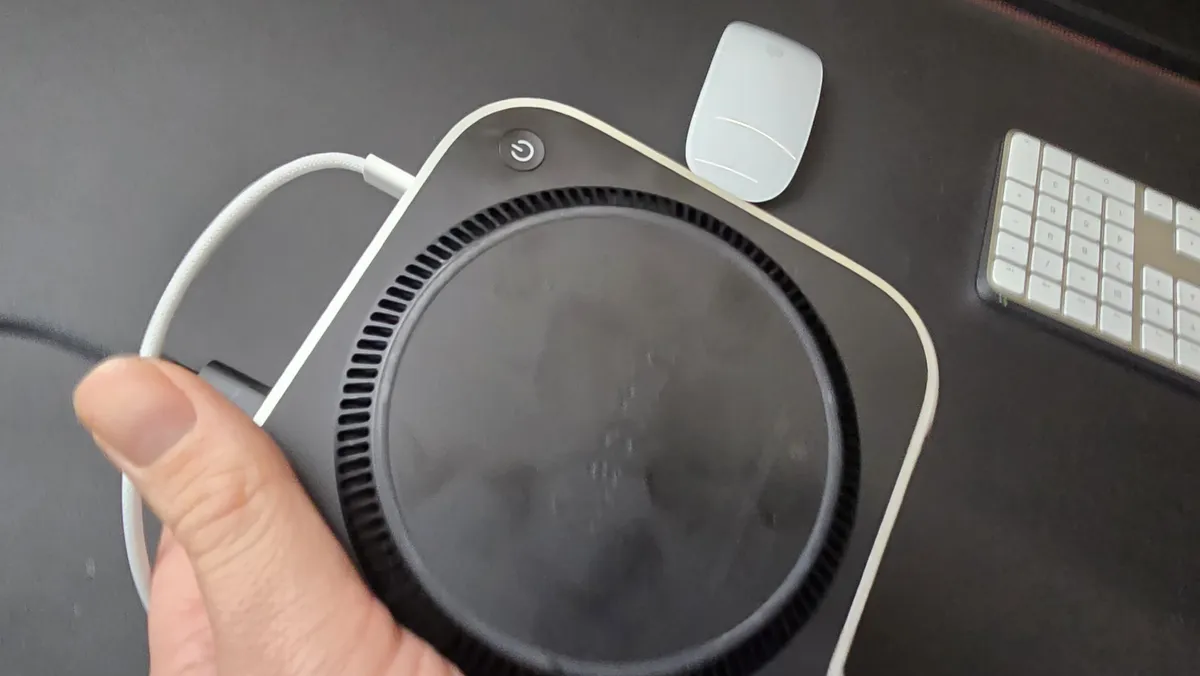
When we reviewed the M4 Mac mini, we called its power button placement “an odd choice” and “not one of Apple’s better design choices.” While it wasn’t enough to detract from our five-star verdict, it was still a feature we could have done without.
At the time, the response on Reddit was mixed. User YZJay, for example, described it as “low key hilarious.” Others, however, were more generous, arguing that they barely shut down their computers anyway. That included user Eubank31, who said: “I’m not a huge Apple guy but the number of times I’ve needed to actually power down my 2020 [MacBook Pro] since I got it is probably less than 20. And I use it every day for college and after class for dev work/projects.” Apple, for its part, says that people “hardly use” the button anyway.
Interestingly, macOS 26.5 includes another change that can benefit people fed up with the Mac mini’s power button. In its release notes, Apple describes a new “Power control setting” in the Energy section of System Settings. This “enables you to power off or restart your Mac using assistive accessories like switches,” Apple says, meaning you don’t even need to worry about hooking up a power cable to have your Mac switch on.
If you find yourself regularly reaching for your Mac mini’s power switch, the latest changes in macOS 26.5 could put paid to a minor headache. Apple is rumored to be working on an M5 Mac mini, but with no new physical design expected for several years, this software tweak is your best bet at fixing the power button conundrum for some time to come.

Follow TechRadar on Google News and add us as a preferred source to get our expert news, reviews, and opinion in your feeds.