





I am a PC builder. There, I said it. I don't feel like one yet — but the facts are undeniable. I built a PC.
Okay, so I had some help along the way, but now that I've crafted my own gaming rig for the latest season of TechRadar's AI Planned It video series, I can hold my head high among the experienced builders on the team.
And make no mistake, building your first PC can be incredibly overwhelming; for me, a clutzy, anxious, and miserly gamer, the stress of it was tantamount to open-heart surgery.
The secret sauce in the equation to help me overcome my fears was ChatGPT, which, alongside Google's Gemini, helped me pick my components — as demonstrated in our previous video.
The more risky (and potentially costly) stage of the experiment, of course, was actually putting the thing together — and that process taught me a lot about both PCs and optimizing LLM usage.
So, here's how I did it, including the specific instructions ChatGPT gave me for my PC build, plus my thoughts on what worked and what did. Hopefully they'll be helpful to others — and please do share your thoughts in the comments below.
I-I-I hallucinate when you call my name
I've already shared the prompt I used to train up Gemini and ChatGPT for this project, so be sure to give that a read for some extra context.
As far as the building stage went, my principal concern with using ChatGPT was that it might hallucinate different parts or outdated configurations. My experiences in the first stage of the experiment, in which it shared outdated information on a couple of occasions, did nothing to reassure me.
So, at the very start, I doubled down and reminded it of my configuration via the below prompt:
Click here to reveal the full prompt
The prompt: Simply copy and paste the full block of text into ChatGPT or Gemini, replacing my components with yours.
Ok, I've ordered my parts, and they're on their way. To confirm these are the products I purchased:
- AMD Ryzen 5 7600 (6-Core)
- Radeon RX 9070 XT (16GB)
- ASUS Prime B650M-A WiFi II
- 32GB DDR5-6000 CL30 EXPO
- 2TB PCIe 4.0 NVMe SSD
- Thermalright Phantom Spirit 120 SE Black
- be quiet! Pure Power 13 M 750W
- Fractal Design North Charcoal (mesh side panels)
Can you now provide me with detailed, step-by-step building instructions as well as any tools I will need to do so. Please feel free to ask follow-up questions before providing your final list.
The first signs of trouble
Initially, ChatGPT took the word "detailed" and really rolled with it, presenting me with reams of instructions. In doing so, it made it pretty hard to follow as a first-timer, especially due to its excessive use of (often unnecessary) jargon.
While I had the benefit of building the PC alongside TechRadar's resident computing expert, Matt Hanson, I wanted as much as possible to emulate what someone trying this at home might experience. So, I reminded ChatGPT I was a beginner and it came back with the below instructions:
Click here to reveal the full ChatGPT build instructions
ChatGPT PC building instructions
[Note: Be warned — these are long, and while there are few total inaccuracies, they can be non-specific in nature. Proceed with caution if you plan to follow these steps!]
Step 1: Open the case
Take both side panels off the Fractal North case. Put the case to one side and find the little box or bag of screws that came with it.
Step 2: Put the motherboard on its box
Take the motherboard out and place it on top of its cardboard box. That gives you a safe surface to work on.
Step 3: Install the CPU
Find the large square area in the middle of the motherboard. That is where the CPU goes.You will see a small metal arm next to it.
Do this:
- Push the arm slightly down and away
- Lift it up
- A metal frame will open
Now take the CPU out of its box.
Important:
- Hold it by the edges
- Do not touch the bottom
Look for a tiny gold triangle on one corner of the CPU. Look for the matching triangle on the motherboard socket. Line those triangles up, then gently place the CPU into the socket. Do not press down.
If it is lined up properly, it will sit in place on its own.
Then, lower the metal frame and push the arm back down into place. That part can feel a bit stiff. That is normal.
Step 4: Install the SSD
The SSD is the slim storage stick. Find the SSD slot on the motherboard. It is a flat slot, usually with a small screw or cover.
Do this:
- Remove the small cover or screw if there is one
- Slide the SSD into the slot at a slight angle
- Push it in gently
- Press it down flat
- Put the screw back in, or close the latch if your board uses one
If there is a little heat cover with a soft pad underneath it, make sure any plastic film is removed before putting it back.
Step 5: Install the RAM
You have 2 RAM sticks. They go into the long slots next to the CPU.
For your board, use the second and fourth slots from the CPU.
Do this:
- Open the clips on those two slots
- Line up the notch on the RAM stick with the slot
- Press firmly straight down until it clicks in
You may need more force than you expect. If it is not fully clicked in, the PC may not start later.
Step 6: Install the cooler
Your cooler is the Thermalright Phantom Spirit. This is the hardest part for most beginners, so take it slowly.
First, look in the cooler box for the AM5 mounting parts. Use the cooler manual beside you while doing this step
The short version is:
- Remove the two black plastic brackets already around the CPU area on the motherboard
- Keep the metal plate on the back of the motherboard in place
- Attach the cooler’s own mounting pieces
- Put a small dot of thermal paste on the middle of the CPU if it is not already on the cooler
- Place the cooler on top
- Tighten the screws a little at a time, alternating sides
Important: Do not overtighten, the cooler fan should blow air toward the back of the case
Then plug the cooler fan cable into the motherboard header labeled CPU_FAN
That just means “CPU fan.”
Step 7: Put the motherboard into the case
Now move the case back onto the table. Check that the little metal screw posts inside the case line up with the holes in the motherboard.
Then:
- Lower the motherboard into the case
- Make sure the back ports fit through the rectangular hole at the back
- Screw the motherboard into place
- Tighten the screws until snug, not super hard.
Step 8: Install the power supply
The power supply goes at the bottom of the case.
Put it in with its fan facing toward the vented side of the case.
Then screw it in place from the back.
Now take out these cables from the PSU box:
- The big 24-pin motherboard cable
- The 8-pin CPU cable
- The graphics card power cable(s)
Step 9: Connect power to the motherboard
There are two main power plugs for the motherboard.
First one: The big wide connector on the right side of the motherboard. Plug the 24-pin cable into that.
Second one: Near the top-left of the motherboard. Plug the 8-pin CPU cable into that. Push both in until they click.
Step 10: Connect the case cables
This is the fiddly bit. The case has small cables coming from the front of it. These connect the front buttons and ports.
These include:
- Power button
- USB ports on the front
- Headphone jack on the front
Use the motherboard manual for the exact pin diagram.
For a beginner, the most important one is the power button cable. Without that, pressing the case button won’t do anything.
The tiny front-button cables are the most annoying part of the build. That is normal.
Step 11: Put in the graphics card
The graphics card is the biggest part after the motherboard.
Do this:
- Remove the metal slot covers at the back of the case where the card will stick out
- Find the top long slot on the motherboard
- Push the graphics card straight into that slot until it clicks
- Screw it to the case
If the card came with a support bracket, use it.
Step 12: Connect power to the graphics card
Your graphics card also needs power from the PSU.
Use the correct graphics card power cable from the PSU box and plug it firmly into the graphics card.
Make sure it is fully in. This is important.
Step 13: Tidy the cables
Before turning the PC on:
- Move loose cables away from fans
- Put extra cable length behind the motherboard tray if you can
- Use cable ties if needed
It does not need to look perfect. It just needs to be safe and not block fans.
Step 14: First startup
Now connect:
- Monitor to the graphics card
- Keyboard
- Power cable to the PC
Very important: Plug the monitor into the graphics card, not into the motherboard.
Then, turn the switch on at the back of the power supply and press the case power button
The PC may take a little time the first time it starts. That is normal.
What you should expect
A good first boot often looks like this:
- Fans start spinning
- Lights come on
- Screen stays black for a short while
- Then the motherboard logo appears
That first startup can be slower than later ones.
If it does not turn on
Check these first:
- Is the switch on at the back of the PSU turned on?
- Is the big 24-pin cable fully plugged in?
- Is the 8-pin CPU cable fully plugged in?
- Is the RAM fully clicked in?
- Is the monitor plugged into the graphics card?
- Is the graphics card power cable plugged in properly?
Step 15: Go into the BIOS
When it first starts, tap the Delete key on the keyboard again and again.
That opens the motherboard settings screen.
Once you are in there, check:
- CPU is showing up
- 32GB of RAM is showing up
- SSD is showing up
Step 16: Turn on EXPO
This is a simple setting that makes your RAM run at the speed you paid for.
Find the setting called EXPO and turn it on. Then save and restart.
You do not need to understand the deep details. Just know that this is a normal thing to enable for your RAM.
Step 17: Install Windows
You will need a USB stick with Windows on it.
Plug it in, restart the PC, and follow the instructions on screen.
Install Windows onto your 2TB SSD.
Step 18: Install drivers
Once Windows is running, install:
- AMD motherboard chipset drivers
- AMD graphics drivers
- Windows updates
This makes everything work properly.
Blimey... so how's your index finger after that scroll-fest?
IT'S ALIIIIIIIIIVE
For the full, unfiltered trauma I experienced when following these instructions, you'll have to watch the full episode on TechRadar's YouTube channel. The long and short of it, though, is that barring one or two missteps where ChatGPT encouraged us to do a step too early or wasn't clear enough on its instructions, the steps were broadly correct.
That being said, it hit me a few times with a generic "just use the manual" tip. In an ideal world, it would search for those instructions and be a true assistive companion, but ultimately, for a fair chunk of this process, I ended up looking at the respective components' printed/online guidance.
I don't mind that too much, and should have probably guessed that'd be the case — particularly given that I'd asked ChatGPT to return such a long-form result. Setting aside the lofty ease-of-use promises made by AI evangelists in the years since LLM technology began its rapid ascent to mass adoption, ChatGPT itself advised that I should instead "message and I’ll guide you one stage at a time." Granted, that tip was at the end of its building instructions and I was by then elbow-deep in cables, but I do respect that it made the suggestion.
In the end, I did actually take it up on this offer, though not for the main building process; that would have been a nightmare while also trying to film, present and take notes on the day, which was hard enough by itself.
Instead, when I later had major issues troubleshooting a problematic bootable Windows drive, ChatGPT was there to help in real-time, both by message and through photos of the interface to help me navigate jargon-y menus.

You'll have to watch the full AI Planned It series to know exactly what went right and wrong in our experiment, but to cut to the chase, yes, the PC works and no fires were started in the process.
That said, I did have the aforementioned computing expert Matt Hanson on hand to fact-check and sanity-test ChatGPT's building instructions, which proved invaluable to stop us from making dumb rookie mistakes that the AI was ignorant of.
My big takeaway? If you try to place all the onus on AI, you're more likely to make a mistake than you are if you instead watch a few videos, read the documentation and learn for yourself.
However, it can be a fantastic companion for troubleshooting, researching and finding information written by experts; just moderate your usage if you care about its environmental impact, how its prosumer rollout leads to job losses, and perhaps most crucially, its impact on critical thinking.
Watch the full episode of TechRadar's AI Planned It below!
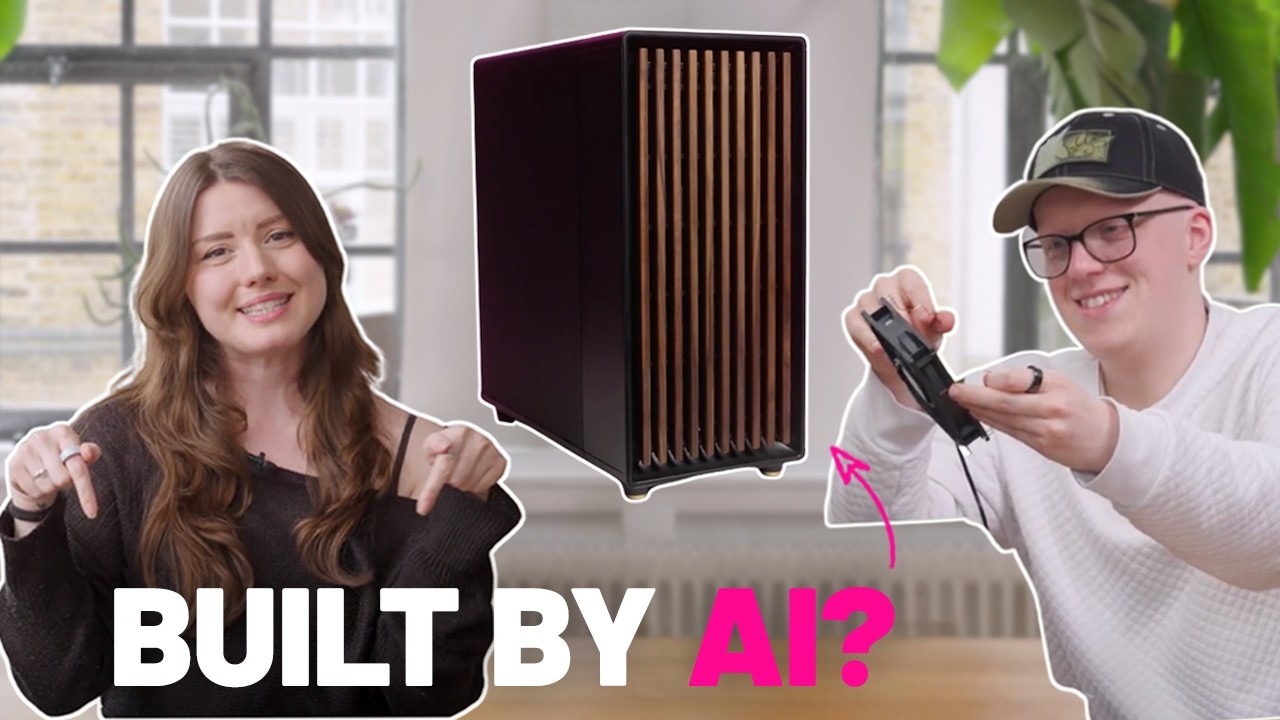
You can check out the top recommended builds for both ChatGPT and Gemini, and if you subscribe to our YouTube channel, you'll get so see what we let AI plan next.
Follow TechRadar on Google News and add us as a preferred source to get our expert news, reviews, and opinion in your feeds. Make sure to click the Follow button!
And of course you can also subscribe to our YouTube channel and follow TechRadar on TikTok for news, reviews, unboxings in video form, and get regular updates from us on WhatsApp too.
