





Sponsored by

How to use AI to make your photos look instantly better


I take a lot of photos, but to be totally frank, they’re often just quick snapshots to remember a moment rather than pictures I would actually be proud of.
Most of my iPhone’s camera roll is filled with snaps of my dog doing something vaguely amusing or half-hearted attempts at “nice” landscape shots on walks. Every so often (mostly when I get a new phone), I’ll spend that extra time taking photos to ensure they showcase the best of the new technology I have in my hand. Most of the time, I’ll look back and see the ones I thought looked ace were in fact a bit dull, a bit dark, or just not quite what I remembered.
That gap between what you see and what your phone captures is exactly where AI has quietly become brilliant. Not in a flashy, sci-fi way, but more with subtle improvements that ensure the photos you take with the latest smartphone, like an iPhone 17, are in fact better than the ones you could’ve taken with the phone you just replaced.
Here’s how to actually use AI to make your photos look instantly better, without falling into the trap of over-editing everything into oblivion. And best of all, your smartphone probably has all these features without the need for a third-party app.
Hit auto first, ask questions later
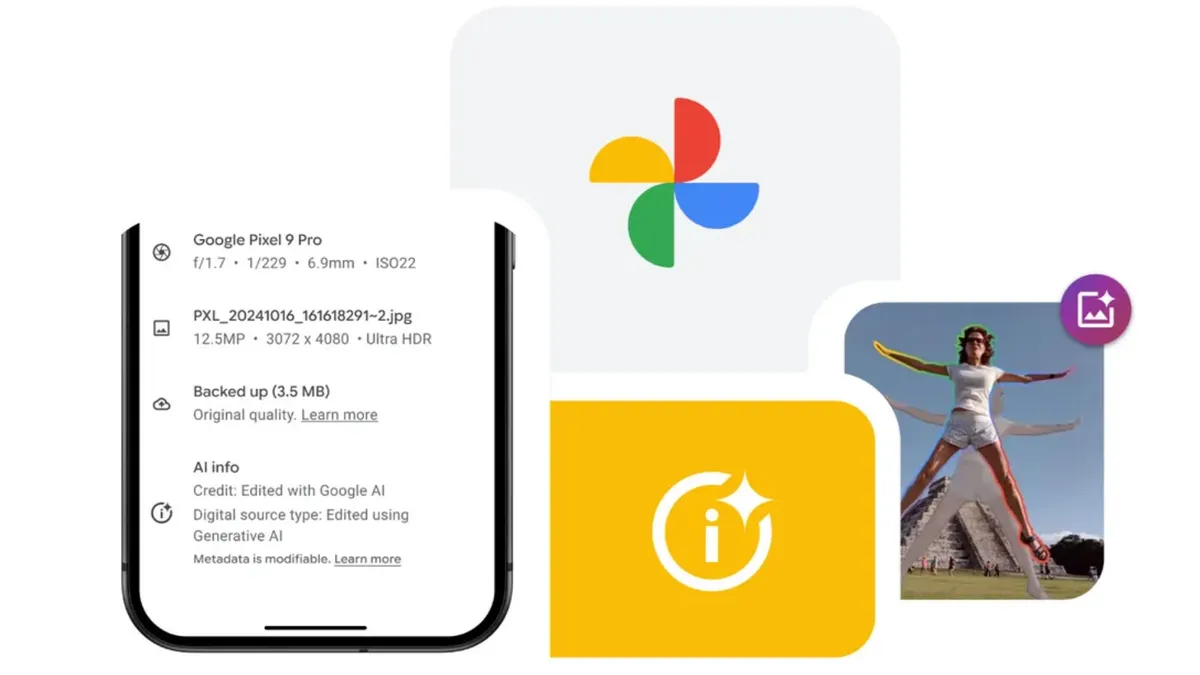
I’d bet most of you reading this ignore the auto-edit buttons in your photos app. In fact, I used to for the longest time, hating the idea of what felt like manipulating reality. Turns out, however, all the best photos are edited, so why not ask your smartphone to get the job done for you instead of worrying about every simple tweak?
Whether you’re using Apple Photos, Google Photos, or Lightroom Mobile, the AI auto-enhance tools you can find today are genuinely good. They’ll tweak exposure, contrast, highlights, shadows, and color balance in one go, and most of the time they get you about 80% of the way there.
I’d advise you to think of auto-enhance as your base layer. Apply it, then take a second to check if it’s pushed things too far. AI loves a dramatic look, so you might want to dial it back slightly.
But even on its own, this step can rescue a flat-looking photo instantly. It’s the easiest way to use AI to make your photos look better with just the click of a button.
Fix bad lighting

If a photo doesn’t look right, lighting is usually the reason. If it’s too dark, you lose detail. But if it’s too bright, everything looks washed out.
AI tools are now excellent at fixing this without making everything look fake. Look for features like relighting, HDR, or light balance. They don’t just brighten the image, they rebalance it, lifting faces while keeping shadow detail intact.
This is where apps like Apple Photos and Snapseed come into their own. Snapseed, in particular, has long had smart HDR-style tools and selective adjustments, making it one of the best photo-editing apps on the App Store.
Just don’t go overboard. If it starts to look like a cutscene from a video game, you’ve probably pushed it too far.
Get rid of the stuff you don’t want

My favorite part of AI photo editing is the advancement of erase tools over the years
Tools like Magic Eraser in Google Photos or Generative Remove in Adobe Photoshop make removing unwanted elements of a photo incredibly easy. And Adobe’s newer AI tools can remove objects, adjust backgrounds, and even expand images using generative AI.
You just brush over whatever you want gone, and the app fills in the space.
It doesn’t always nail it, especially with complicated backgrounds, but when it works, it’s transformative. Last year, I compared Apple Intelligence’s erase tool to the one found on Samsung S25, and the results (when they worked) were actually incredible.
Behind auto-enhance, I’d advise everyone to familiarize themselves with their smartphone’s AI erase tool, because you never know when it will come in handy.
The only rule that really matters

AI can do a lot, but it can’t fix everything.
A badly composed photo is still a badly composed photo. Which means your timing still matters, your lighting still matters, and your ability to understand when to snap your picture is still incredibly important.
I’d actually advise you to take a look at all the excellent photography tips you’ll find on TechRadar from Cameras Editor Tim Coleman, because sometimes AI isn’t the solution to everything.
What AI does well is polish. It fixes the small issues, enhances what’s already there, and helps your photos better match what you actually saw when you took them. And for most people, that’s exactly what you want.
The goal when editing a photo isn’t to create something artificial; it’s to make your photos feel more like your memories. So when AI gets out of the way and just quietly improves things in the background, that’s when it’s at its best.
Follow TechRadar on Google News and add us as a preferred source to get our expert news, reviews, and opinion in your feeds. Make sure to click the Follow button!
And of course, you can also follow TechRadar on YouTube and TikTok for news, reviews, unboxings in video form, and get regular updates from us on WhatsApp too.
