

Project 11: Restore from PARs
If your data files become damaged, you can use your QuickPar parity ones to restore the missing parts of data.
Launch QuickPar from the Video Disc and click Open. Browse to one of the PAR2 file that's saved alongside the data you copied from your damaged disc. It will detect any missing or damaged files, and show them as it scans the data.
As long as not too much data has been damaged, QuickPar can recover the parts that have been lost. You'll be told whether a repair is possible in your case. If it is, simply click Repair, and wait for the program to restore the damaged files to their rightful place.
Project 12: Read a damaged disc
If you find that a CD or DVD no longer reads properly on your PC – and you've checked there are no detectable fingerprints or scratches on the surface – you may be able to rescue some or most of the data on it by using the ISOBuster application.

Insert the damaged disc into your PC and launch ISOBuster. Click Refresh if it isn't immediately detected. You'll see each session that's been recorded onto the disc.
Choose File and pick the session you want to restore, then choose Extract Session > Extract User Data. Tell it where you'd like to save the data.
When it's finished, you can then open the saved image and restore your precious files intact.
Project 13: Convert a disc to an ISO file
1. Load ISO Recorder

Install ISO Recorder on to your machine. Once it's all done, insert the disc you'd like to convert, right-click it in the My Computer window and select "Create Image from CD/DVD".
2. Image location

In the resulting dialog, ensure the right drive is selected and browse to the location you want to save the image file. Give it an appropriate name.
3. Finish off

Click Next and wait as the ISO image is generated. When it's complete, click Finish. You can now browse to, and use, your ISO image file.
Project 14: Polish out a scratch
A scratched disc can be unreadable, but as long as the scratch isn't as deep as the foil, you can polish it out.
Use cotton wool and a fine metal polish such as Brasso, and gently polish the scratch using a circular motion. Wash the disc in mild soapy water and dry it with a soft cloth. Make sure it's completely dry before putting it in your PC.
If your polishing makes the disc readable again, use your disc-burning program to make a copy, because the disc won't be as strong as it once was.
Project 15: Slipstream Windows disc
If you reinstall Windows fairly regularly, produce an install disc that includes the latest service packs and updates. You can do this for Windows XP in nLite.
Rip your Windows installation files to your hard drive and download the full versions of each service pack, then create a slipstreamed disc.
In Vista you can use vLite. There's currently no similar tool to slipstream updates in Windows 7.
Project 16: Create a virtual drive
When is a disc not a disc at all? When it's a disc image! Not only can you store ISO files and other disc image files on your hard drive, but you can also use software to mount them as virtual drives.
Windows will then treat them as if they were stored on CDs or DVDs, but with the added bonus that they will run at the faster speeds of your hard disk.

Daemon Tools enables you to set up virtual disc drives and load ISO images. Install the Lite version, but avoid the toolbar or resetting your browser home page.
Once you've rebooted your computer, launch the program and click Add to insert a new ISO file into its list. Select the one you want and click Mount to begin using it as a drive. Open Computer to see the virtual disc mounted in Windows alongside your hard disks and CD/DVD drives.
To stop using an image, simply select it and click Unmount to make it disappear.
Project 17: Get a Live CD
Live CDs contain a full operating system on a bootable disc. You can use them to start up your PC without making changes to the hard drive. Live CDs are often used to help you diagnose and fix problems from outside Windows, or to perform operations such as partitioning your hard drive.
Some Live CDs simply give you a taster of a new Operating System without affecting your existing setup. You can find a huge list of available Live CDs at www.livecdlist.com.
Download the ISO images you want to try out and then use CDBurnerXP to burn each one to a separate disc. When your discs are ready, restart your computer to boot from the CD.
Project 18: Create disc labels
If you don't have a LightScribe drive, you can still make your discs look good with CD/DVD labels. These are available from most stationery stores, and it's best to go for a brand name. It's more costly, but you won't have to waste labels with trial and error because most software supports popular branded labels.
CDs, DVDs and Blu-ray discs all have the same dimensions, so one size label fits all. Labels generally come in self-adhesive A4 sheets that feed into standard printers.
By using a template that matches the label, you can set up the design and print it without hassle. Most label suppliers offer Word templates with the labels or provide them on their websites for download.
Word templates for standard CD labels are available at www.office.microsoft.com. Follow the link to templates, and type "CD labels".
Project 19: Produce an ISO file from data
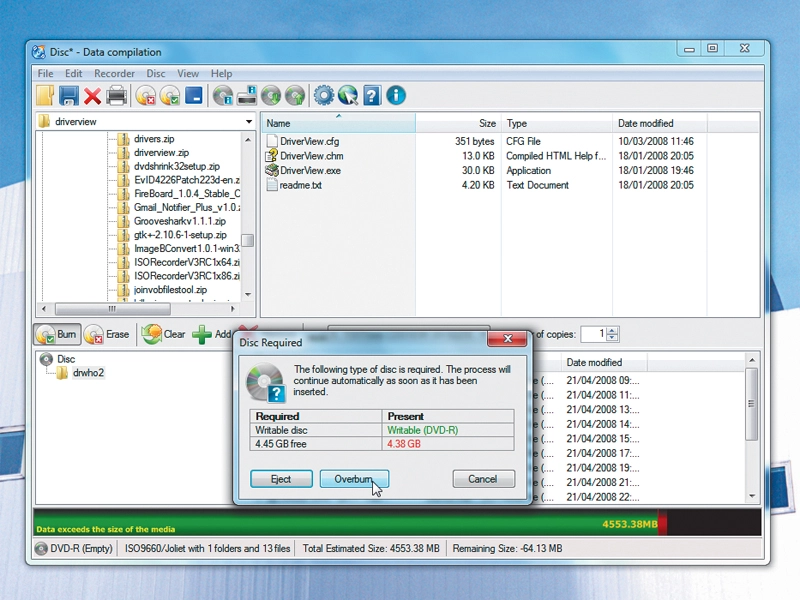
Most disc-burning programs enable you to produce a disc image file instead of burning their output to disc. Here's how the process works in CDBurnerXP.
Launch the program and choose to create a data disc. Add the data files you want in your compilation by dragging them into the lower pane.
When you're done with this, rather than opting to burn the data, choose File > Save compilation as ISO file. Browse to the file location you want to use, type in a filename and click Save.
You can also use CDBurnerXP to burn an ISO image to a disc. Launch the program and choose "Burn ISO image". Browse to the image file you want to burn and click Open. Insert the correct type of disc for the image size into your drive, and click Burn Disc. Once it's complete, exit the program.
Project 20: Add Office updates
You can slipstream updates into Microsoft Office too, using Office Integrator from Signet Software. It's easy to use. Simply copy your Office setup files to a location on your hard drive and download the full network install of the latest service pack to integrate. You can also include Hotfixes in your slipstream disc if you wish.
Launch Office Integrator and direct it to your Office setup file. Set a location for the completed slipstreamed files and select the service pack file you want to include. Click Integrate and then simply follow the wizard.
Project 21: Improve Autoplay
You can nominate a particular program to run when you insert a DVD into your PC by using DiscInsert. This tool also enables you to rip a disc automatically if it's unprotected.
Once you've installed and configured it, you'll be given two options when you insert a disc: Rip or Play. Click the appropriate button to watch or copy the disc.
You can set it up so that your preferred option is selected even if you don't click Rip or Play.
-------------------------------------------------------------------------------------------------------
First published in PCAnswers Issue 212
Liked this? Then check out
Sign up for TechRadar's free Weird Week in Tech newsletter
Get the oddest tech stories of the week, plus the most popular news and reviews delivered straight to your inbox. Sign up at http://www.techradar.com/register


No comments