


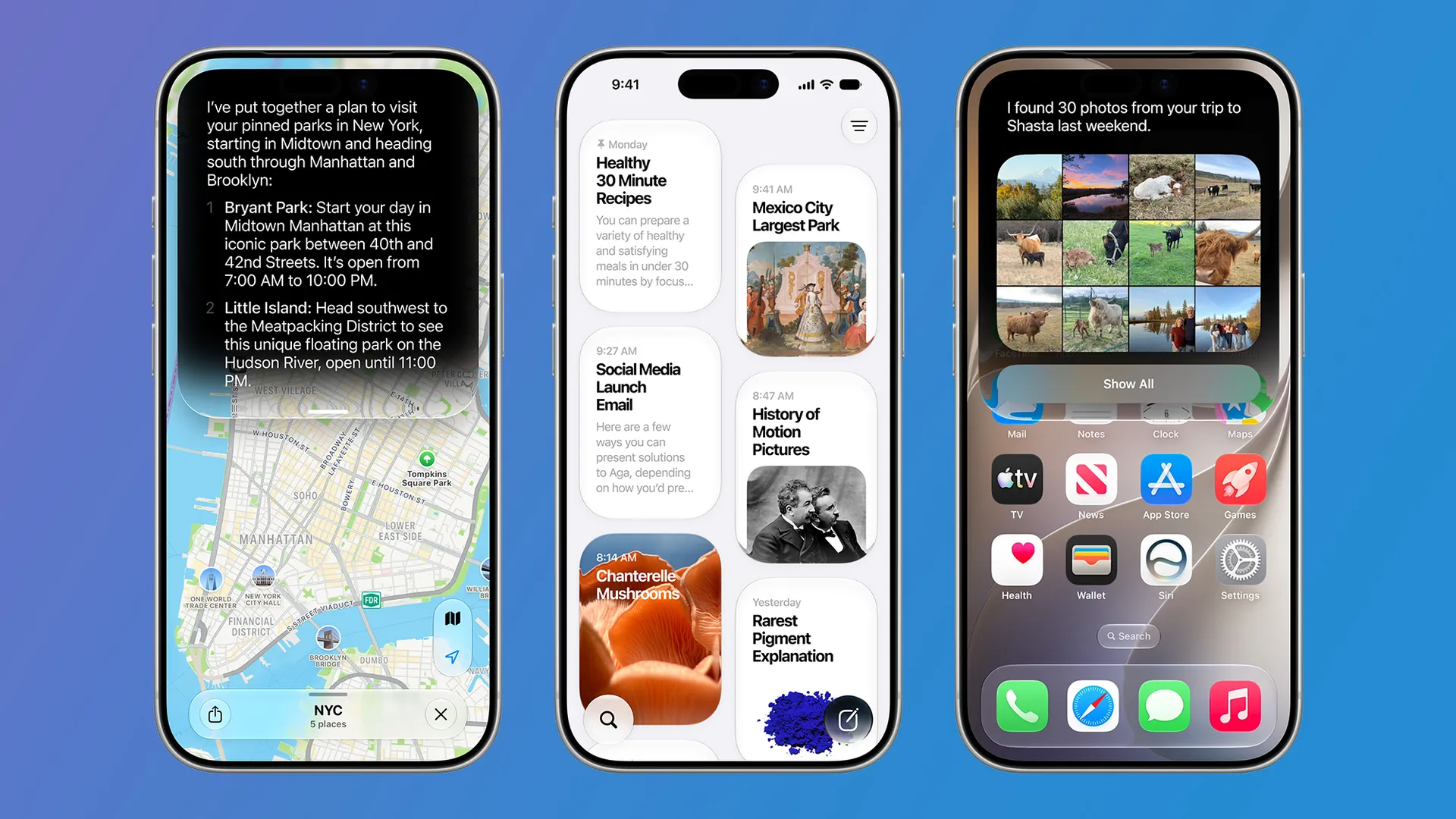
There has been a developer beta of iOS 27 for a while, but now it’s available in public beta, which both makes it slightly easier to get hold of and suggests it might be more stable than it was initially.
That said, this still isn’t finished software, so while stability may have improved, you’re still likely to encounter bugs and potentially unfinished features.
So this isn’t for everyone, and as a general rule we’d recommend running it only on a secondary handset. If in doubt, simply wait for the finished iOS 27 release, which we’re expecting in September.
But if you do have a spare phone lying around or want to take the jump with your main device, then the beta could be worth checking out, as it comes with loads of new and improved features — some of which we’ve looked at further down.
How to install the iOS 27 public beta on your iPhone
Before you start downloading and installing the iOS 27 public beta, make sure your iPhone is backed up, just to be on the safe side. We won’t detail that here because we’ve got a full guide covering how to back up your iPhone.
Once your data is safely backed up, the next step — if you haven’t run a beta before — is to sign up for Apple’s beta program. You can do this by heading to the Apple beta page and tapping ‘Sign up’, after which you’ll have to log into your Apple account to enroll. If you’re not sure whether you’ve already signed up for this or not, then instead press the ‘Sign in’ button on that page — if it doesn’t let you sign in, then sign up instead.
Once you’re registered, you can simply head to Settings > General > Software Update > Beta Updates on your phone, and tap ‘iOS 27 Public Beta’. There may be other betas listed too, but this is the one you want.
Then tap the back arrow at the top of the screen, and the page you were on before will now show the beta you selected, complete with notes on it and a download size. From there, just tap ‘Update Now’ to grab it, or ‘Update Overnight’ if you’d rather wait until you’re sleeping to put your phone temporarily out of action.
Then you just need to wait for it to install. Once it has, there’s plenty to check out, but below we’ve highlighted some of what you might want to try first.
3 things to try first
iOS 27 has an enormous number of features — so many in fact that we found 21 that Apple didn’t even have time to mention during its announcement. But below, you’ll find some of the biggest and best to start off with.
1. Siri’s AI overhaul

By far the biggest thing in iOS 27 is the long-awaited AI overhaul for Siri. There are many elements to this, but the main one is that Siri now works much like ChatGPT or other AI chatbots — you can have natural, back-and-forth conversations with it, and its responses aren’t just preset or based on basic web searches.
Siri can both search the web and interact with apps to get answers or carry out the tasks you need, and it now comes with a dedicated Siri app where you can find and pin previous conversations.
2. Improved photo editing

Photo editing has also gotten a lot better with iOS 27, allowing you to do things like reframe or extend photos after they’ve been taken, and remove larger objects than previously.
It makes the photo editing tools far more powerful and brings them more in line with those available on Pixel and Samsung phones.
3. New ‘Describe a Shortcut’ tool

Shortcuts has long been one of the most powerful apps that comes with your iPhone, but it can also feel a bit impenetrable. Now, though, it’s far simpler.
Rather than creating a shortcut or automation through various menus and complicated ‘if this then that’ rules, you can now simply use natural language to describe what you want.
So, for example, you could say “When I’m leaving work, message Pedro I’m on my way with my ETA,” and the app will automatically create an automation that does exactly this.

Follow TechRadar on Google News and add us as a preferred source to get our expert news, reviews, and opinion in your feeds. Make sure to click the Follow button!
And of course you can also follow TechRadar on TikTok for news, reviews, unboxings in video form, and get regular updates from us on WhatsApp too.