


- Windows 11 has a bug in the sign-in options on the lock screen
- It's made the password icon disappear somehow
- The icon is still there, and Microsoft's advice is, essentially, to fumble around for it
Windows 11 has had its fair share of odd bugs, particularly since version 24H2 landed, and a very peculiar glitch recently appeared – and what's equally odd is Microsoft's workaround here.
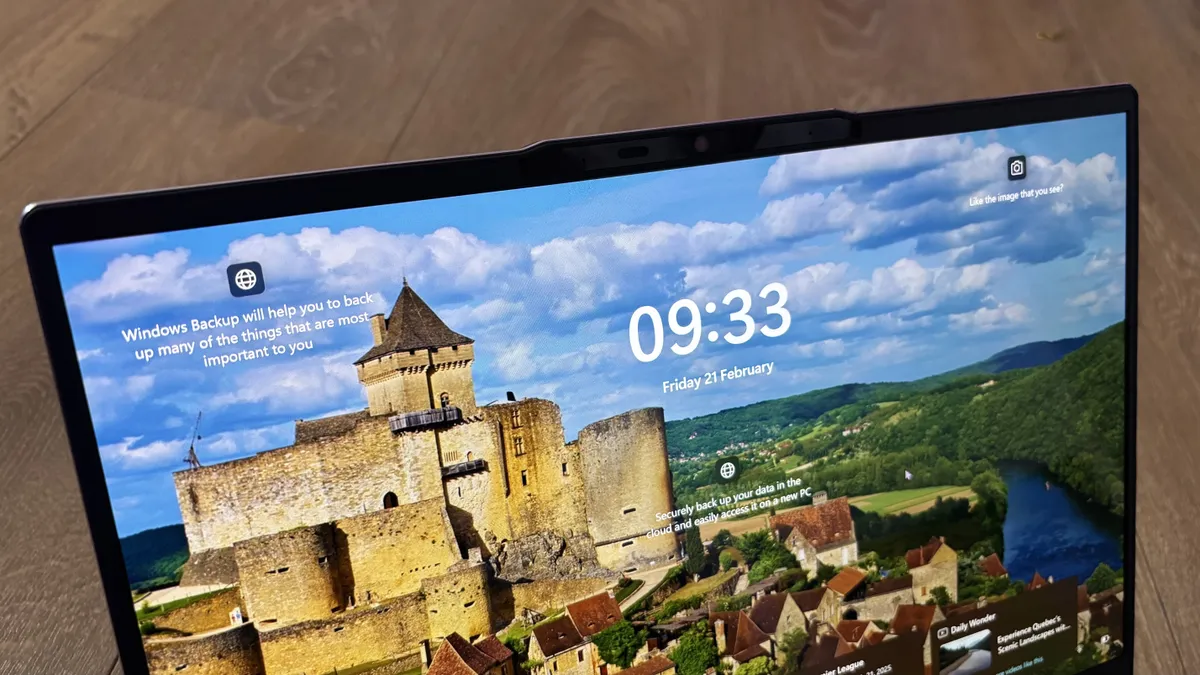
Windows Latest noticed the problem, which pertains to the Windows Hello sign-in options on the lock screen for Windows 11 devices.
This screen allows you to log in via biometric means (facial recognition or fingerprint), or by using a PIN, although if you can't recall that PIN, then there's a backup facility to use your Microsoft account password instead.
However, on some Windows 11 PCs that have installed the August preview update, or the full September update – or later – this password option has gone missing (as per this thread on Reddit).
Microsoft explains in the known issues for the August preview update: "You might notice that the password icon is not visible in the sign-in options on the lock screen. If you hover over the space where the icon should appear, you'll see that the password button is still available. Select this placeholder to open the password text box and enter your password. After entering your password, you can sign in normally."
Analysis: stealth icons
In other words, the password icon has somehow turned invisible, but it's still there and functioning – sort of, as the icon itself isn't there, but you'll see a blank box where it normally lives, which, when clicked on, works to trigger the password field.
So, if you need to access the backup password sign-in option, Microsoft's advice is to hover your mouse cursor over where the icon should be, and you'll see the outline of the button to click it. It's a bit like 'Where's Waldo?' except you're looking for a much less colorful character.
Perhaps this could be a new mini-game in Windows 11: icons blink in and out of the desktop in a random fashion, and you have to be quick enough to whack them before they disappear.
It's a very odd bug – which some folks are blaming on AI code, a growing trend ever since Microsoft admitted it's using AI for some coding duties – and it feels equally weird for Microsoft to be giving 'wave your mouse cursor around and hope for the best' kind of advice. Admittedly, it's a niche issue – not many people will use that password icon, and there hasn't been much in the way of complaints about the glitch, which is presumably why it's flown rather under the radar.
Even so, if you're one of the people affected and you were wondering what was going on, now you know. It's also good to see Microsoft is currently "working to resolve this issue" as per its support document – possibly by getting a bunch of programmers to randomly wave their cursors across Windows 11's codebase in the hope of eventually finding the right bit to tinker with for a resolution? No?

➡️ Read our full guide to the best computers
1. Best Windows:
Dell Tower Plus
2. Best Mac:
Apple Mac mini M4
3. Best Mac AIO:
Apple iMac 24-inch (M4)
Follow TechRadar on Google News and add us as a preferred source to get our expert news, reviews, and opinion in your feeds. Make sure to click the Follow button!
And of course you can also follow TechRadar on TikTok for news, reviews, unboxings in video form, and get regular updates from us on WhatsApp too.