Updated 17 hours ago

How to get Google Maps Navigation on your mobile

Plus Google throws in a few tips for your Android mobile too

April 21st 2010 | Tell us what you think [ 2 comments ]

all-the-knowledge-on-how-to-get-set-with-google-maps-navigation

All the knowledge on how to get set with Google Maps Navigation

Since Google announced Google Maps Navigation for the Android phones in the UK, we're been inundated with readers asking how to get the service on your phone.

The original line was that you could simple search Android Market for the application, but simply looking for 'Google Navigation' won't get you anywhere.

We've spoken to Google and got the official word on the easiest way to be getting free sat nav on your mobile phone.

A few limitations though - it's only available on Android phones right now (sorry iPhone users, however there is reason for hope).

And HTC Hero owners: you'll have to wait until at least June to access the Navigation service, as that's when the necessary upgrade is coming.

Maps

But if you're one of the other Android owners, here's what you have to do:

First of all, fire up Android Market, and search for 'Google Maps'. If you've recently upgraded it will say 'installed' - just download it again as it will now include Google Maps Navigation.

After that, simply open up Google Maps as you usually would, and you'll be able to use your phone as a sat nav - all for free.

Here's a few quick tips to help you out with some of the things you'll probably want to use the software for:

To get directions to an address:
1. Once in Google Maps for mobile, click 'menu' and then 'directions'
2. Enter the destination, for example 'Banbury Road, Oxford'
3. Click 'go'
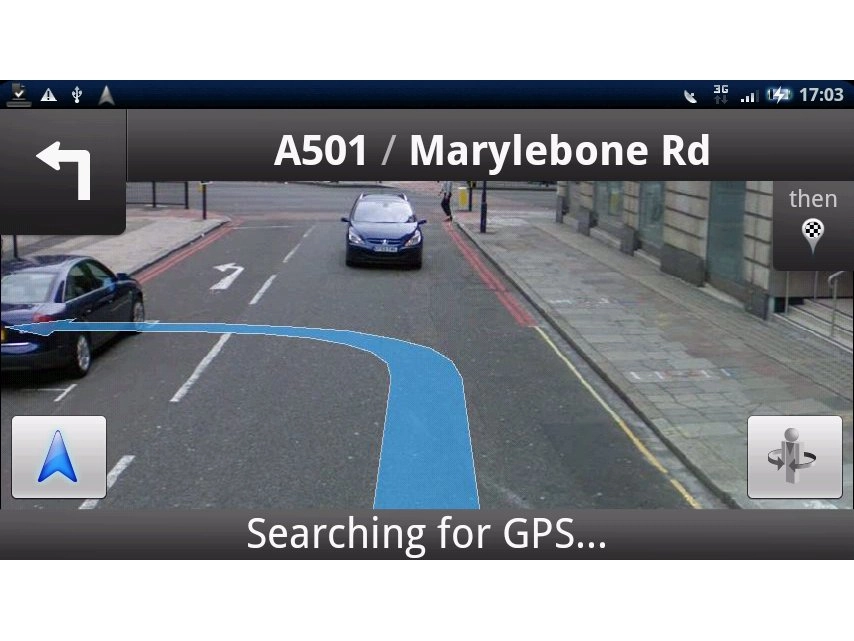
4. The next screen will show the 'navigation' icon as one of the options - click it to start navigating along your route.
5. Click the image of a man with arrows circling him once in the navigation pane - this will activate Google Streetview to show you how your route will look in real time.

http://www.techradar.com/news/phone-and-communications/google-turns-android-2-0-phones-into-tomtom-rivals-645303

Search for a point of interest, and navigate to it:
1. Once in Google Maps for mobile, click 'menu' and then 'search' [or, just press the search button on the handset]
2. Enter your search, for example, 'cash machine'
3. You'll see a list of search results displayed on the map. Select whichever you like. This will open the business info panel with more information about this location.
4. Select the 'directions' icon [second from the left with an 'arrow' icon] and select 'Navigate' from the following screen. This will open Navigation and direct you to where you need to go.

Voice Search shortcut:
You can open Navigation directly from your home screen.
1. Click the voice search icon [the microphone icon next to the search widget]
2. Say 'navigate to Sainsbury's' or whatever location you choose.
3. Google Maps Navigation will automatically open and direct you to your selected destination

(However - this may not work with all phones. For instance, the HTC Legend and Desire don't have speech icons next to the search engine, and trying this out on the Sony Ericsson Xperia X10 only led us to the standard Google search page.)

So there you go - there are a plethora of other little tricks in Google Maps Navigation that you can find out yourself, so feel free to add them into the comments below and help out fellow sat nav freebie-lovers.


Your comments (2) Click to add a new comment

gpslocals


April 21st 2010

2. The fundamental problem with Google, something that they cannot do anything about, is the quality of the information they broadcast. It can be wrong, out of date, search results sometimes have nothing to do with what you wanted. They Sold their soul to the “Advertising Devil” and you can imagine how all this will go. You will be directed to the place that pays the most and that’s if the internet hackers haven’t sent you in the wrong direction after bombarding you with pops-ups, spam and before long dashboard porn.

GPS Locals will give them a run for their money. Our system is also FREE for users, factually correct and constantly updated with only one listing per unique address. With Global shipments of GPS-enabled handsets increased by 92% in 2009 to 150 million units and further forecasted to reach 770 million units in 2014 I can understand why Google want a piece, but really, with their track record, they should be banned from the GPS system.

GPS Locals have built a specific database to work with smartphone and satnav companies to ensure the information broadcast is correct and constantly updated.

Alert a moderator

informale


April 21st 2010

1. You can also make one click home screen shortcuts to destinations. Hold a finger on the home screen and choose Shortcuts -> Directions & Navigation.

Alert a moderator

Tell us what you think

You need to Log in or register to post comments

By submitting this form you agree to our Terms of Use and so are legally responsible for anything you submit. DO NOT submit anything which may violate the Terms of Use or another person's rights including copyrighted or offensive materials.

HTC Desire review

HTC Desire review

The most powerful Android phone ever - but is it the best?

MWC 2012: We're expecting magic to happen

MWC 2012: What to expect

A look ahead to all the latest phones and tablets

The Samsung Galaxy S2 still top of the pops?

20 best mobile phones in the world today

Top mobile phones compared: what phone is best for you?

The best smartphones for playing MP3s, internet radio and more

Best phones for music 2012

Which are the top music phones around for sound?

Which is the best Android phone for you? We've got the answers

Best Android phone - which should you buy?

Top 10 best Android phones compared