





TechRadar Verdict
It doesn't do all the high-end stuff that other top-of-range touchscreen models do, and its text inputing will put off some. But the user interface is generally good to use. And for mobile buyers on a restricted budget who want their share of touchscreen action, the LG Cookie KP500 delivers a decent set of features in a very attractively designed – and affordable package.
Reasons to buy
- +
Touchscreen control
- +
Affordable price
- +
Minimalist design
- +
Onscreen widgets
- +
3-megapixel camera
- +
Music player
- +
MicroSD memory card support
- +
Mostly good user interface
- +
Virtual Qwerty keyboard text input option
Reasons to avoid
- -
No smartphone capability
- -
No 3G
- -
No Wi-Fi
- -
No GPS
- -
Texting can be tricky
- -
Virtual Qwerty keyboard keys too small for quick typing
- -
Motion-controlled games limited
- -
Widgets are limited
- -
Camera quality isn't great
- -
Average quality supplied earphones
Why you can trust TechRadar We spend hours testing every product or service we review, so you can be sure you're buying the best. Find out more about how we test.
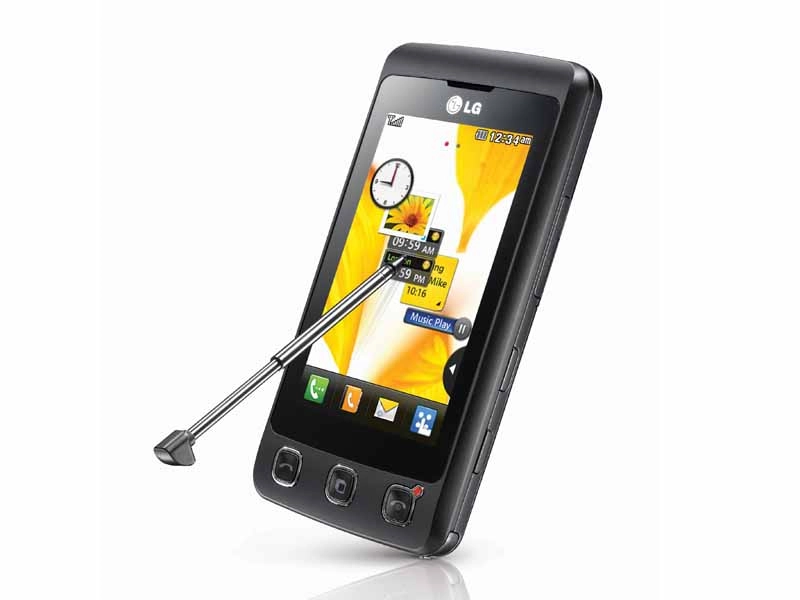
If you've had your head turned by touchscreen mobiles, but don't have deep enough pockets for high-end iPhone-alike gadgetry, LG may have come up with a solution in the form of the Cookie KP500.
A slim, chic looking device, the Cookie has a tasty 3-inch touchscreen and a user interface similar to that used on LG's flagship Renoir, but with a far more digestable price tag – it's initially selling for under £110 on pre-pay at The Carphone Warehouse (or free on contract deals).
Limited feature set
Bringing affordable touchscreen tech to the masses is one thing, but what about features? Inevitably, to hit this price mark there are compromises.
There's no 3G (this is a quad-band GSM/EDGE only phone), and high-end features enjoyed on the Renoir, such as Wi-Fi connectivity and A-GPS satellite navigation, are absent here.
But if you can live with the lack of 3G multimedia swiftness and other top-of-the-line gagdetry, adding to the touchscreen appeal are a 3-megapixel camera, music and video players, MicroSD card support, an FM radio, plus a stock set of organiser functionality.
Classy device
Sign up for breaking news, reviews, opinion, top tech deals, and more.
In the hand, it's hard to think of this as a budget touchscreen phone. Its curvy rubber-feel matt black casing and large screen design has a classy minimalist feel about it. And its slimline bodywork –measuring 106.5(h) x 55.4(w) x 11.9(d)mm – weighs a lightweight 89g. For the screen size, it's comfortable in the pocket and great to handle.
There are just three buttons on the front panel – Call, End and Multitasking (opening up Favourite Apps and Running Apps lists for fast feature access and quick app changing). A screen lock key and a camera key on the side add to the manual buttonry, but the main action is onscreen.
The display is a 240x400 pixels 262K-colour touchscreen, 3 inches across diagonally, providing ample room for finger pressing and swiping. And to aid your digits where more precise tapping is needed, LG has secreted a small, extendable stylus in the base of the phone.
Having introduced several variations on touchscreen and touch sensitive control on previous handsets, the control system on the Cookie is pretty responsive to fingers, and is mostly straightforward to use.
Based on the set-up of the Renoir, the standby screen has four virtual buttons to take you into a voice call dial pad, contacts, messaging and the main menu. Tapping the top of the display pulls up further phone status information, with additional shortcuts for the music player and Bluetooth.
LG widgets
The Cookie also supports widgets – mini applications and features - for the homescreen. Tapping a small arrowed tab just above the main menu button opens up a toolbar containing widgets you can either press to add to the main part of the screen, or drag and drop into place.
This is a similar ides to the Renoir's widgets, though the Cookie's options are more limited; widgets include calendar, memo, analogue clock/alarm, world clock, music player, FM radio, and image gallery.
When the widgets are onscreen, you tap to open them up, allowing you access to stuff like memos, calendar info and images, plus control of the music player and radio while they're playing in the background.
You can swap around widgets as much as you like, and thanks to an onboard accelerometer motion sensor a shake of the phone organises them neatly into grid patterns. You can easily drag them back into the toolbar when no longer needed.
Choose your favourites
In addition, swiping your finger across the display 'turns' the screen into an almost identical second home screen, where the widgets tab and toolbar turn into a speed dial options toolbar.
Up to 8 favourite contacts can be allocated to mini speed dial boxes that can be dropped on the standby screen. Tapping these pulls up quick dial and messaging options, plus contact editing settings.
Both are nice touches rather than essential functionality, adding to the user experience without being too tricksy or fiddly.
Easy navigation
Delving into the menus, LG's touchscreen operating system is clearly set up.
The screen reacts efficiently to pressing, with haptic feedback giving a brisk vibrating confirmation of button pressing onscreen. While it's not up to the smooth efficiency and user-friendly slickness of the iPhone's Multi-Touch system, it's a decent touchscreen set-up, particularly when you consider the price.
In the main menu, a vertical sidebar with icon-labelled buttons provides categorisation of functions under four headings – Communicate, Entertainment, Utilities and Settings. Tap on any of these and the grid of icons on the main part of the screen changes accordingly to the functions and applications for that category. Tap on one of the icon options and you either open up that function or get into sub-menu lists you can scroll through. It's well laid out and quite intuitive.
Most menus offer enough space to finger-flick through lists (though you can only do a few at a time, rather than an iPhone-alike spin-through), and the stylus can be used when necessary for scroll bars on longer lists.
Teeny keys
Text messaging and text input generally is fiddly though and can be frustrating.
When tapping in text, the phone automatically switches between a regular phone-style numberpad when the phone's held in a normal phone way, to a Qwerty keyboard when the phone's held sideways. While this theoretically adds to text usability, the layout of the numberpad when texting isn't great, and the Qwerty keys can be prone to mis-pressing.
In the numberpad options, the main text keys are restricted for space, with additional keys on the right of the display providing scope for frustrating accidental pressing of input options and so on if fingers go only slightly astray. It's certainly not as intuitive as normal texting on a conventional phone.
The small buttons on the Qwerty keyboard too require precise pressing to avoid typing mistakes; it's easy to brush against adjacent keys, particularly if you have larger fingers. The easiest solution, of course, is to use the stylus, but users may feel that something as basic as texting should be a breeze to operate out of the box rather than something that you have to master.
LG also provides a set of handwriting text input options for those who prefer to scrawl, though this may take some getting used to too.
Great music player
The Cookie mostly blends its touchscreen menu operation with familiar phone conventions, so it usually feels comfortable to get to grips with its operating system.
Its music player has a typical set of categories, and tracks are listed under the headings in easy to scroll order. You can hunt by text search as well as finger swiping, and a shuffle option is listed alongside the track, album, artist, genre and playlist options. The player in action on the large screen is reasonably attractive and straightforward to use without offering anything exceptional.
Supporting MP3, AAC, AAC+, WMA and RA files, the Cookie can be synced via the supplied USB cable with Windows Media Player on a PC, or tracks can be copied using LG PC Suite software or dragged and dropped.
There's just 48MB of onboard memory though, so you'll want to add a MicroSD card if you want more than a handful of tracks; cards up to 8GB are supported, though you don't get any card with the phone. Bluetooth can be used too, for transferring tracks or using stereo headphones. That could be an avenue to explore if you're not impressed with the in-box earphones - a fairly average pair for a budget mobile phone.
The earphones limit the sound quality, which is fine for casual mobile phone tune listening, but a bit bass-light, and harsh at higher volumes. There's no 3.5mm socket for adding your own headphones to get optimum performance out of the device, which is a shame. The side positioning of the multi-connector is a bind too, as it's more prone to getting tangled in-pocket than would a top or bottom-mounted jack.
Both the music player and the very usable FM radio can operate in the background while you play with other features, and can also be controlled by onscreen widgets.
Camera action
The KP500 Cookie's camera is a workmanlike 3-megapixel shooter. It's a fixed focus camera, with no autofocus system or flash onboard, so is limited in its shooting capabilities.
Still, it's reasonable for this class of phone. The side camera button switches it on, and the screen rotates automatically into side on viewfinder mode. The touchscreen user interface is welcome, making it easy to operate by tapping and scrolling through options onscreen, while the buttonry tweaks and settings options onscreen are fairly standard mid-range cameraphone fare.
Shots taken with the camera are unexceptional. You can get pretty acceptable snaps with decent colour reproduction in good light, but in less favourable lighting conditions, colours can appear washed out, and without a flash it produces poor quality shots in dark conditions.
A decent selection of editing tools and fun touchscreen tweakery options are to hand for still and video imaging. Video capture quality is pretty average though; recording at top QVGA quality at 12 frames per second, it can look fairly basic and jerky.
Playback of pre-recorded MPEG4 video copied on to the Cookie is much better quality, however, in full screen mode.
Handy applications
Relying on GPRS/EDGE speed data connectivity rather than 3G or Wi-Fi, you would expect the browser to be slower. While it may not zip around like an HSDPA-powered browser, its user interface is actually pretty good for a mid-tier phone, with LG making smart use out of the touchscreen control to make it more user friendly than most.
The LG KP500 ticks the appropriate boxes for organiser functionality too, with calendar, memo, calculator, world clock, stopwatch, alarms and a voce recorder. Email with attachment viewing is supported, the Cookie incorporating a tidy document viewer app in its software. In addition, the touchscreen can be used for making drawings you can save or send to others as messages.
The motion sensing accelerometer that flips the screen in some multimedia function is also employed in some basic games, which appear more for show than real gaming entertainment, with a wheel of fortune and dice rolling game the limited offerings.
Fair battery performance
The LG Cookie doesn't crumble when it comes to voice calls, putting in a perfectly good audio performance, and uses a no-nonsense touchscreen numberpad for dialling new numbers.
LG's quoted battery life figures for the Cookie – up to 350 hours of standby time or 3.5 hours of talktime – aren't particularly impressive for a non-3G handset.
However, although it has a touchscreen, its lack of additional battery hungry features, such as Wi-Fi, GPS and 3G-powered online activity, means it gives a reasonable running time in day-to-day usage; we got around 2-3 days between charges.
Buyers on a budget
It's hard to be too critical about what the LG Cookie KP500 lacks.
Sure, it doesn't do all the high-end stuff that other top-of-range touchscreen models do, and its text inputing will put off some. But the user interface is generally good to use.
And for mobile buyers on a restricted budget who want their share of touchscreen action, the LG Cookie KP500 delivers a decent set of features in a very attractively designed – and affordable package.
Network availability: O2, Orange, T-Mobile, Virgin Mobile
Looks: 4/5
Ease of use: 3.5/5
Features: 3.5/5
Call quality: 4.5/5
Value: 4.5/5
The TechRadar hive mind. The Megazord. The Voltron. When our powers combine, we become 'TECHRADAR TEAM'. You'll usually see this author name when the entire team has collaborated on a project or an article, whether that's a run-down ranking of our favorite Marvel films, or a round-up of all the coolest things we've collectively seen at annual tech shows like CES and MWC. We are one.