





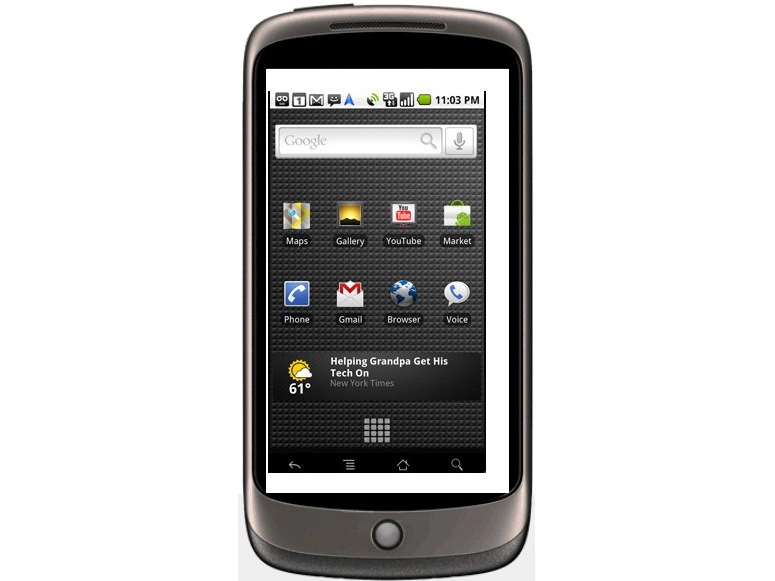
So you just bought a Nexus One from Google - good job!
This outstanding phone might still have a few issues, as we wrote about recently in our Nexus One review, but packs a lot of power with a 1GHz processor, plenty of storage, and a slick OLED screen that shines brighter than most.
As you're discovering new features and downloading apps, we've provided a kickstart to make your experience even more rewarding.
1. Touch that address!
One remarkable feature that is not obvious at first: when you receive an e-mail or text message that has an address, you can touch and hold down for a moment. The Nexus One puts a red rounding box around the address and pops up a choice to copy it or see a map for that address. You can also touch and hold on e-mail addresses (to copy or send an e-mail) and on phone numbers (to call or copy).
2. Find recently used apps
Say you just beat your high score in a game like FRG Lite; you can find that app quickly by holding down the Home key to see any recently used apps.

FAST FIND: This menu shows all recently used apps. Access it by long-pressing on the Home button until the menu appears, then select the app you want
3. Load apps on an SD card
Free apps for the Nexus One are available on the Web if you know where to look -- just search for .APK files. When you find them, you can mount your Nexus One and copy the files to the SD card. To install these apps, you'll need a file manager like Astro -- just navigate to the SD card and run the app.
4. Mount your memory
Speaking of mounting, don't forget that, when you plug in the USB cable and connect your Nexus One to a PC or Mac, you need to mount the phone as a USB drive. Fortunately, you can access this function very quickly -- just drag down from the top of the screen where you see alerts, select the USB Connected option, and click Mount. Now you can access the phone storage from your computer.
5. Quick access to Maps
There's a quick way to access Google Maps. Just click the microphone icon in the widgets search toolbar and say "navigate to...." followed by a destination, such as bus terminal or airport. Click Go and you will see the map directions.
6. Add contacts to home screen
You can add a favorite contact right to your home screen, provided you do not have too many icons there. (Just flip to the left or right to a home screen with fewer apps if you need to.) Long-press in any open spot, and select Shortcuts. Now, go to Contacts and select the one you want and it will appear on the home screen.
7. Change the Live wallpaper
Speaking of long-pressing on the home screen, this is also how you change the live wallpaper -- those animated backgrounds that look so cool. Just long-press on the home screen in an open spot, and select Wallpapers, then Live wallpapers. Select the one you want to use for the home screen. Here's hoping Google makes a few more of these for the next patch release for the Nexus One!
8. Quick mute option
When someone calls you during an important meeting, and you have "Pants on the Ground" as your ringtone, it can be embarrassing (or just funny). You can mute your Nexus One by holding the volume control knob until the phone mutes, but there is a faster way. Click the power button, and -- at the unlock screen -- slide the sound knob to the right for a quick mute. Slide again to unmute.
9. Improve camera quality
Snapping photos with the Nexus One is easy, and the shots look much better than other smartphones thanks to the 5 megapixel quality. Still, you can improve the quality even more by accessing a few simple options. In the Camera app, select the Menu button and set the white balance for the type of lighting for your current locale; for example, use daylight for outdoor shots. Indoor shots will also look better if you use a lamp or even a flashlight to shine on the subject at hand.
10. Conserve photo space
Another tip for photographers: you may not need your shots to look perfect. In some cases, quantity is more important. You can adjust the camera settings for megapixels (down to just 1 megapixels) and set the picture quality to normal to save space.
11. Long-press for a home screen preview
You have five home screens to use for storing apps. You can get a quick preview of these screens by holding down on the dots (to the left and right of the main home screen). Thumbnails of all five home screens appear.

AT HOME: Thumbnails for the home screen help you see which one is cluttered and which one has free space. Access it by long-pressing on the dots for accessing home screens
12. Share your video clips
It's called the Camera app, but you can use it to shoot video. Most importantly, you can share these clips on YouTube. First, switch to the camcorder by pressing on the switch near the record button. Shoot your clip, then go to Menu and select Gallery. With a clip selected, go to Menu and select Share. Select YouTube, login, and upload.
