


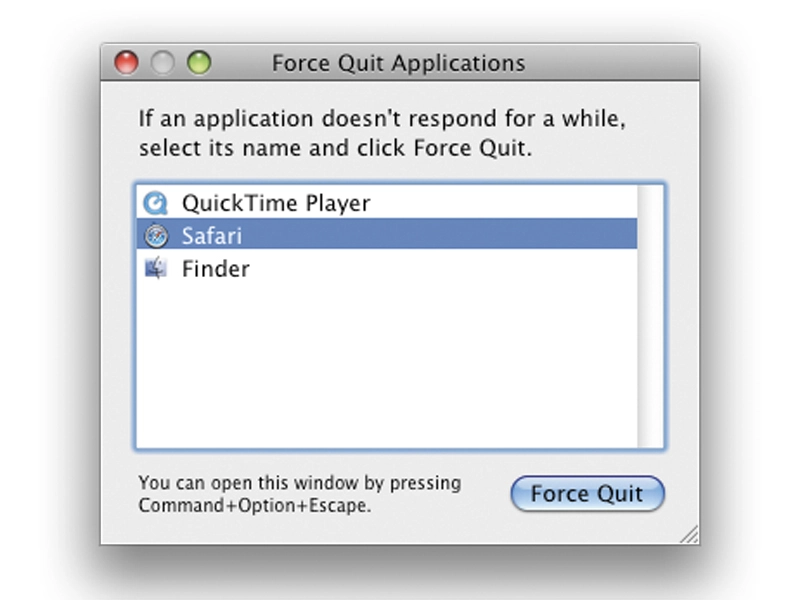
1. Force quitting an app that is not responding
If an application is not responding, if it's continually bouncing in the Dock or appears to have frozen, you may need to force quit it. You can do this by holding Command+Alt+[esc] to bring up the Force Quit window, or by choosing Force Quit from the Apple menu. After quitting the program, try relaunching it. If it still doesn't work it may be incompatible with your version of OS X. Thankfully, force quitting programs on Macs nowadays doesn't generally affect the stability of the system and doesn't require a restart.
2. Fixing software update errors
If you run the Software Update application (which can be found in System Preferences) on your Mac and are presented with any kind of an error, it could be that you need to repair permissions. OS X is based on a system of permissions telling it which user has access to what files. If these become corrupted, your Mac might erroneously think that you don't have the right privileges to run and install software. Go to Applications > Utilities and open Disk Utility. Then, choose your boot drive, this is usually called Macintosh HD, and then click the Repair Disk Permissions option. After this process has been completed, try the software update process again. Everything should be running back to normal just by going through this simple process.
3. Opening files in specific programs
If a file or document is refusing to open but you know which application it should work with, try holding Command+Alt while dropping the file onto the relevant application's icon, either in the Dock or in Finder. This should force your chosen application to open the file. It will also force any application to try to open a file, though success rates will vary. Alternatively, select the problem file and press Command+[I] to open up the Get Info window. Then, choose Open With: and, from the pull-down menu beneath that option, pick an application to open the file. To make every file of that kind open with that application in the future, click the Change All… button.
4. Making some space and adding more RAM
If your Mac is feeling sluggish and simple tasks are taking longer than usual to do, check that the boot drive isn't getting too full by selecting it and pressing Command+[I] to Get Info on it. Look at its size and how much available free space is left on it. If it's less than 20% of the drive's size that's free, you'll need to offload some stuff either onto DVDs or onto external hard drives to free up space. Good candidates include movies, iPhoto and iTunes libraries, plus any applications you don't use much. Also look at fitting more RAM to your Mac as this will also help greatly with performance.
5. Ejecting a disc that's stuck in your Mac
If a CD or DVD refuses to eject, and it's definitely not in use by any programs, try restarting the Mac whilst holding down the left mouse button. This should force the opening of all optical drives and eject your troublesome disc. You could also open Terminal and type drutil tray open, then hit [Enter]. If other devices like USB or FireWire hard drives, memory sticks or iPods refuse to eject, the safest course of action is to shut down the Mac, disconnect the device and then restart. Often, a device will then behave normally.
6. Finding a file that's missing on your Mac
We all like to think that we're super organised by storing our documents and files in relevant folders on our Macs, but every now and then we forget to put them somewhere sensible and a file ends up somewhere completely obscure. If you can't find a file or folder that you think may be somewhere on your Mac, you can use Mac OS X's built-in Spotlight search system to find it. Click on the Spotlight icon (small blue circle with a magnifying glass inside) at the top-right of the menu bar and type the name of the file or even just part of its name. From the resulting list you should be able to see the missing file and open it – as long as it's on your Mac, of course! Alternatively, press Command+[F] to open the search window, and run a search based on its filename and also date opened, date created, file type or any of the available criteria. The more information you can enter, the easier the search will be.