
 Become a TechRadar Insider





My team and I have put the best business monitors to the test to see which deliver the professional-grade performance office workers and business owners demand. What I want to see from these work displays is sharp on-screen text, vivid colors, eye-care modes, good port selection for hooking up peripherals, desk accessories, and charging devices. And while 4K isn't essential for running office software, I still find it better to have that extra resolution for greater clarity when keying into the details.
The Dell P2725QE is my favorite for most professionals. This 27-inch 4K computer monitor performed exceptionally well when we tested a range of productivity tasks, and for the mid-range price, it delivers plenty of value for money.
But, because every workflow is different, I've included a range of alternatives here for IT managers, programmers, creators, and business travelers. Check out the full line-up below. For more hardware for work, I've curated the best business PCs and best business laptops based on our tests, too.
Update: In my latest update, I've added new picks for the Mac, coding, and creative professionals. I've also replaced older monitors for those we've reviewed more recently.
Best business monitor overall


The Dell P2725QE (or, to give it its full title, the Dell Pro Plus P2725QE) is a rock-solid business monitor that delivers everything most professionals need from a monitor without breaking the bank. In other words, it's a classic Dell monitor.
Specs and features are great for the price. The 27-inch anti-glare screen boasts a 4K resolution, great color reproduction and accuracy, VESA mounting points, and features 90W Power Delivery for charging phones and laptops direct from the monitor.
In design, it's a very attractive screen, professionally styled with thin bezels. We found build quality to be solid (as you'd expect from Dell's pro-grade line-up). Performance-wise, it ticked every box. We used it for just about every productivity task going, from running office software to photo editing, and even some light gaming. It delivered fantastic results across the board.
Yes, if you need a more niche business monitor such as a true creator-focused display, the P2725QE probably won't meet all your needs. And while the price is good, it's not the cheapest around - although FHD and QHD resolution models are available, which bring the price down further but strip back some connectivity. For a 32-inch version in Dell's Pro Plus line-up, see our review here.
Overall, it's a spectacular monitor for most people looking for a display that gets the job done, and done well.
Read our full Dell P2725QE review
Best business monitor on a budget


The BenQ GW2486TC is an affordable, attractively designed business display that ticks just about every box you'd want for basic use at a good price.
True, as a budget business monitor with an aggressive focus on productivity, it does have certain limitations. There's the 24-inch IPS screen and the 1080p (Full HD) resolution, there's no KVM for switching peripherals, and color coverage is only 99% sRGB. I definitely wouldn't recommend this monitor for professional designers and creators.
But then, not every professional or hybrid worker needs an ultrawide, high-resolution display - especially not if you're chiefly using it with office software, browsing the web, or streaming the occasional video. If that sounds like your day-to-day work, then the BenQ GW2486TC is pitch-perfect. And that's not to say it's entirely feature-free.
When we tested it out, we liked the tall stand, offering 130mm of height adjustment, the ergonomics with plenty of tilt and swivel, and the eye-care features designed to prevent eye strain throughout the work-day.
Ports are decent here too. You get a DisplayPort 1.4, HDMI 1.4, two USB-A ports, and a USB-C with 65W power delivery for charging your devices.
Overall, it's a great budget pick with, as we said in our review, a good array of "solid office-oriented features."
Read our full BenQ GW2486TC review
Best business monitor for IT managers


If you are an IT manager of a business and you manage a fleet of monitors for a hot desking space or a bullpen, or even across a campus, the Lenovo ThinkVision P27Q-40 is a very appealing option.
It’s a 27-inch QHD Monitor, which is pretty much exactly what your team probably needs in the business professional space, plus it has 98% DCI-P3 coverage, it has remote firmware updates, built in asset tracking through Lenovo’s tool, and centralized settings deployments all possible through Lenovo’s software. What more could you want?
To make it super easy for the user, there is a USB-C cable to plug in and use the device, and for compatible computers, you can use one cable and then daisy chain up to four displays, meaning there is no need for a docking station, DisplayLink doc or drivers, no need for extra software or anything like that, just plug and play for 1-4 monitors depending on desire with only a power cord needed.
Plus, for those setups with multiple monitors, the built in stands can rotate up to 90-degrees in both directions, allowing for you to put the cables exactly where you want them for a vertical monitor.
Now, it’s not all sunshine and rainbows. This is only a QHD monitor, and it’s not the brightest, but for a business professional who may not need 4K, or if the IT manager is making the call on the monitor purchase, this is a great option for professional kits.
Read our full Lenovo ThinkVision P27Q-40 review
Best business portable monitor
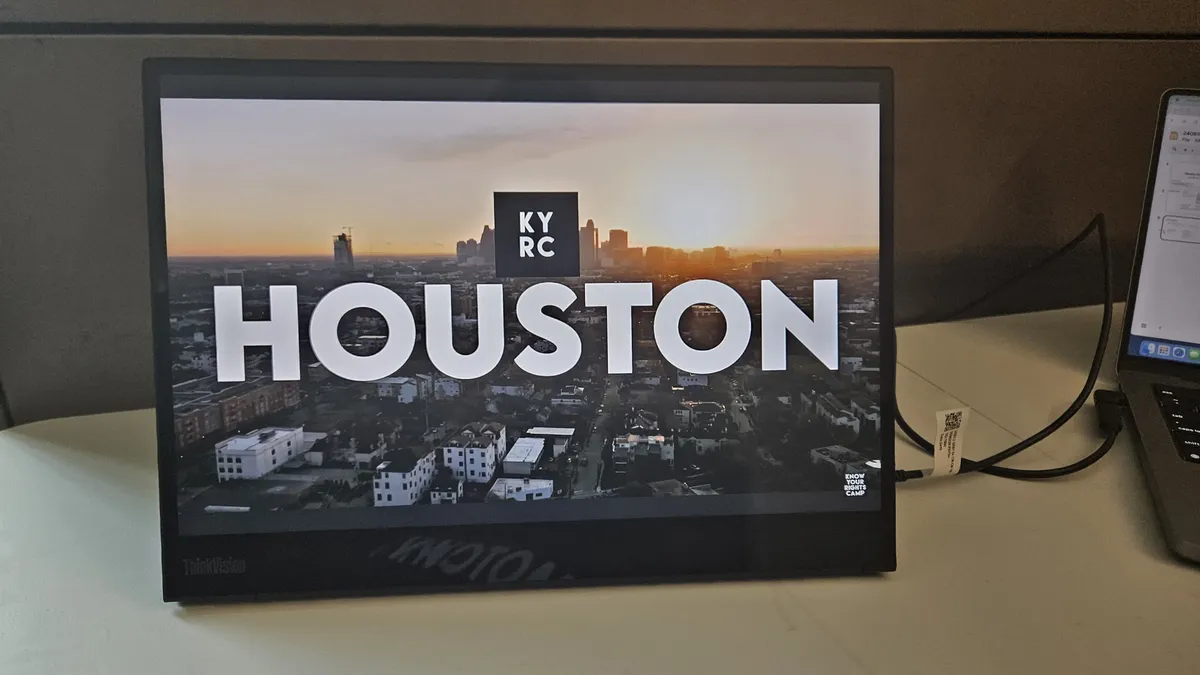


The Lenovo ThinkVision M14t Gen 2 is perfect for business travelers (or anyone looking for a second screen that won't take up much room). This 14-inch touchscreen portable monitor, designed for professional use.
Yes, you can get cheap, compact displays - and many will perform the same task well - but the ThinkVision M14t Gen 2 boasts features few others do. For starters, it has a 2.2K resolution and a 16:10 screen ratio. For another, it has a built-in stand with USB ports that we found delivered exceptional stability during our testing.
Under review, we used the ThinkVision M14t Gen 2 for a range of productivity tasks, from signing documents with the stylus to editing photos and videos (it has a 100% sRGB color coverage). Performance was flawless.
Likewise, the display is great here. We found image quality was superb, colors were vibrant, and on-screen text crisp. Better still, the VESA-mountable monitor has an automatic orientation, like many tablets do, making the seamless switch between landscape and portrait mode. The only mark against it - literally - is that as a touchscreen device, we caught a few fingerprint smudges here and there.
Editor's note: If you don't need the touchscreen capabilities or higher resolution, check out the Dell Pro 14 Plus - it's another exceptional portable monitor for business use.
Read our full Lenovo ThinkVision M14t Gen 2 review.
Best business monitor for Mac


While Philip's 5K business monitor is suitable for Mac and Windows, we found that high-resolution makes this a Retina-grade display with an integrated webcam that's more affordable than the Apple Studio Display.
In appearance, you can immediately tell Philips has taken design inspiration from Apple. That subtle space-grey colored plastic chassis and flat, wide stand are a clear imitation of the Studio Display. And it's perfectly acceptable, although lacking the level of quality you get from Apple's more expensive monitor.
Connectivity especially strong here, with the 27E3U7903 including a Thunderbolt 4 with 96W power delivery for charging your MacBook and full KVM switching. You can even daisy-chain displays here, which is a nice bonus.
The display itself is easy on the eyes. Although it does have limited HDR capabilities, we found the 5K visuals to be crisp and clear, while the backlight felt punchy. It also boasts 99% DCI-P3 for professional content creators.
Of course, 5K isn't essential if you're using an Apple device - if you're not especially sensitive to pixel density, a 27-inch 4K display is probably fine. But for a monitor that properly scales to meet the macOS target, the Philips 27E3U7903 is a grand choice.
Read our full Philips 27E3U7903 review.
Best business monitor for coding & number-crunching


When it comes to on-screen text and numbers, few business monitors come as sharp as the BenQ RD280UG. This 3:2 display has everything you'd need for coding or number-crunching sessions.
Highlight features here include 4K+ resolution (it reaches a maximum 3840 x 2560), a clean, matte screen, and a built-in lighting for when you're working in darker environments. No wonder when we took the RD280UG for a spin, we found at the end of the 128-day testing process, we couldn't imagine ever taking it off our desk again.
During tests, we ran the full range of documents, databases, programming tools, webpages, third-party tools, custom tools, web-developer tools, coding windows, and everything in between. And everything looked perfect - "absolutely gorgeous" is how we described it in our review.
On top of that, we loved the eye-care mode, 120Hz refresh rate, broad port selection, and P3 color coverage for those that need it. Alright, it might not look like a showy monitor, but it absolutely gets the job done, and done well.
While not every professional will need a programming monitor like this, with that beautiful bias halo ring to the rear and a crisp display panel, for those that do, this is the one to pick.
Read our full BenQ RD280UG review.
Best business monitor for video conferencing
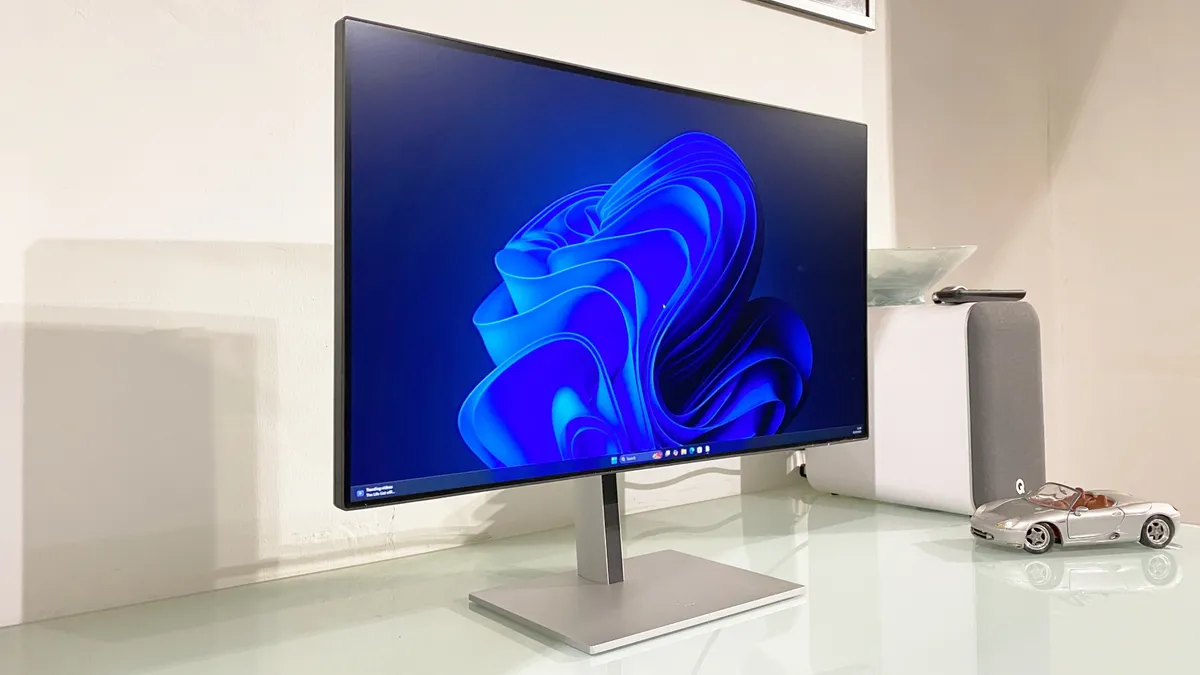


The HP Series 7 Pro 727pm is my top pick for business professionals attending meetings, jumping on video calls, and
I mean, the 4K resolution is great. The 27-inch IPS Black panel is sharp and beautiful. And the port selection here ticks every box for those hooking up external devices - it includes Thunderbolt 4 in with 100W PD, Thunderbolt 4 out with 15W PD, and USB-C with 65W PD.
But what really stood out here when we tested this HP monitor was the integrated pop-up webcam. Now, built-in cameras can often be hit-and-miss, but here we found the image quality to be above average, and certainly a clear step up from integrated laptop cameras. It's a 5MP webcam with support for Windows Hello and AI head tracking, and the ability to hide it away does offer that all-important security.
In our review, we said, "in productivity and connectivity terms, this monitor really has all your bases covered. However, it's slightly less impressive from a multimedia perspective." As a general-purpose business monitor, not a creator-driven display, it shines.
Read our full HP Series 7 Pro 727pm review.
Best business monitor for creative professionals


The Asus ProArt range are all exceptional monitors for creative professionals, but the PA32UCDM is one of the highlights. This is a 32-inch 4K QD-OLED panel with a sleek, minimalist design.
Under our testing, we discovered the monitor delivered stunning HDR highs and very vibrant colors, hitting 99% DCI-P3. Colors felt like they were exploding before us - and that's a good thing.
Pixel density isn't as high as Apple's own creative business monitors. And like many OLEDs, use in bright environments can be hit-and-miss - it spans 250 nits to 1000 nits depending on your settings. But while it's not the cheapest around by any stretch, it's still more affordable than Apple's Pro Display XDR for pro-grade content creation.
Connectivity is a mixed bag, which isn't as broad as other business monitors. However, we liked the inclusion of a USB Hub and a Thunderbolt 4 with 90W Power Delivery
Still, as we noted in our review, "with the 4K pixel grid and features like Thunderbolt 4 with daisy chaining support you have a very compelling display for creative tasks."
Read our full Asus ProArt PA32UCDM review.
Best ultrawide business monitor


If ever a monitor was built for business, it's the HP Series 7 Pro 734pm. This is an ultrawide productivity beast - a 34in 4K display that boasts an outstanding array of connectivity.
In our review, we praised the feature-set of this pro-grade display, which includes Thunderbolt 4 port with 100W power delivery, USB-C with 65W PD, full KVM switch functionality and an integrated webcam for video calls and meetings.
I mean, this is pretty expansive as far as screens go. And it all comes together nicely in a chassis that's well-built but admittedly large (you'll need to make sure you have space).
Display-wise, it pairs the excellent IPS Black technology with enhanced contrast, with a standard 4K resolution that, we found, led to disappointingly low pixel density. Despite lacking True HDR, color coverage is 98% DCI-P3, so it's certainly not all bad.
For most professionals, I can't see those two factors being an issue - they were the only real complaints we had for an otherwise great monitor that we called "a vibrant, pleasant display to use day-to-day."
Read our full HP Series 7 Pro 734pm review.
Best business monitor for dual monitor replacement


Not everyone will need a super-ultrawide display for work, but if you do, we really like what's on offer here from the Dell UltraSharp U4924DW (also known by the Dell UltraSharp 49-inch Curved USB-C Hub monitor). This widescreen monitor is effectively two 1440p monitors fused together, making it ideal for anyone replacing a dual-monitor set-up. It delivers an immersive experience. Colors are bright, vibrant, details sharp and well-defined.
It's big - bigger than we initially expected, we found, after unboxing and setting it up in our home office. Despite this, it still retains the familiar Dell style of business monitor, so it's sleek and minimalist, its bezels thin, even at 49-inches. We were pleased with the overall construction, which felt robust and made from premium materials. Better still, there's a built-in hub for extra connectivity and a great port selection. At the bottom of the screen, you'll find two HDMI ports, a DisplayPort, two USB-C and four USB-A ports, an audio line out, and an RJ45 Ethernet port. In use, this business monitor absolutely changed the way we worked.
As stated, not everyone will need such a large monitor - it'd be absolutely wasted on spreadsheets and emails alone. So, whether the bigger screen size and higher price-tag is worth it will entirely depend on your workflow and multi-tasking needs.
Editor's note: A great alternative here is the Philips 49B2U6903CH - see our review here. It's a 49-inch colossus that focuses on features and connectivity.
Read our full Dell UltraSharp U4924DW review.
Best business monitors compared
Model | Screen size | Resolution |
|---|---|---|
27in | 3840 x 2160 | |
24in | 1920 x 1080 | |
27in | 2560 x 1440 | |
14in | 2240 x 1400 | |
27in | 5120 x 2880 | |
27in | 3840 x 2560 | |
27in | 3840 x 2160 | |
32in | 3840 x 2160 | |
34in | 3440 x 1440 | |
49in | 5120 x 1440 |
Best business monitors: Frequently asked questions
What is a business monitor?
A business monitor is designed to be used in a professional environment such an an office, a hybrid workplace (home office) or even a remote location (e.g an events room). Business monitors differ from other monitors because they emphasize after sales support, connectivity, ergonomics and features that enhance productivity and collaboration. I would argue that business monitors are different from creative displays geared towards more specific use cases like video editing, graphic design or medical imaging. In other words, despite what many of my peers say, I’d posit that a business monitor is mostly used for office productivity tasks. Anything else would require professional-grade panels.
Can a gaming monitor be used as a business monitor?
Yes, absolutely, assuming you don’t mind the extravagant designs that such displays often exhibit. The best gaming monitors are usually competitively priced, with higher than average refresh rates (read out more on What is a monitor's refresh rate), which is especially helpful if one plans to use a business monitor as a gaming display, a common scenario in a mixed-use environment (e.g. WFH). One thing to bear in mind though is that gaming monitors almost always use VA panel instead of IPS. VA panels tend to have a much higher refresh rate, better contrast ratio (giving better blacks) but worse viewing angles and color accuracy, not an issue if you do not usually have huddles around your desk.
What screen size is best for business monitors?
I’ll go for an easy cliché here. There’s no one size fits all when it comes to business monitors. Every business is different so why should their business displays be the same? Business monitors vary immensely in size, from 14-inch for portable business monitors to more than 100-inch for models that live in boardrooms or conference rooms. I personally use a 43-inch model having moved over the years from 21.5 to 27, to 32 and finally 43. The screen size will depend on budget, desk space, optimal screen resolution (which depends on the user) and use case. If you are working on wide web pages, long text documents, large spreadsheets, or need multiple windows open, a 27-inch monitor or larger one might be better.
What resolution is ideal for business monitors?
A larger screen size paired with higher resolution means more real estate viewing. I recommend getting the biggest monitor you can deal with, with the highest resolution you can afford. A higher resolution improves how sharp and crisp text and pictures are on the screen, although that is also dependent on how far the observer is from the screen. I wouldn’t recommend using anything less than 4K (3840 x 2160 pixels) for normal business productivity as once you experience multi-window, it is hard to go back. Other resolutions include QHD, DQHD, WQHD, 5K and full HD, which may or may not fit your needs.
Is aspect ratio important for business monitors?
It is worth considering the aspect ratio if the user is considering blending productivity and what some call “immersive multimedia experiences”. The standard aspect ratio for most displays including business monitors is 16:9 with ultrawide models offering a 21:9 aspect ratio. These allow you to see more content laterally (i.e. on the sides). There’s a new generation of monitors that go even further with 32:9 models, the equivalent of fusing two 16:9 monitors together for even more immersive viewing experience, which brings us to our next question
Should curved business monitors be considered?
According to our colleagues on TechRadar, “a curved form factor can be a better fit for office work and gaming over a more standard straight model, delivering enhanced viewing angles when sat up close, particularly when paired with an aggressive curve. For reference, the lower the number the more intense the curvature. Traditionally, this ranges anywhere from 1000R (a deep curve) to 4000R which is more subtle”. Viewsonic adds that it eliminates distortion, causes less strain to the human eyes and covers a wider field of view. Just bear in mind that curved monitors tend to be far more wieldy and far more expensive than their flat panel counterparts, without necessarily delivering a higher number of pixels. They can take a lot, and I mean a lot, of desk space.
What sort of connections should a business monitor have?
I think that two HDMI ports is the strict minimum a business monitor should have and that is what you usually have at the lower end of the market. This enables users to connect a wide variety of devices - PCs, laptops, tablets, smartphones, gaming consoles and even Raspberry Pi. DisplayPort is gradually being demoted to a legacy connector (similar to VGA or DVI) and replaced by the far more versatile USB Type-C. I use that port to connect my laptop to my work monitor. A connector to rule them all as it transfers video and data over one cable. The best business monitors will also have USB Type-A ports as well as Thunderbolt 3 or 4, allowing users to connect even printers, docking stations, other monitors and even external hard drives.
What’s a good refresh rate for a business monitor?
60Hz is sufficient for most business productivity applications (including coding and data analysis). Higher refresh rates (120Hz or more) will be useful for alternative use cases like gaming where increased smoothness and reducing motion blur are important.
What multitasking features can business monitors offer?
Some business monitors allow split-screen, picture-by-picture and picture-in-picture. Two or more devices may be connected simultaneously to improve your workflow. Often, a KVM (Keyboard, Video, Mouse) can also be found on the list of features, this allows the user to control two devices, using one set of keyboard, mouse and video display unit.
How can business monitors improve collaboration in the workplace?
A large proportion of business displays now come with webcam to allow seamless video conferencing as well as integrated speakers and microphones. A growing number even have built-in platforms that enable simple office tasks such as editing a business documents or previewing a presentation. Likewise, touchscreen capabilities, a popular feature, encourage employees to interact with each other and with the content being displayed. Great for presentations, brainstorming sessions and digital signage.
What can business monitors do to improve employee well being?
A good business monitor will allow for adjustments to height, tilt, swivel and pivot to accommodate the needs of its users. This helps improve posture as well as viewing position, thereby reducing strain on the neck, shoulders and back. Experts advocate tweaking your monitor position to reduce the risk of musculoskeletal disorders that occur frequently when using VDU (visual display units) for a long time. More and more monitors also offer flicker-free technology, low blue light filters, sensors that automatically adjust brightness which help reduce eye strain and fatigue over long periods of use.
What's the difference between TN, VA and IPS panels?
We put that question to Brett Barbour, VP at US monitor vendor, Viotek.
Modern LCD monitors are made with different types of panels: IPS, TN or VA. Professionals in different fields may prefer one panel type over the other, because each panel type comes with their own strengths and weaknesses.
There are plenty of articles out there that can give you a more complete rundown of the pros and cons of each panel type. We won’t go into detail here, for brevity’s sake, check the table below.
But is it really a con? Not really. Unless you’re a professional eSports gamer, we contend that you won’t be sacrificing much by choosing a VA monitor. For general office work, call centers and standard business settings, a VA monitor is plenty fast with deep, rich colors that workers will enjoy experiencing.
If you’re a graphic design firm or professional photography studio, you may prefer the color accuracy of an IPS monitor. But for now, if you want a curved monitor, VA panels are your only choice.
Panel Type | Strength | Weakness |
|---|---|---|
TN (Twisted Nematic) | Faster response time | Less-than-optimal image quality & bad viewing angles |
VA (Vertical Alignment) | Solid image and color quality with higher contrast ratios | Slightly slower response time |
IPS (In-Plane Switching) | Superior color accuracy with consistent viewing angles | Contrast ratio not as inherently good as VA panels |
Business monitors: here's what to look for
What should we be looking for when buying a monitor for business purposes. Alistair Round, Product Manager Commercial Displays, NEC Display Solutions Europe GmbH, replied extensively below.
A good business monitor should support what your business needs: productivity. The screen size is the first thing to think about here; the larger the screen estate, the more documents you can view simultaneously, meaning fewer mouse clicks and fewer opportunities to get distracted. You can also view more columns and rows on your spreadsheet without scrolling. A 27” monitor is becoming popular, giving more than ample screen area, but if your workspace is at home, you might find a 24” is more practical and will perfectly complement your laptop screen.
If you have the space available, multiply your active screen area with a dual-screen setup. Ensure both displays have DisplayPort-OUT functionality to enable daisy-chaining on a USB-C signal. DisplayPort-OUT combined with USB-C is the most effective solution for multi-screen environments at home or in the office.
Supporting open office standards in hot desking and “bring your own device”, plus business-critical home working, USB-C enabled desktop monitors are fully future-proofed. Just a single cable connects your monitor to a laptop or tablet, managing audio, video and power as well as charging your device for an all-in-one communications hub. You can keep your workspace free of clutter, no multitude of cables and no docking station required.
Depending on the type of documents you’re working on, a higher resolution will give more pixel free detail. For standard office documents, spreadsheets and the like, look for 1080p Full HD resolution which will offer you an excellent viewing experience with your text characters in sharp focus.
It’s important to remember that the monitor is simply an interface between the user and the PC, what’s truly important therefore is the person sitting in front of the screen. User well-being cannot be overlooked, it is an important aspect of that all-important productivity. A good range of ergonomic adjustment will allow for individual set up whilst features to reduce the blue light effect and flickering will protect the user’s eyes.
One last point, businesses will also have an eye on reducing costs so eco features to reduce power consumption will be interesting, moreover, high quality and reliability will ensure long lifecycles, meaning you will not have to repair or replace your assets any time soon.
What type of monitor is best for office work?
When it comes to the best monitor for office work, there are a handful of factors to consider. First off, and potentially one of the most important factors, is the panel type. The three main panel types are TN, VA, and IPS. While all of these have their strengths and weaknesses (see earlier FAQ response), the display that would be best for office work would be the IPS panel. This is due to the balance between color, brightness, and viewing angles.
If you are in a specialized role that focuses on content creation or any other role that has high-resolution graphics or other visual content, you'll want to find a monitor suited to the role - there's a world of difference between the best business monitors and those specifically aimed at photo editing, video editing, and graphic design.
Which monitor is best for long working hours?
When working long hours staring at a monitor, the screen size and overall picture quality are two important factors for the monitor itself. Manufacturers now include Low Blue Light features to reduce eye strain when using monitors all day.
Regarding resolution, 1080p is the standard monitor resolution, with 4K resolution rapidly growing in popularity. For looking at text, webpages, and spreadsheets, 1080p will get the job done. However, higher resolution panels (4K and above) will help with eye strain and allow more content to be displayed on the screen. However, the price tag and power needed to run some of those are unnecessary for the standard business monitor.
Lastly, two more elements worth looking into would be a monitor backlight and a monitor stand. Monitors put off a lot of light; if they contrast with a dark background, your eye strain can increase due to the large contrast in brightness from your environment to your monitor. Adding light of some kind behind your monitor to help reduce the contrast can help your eye fatigue during long working hours, especially if those hours extend to when it is dark outside. Monitor risers or the best monitor stands help bring the monitor to a more ergonomic height. Just putting the display at the right height can help you stay comfortable for longer working sessions. The right distance away from your eyes, the right height compared to your height (whether sitting or standing, if you have a best standing desk), and the right monitor orientation can make a massive difference. The standard best practice is to have the monitor about an arm's length away from your eyes, have the top of the monitor at eye level, and have your primary monitor directly in front of you. This slightly changes if you have dual monitors, depending on how much you use each monitor. If you are running multiple monitors, best monitors for a dual setup will be ideal.
What is the best size monitor for business?
Depending on the business, department, and task, this answer could drastically change. On average, though, we see business professionals opting for a 24 - 27-inch monitor due to the reasonable pricing and the quality of the panels for the price. If you are working on wide webpages, long text documents, large spreadsheets, or need multiple windows open, a 27-inch monitor or larger one might be better. A larger screen size paired with higher resolution means more real estate viewing.
How to choose the best business monitor for you
Why you can trust TechRadar We spend hours testing every product or service we review, so you can be sure you're buying the best. Find out more about how we test.
When deciding which business monitor is best for you, there are a number of factors to consider. This includes screen size, color accuracy, and connectivity options. For example, the best 5K and 8K monitors deliver incredibly detailed resolutions. But if you prize screen real estate over clarity, then the best ultrawide monitors may be a better choice.
Consider issues like color coverage via various important gamuts, including sRGB, Adobe RGB, and DCI-P3 - particularly when selecting the best monitor for photo editing or the best monitor for graphic design, as these mean the image on your screen will better match the final print or export.
You may also want to look at productivity improvements such as parallel monitor use, portability, and the number of USB connections. In some cases like these, it's worth exploring the best portable monitors - these may be small, but more ideal for working in multiple locations as they can easily fit into any of the best laptop bags.
How we test the best business monitors
We've tested a massive range of monitors for the office and home, including the best monitors for the Mac mini, and the best monitors for working from home.
Whether for business or personal use, we review monitors based on a number of factors including price, design, and performance. We consider the size of each display, along with panel type, resolution, refresh rate, color coverage and HDR support. We also compared the connectivity of each device, including HDMI, DisplayPort, USB-C and wireless interfaces.
Pixel density and color accuracy are particularly important for digital design monitors, but so are ergonomics, so we assess stand adjustability and stability. Finally, build quality and value for money are judged against competitors in the market.
Find out more about our rigorous testing process in our guide to how we test, review, and rate monitors on TechRadar Pro.
Get in touch
- Want to find out about commercial or marketing opportunities? Click here
- Out of date info, errors, complaints or broken links? Give us a nudge
- Got a suggestion for a product or service provider? Message us directly
- You've reached the end of the page. Jump back up to the top ^
