





You've got yourself a MacBook Pro, and you're here to find a display that will act as the perfect companion for your desk setup. Well, after connecting Apple's Pro laptop to the latest screens that land on our desks, we've done the testing and found the best monitors for MacBook Pro.
Apple's 14- and 16-inch MacBook Pros already come equipped with amazing Liquid Retina XDR displays, but to extend your workspace with monitors that match the rich, colorful visuals and high pixel density those screens offer raises the bar for your setup. That's why my team of experts and I have done extensive hands-on testing for picture quality, color accuracy, connectivity and more for each monitor to help you find the right fit for your desk.
Right now, we highly recommend the Philips 27E3U7903 as the best monitor for MacBook Pro for most, as this 5K beauty ticks all the right boxes and is far less expensive than Apple's Studio Display (even though that is still a great choice). We've got more choices to put on your radar, so if you're ready to give your MacBook Pro the monitor it deserves, our guide will point you in the right direction.
Looking for other displays from Apple's lineup of Macs? Check out our guides on the best monitors for Mac mini and the best monitors for Mac Studio, too.
The best monitor for MacBook Pro overall


The Philips 27E3U7903 takes the crown as our top pick for MacBook Pro users who want a monitor that nails modern connectivity and delivers a true high-res experience without the Apple tax. In our testing, we found it needs to be excellent across the board to justify its premium price, and the combination of practical features and 5K clarity gets it most of the way there.
Connectivity is where the 27E3U7903 shines. With HDMI 2.1, a Thunderbolt 4 port delivering 96W of Power Delivery (enough to fully charge a MacBook Pro), plus additional Thunderbolt, USB-C, and USB-A ports, it handles single-cable docking, peripheral charging, and daisy chaining with ease. We found the built-in KVM switch and multi-port options made switching between devices and tidying up desk clutter genuinely seamless.
On the visual front, you’re getting a 5K (5120 x 2880) panel using IPS Black tech, meaning crisp, retina-style sharpness for macOS, vibrant colors, and a punchy backlight. In hands-on use, the panel’s vibrancy and power stood out, making it suitable for everything from spreadsheets to creative work, even if it won’t quite match Apple on calibration out of the box.
Yes, the Apple Studio Display still wins for build quality and Mac integration, but the Philips matches its resolution and undercuts it on price. So you aren’t paying for the logo.
If you’re looking for a premium-feeling, high-resolution monitor that offers practical one-cable MacBook Pro docking, the 27E3U7903 is a strong choice. You’ll give up some of Apple’s design polish and factory calibration, but for most users after ports, clarity, and versatility, it’s the best all-rounder we’ve tested.
- Read our full Philips 27E3U7903 review
The best budget monitor for MacBook Pro


The BenQ GW2486TC Eye-Care Monitor is as budget-friendly as it gets for MacBook Pro users who just want a reliable desktop screen with a single-cable USB-C connection.
You get 65W USB-C power delivery (enough for lighter MacBooks and most workdays), a 24-inch 1080p IPS panel, and a measured 99% sRGB color coverage. That simple yet effective combination delivers sharp enough text and reasonably accurate colors for routine tasks and light creative work.
We used this monitor daily for a month, pairing it with various laptops and running through everything from spreadsheets to streaming media, and it made for a great screen companion. For one, the stand offers 130mm of height adjustment, 45-degree swivel, and 90-degree pivot, so it’s easy to dial in a comfortable setup. Secondly, the OSD menu is straightforward, and those eye-care modes are a genuine plus for long sessions, especially if your workday stretches late.
Of course, you’re making clear trade-offs versus pricier options. The BenQ’s 65W power delivery is well below its 90W competition, and won’t keep a 16-inch MacBook Pro charged under heavy load. You’re also giving up 4K resolution and Thunderbolt, features you’ll others like the Apple Studio Display.
For basic office use, though, the savings are real. If you’re after a clean, simple MacBook Pro setup on a tight budget, the GW2486TC covers the basics better than anything else we’ve tested at this price.
- Read our full BenQ GW2486TC review
The best creator monitor for MacBook Pro


The MacBook Pro caters amazingly to creative work, so if you're after a fitting display, the Asus ProArt PA32UCDM is your best bet. When you get wide-gamut color and reliable calibration done right on a gorgeous 4K OLED panel, you know creators will get a kick out of visuals.
With 99% DCI-P3 coverage and a decent range of hardware calibration tools, including 3D LUT, ProArt calibration, and CalMAN Autocal, it’s built for professionals who can’t afford to second-guess color decisions or output consistency.
That 32-inch 4K OLED panel delivers a sprawling workspace and crisp detail, making it ideal for photo editors, video colorists, designers – you name it. Anyone who needs to see every nuance. The VESA DisplayHDR TrueBlack400 certification translates to deep blacks and vibrant highlights, so you can trust your tonal and color-critical work will look as intended.
During our hands-on time, the PA32UCDM impressed us with its exceptional display quality. HDR video content in particular absolutely zings, with highlights that leap off the screen and a vibrancy that’s a clear step up from typical IPS or even WOLED panels.
Now, like with many OLED monitors, the peak 1,000-nit HDR brightness only applies to 3% of the panel, so scenes with large bright areas won’t pop as much as you might hope. There's also no DisplayPort, but for MacBooks, you get a very welcome Thunderbolt 4 USB-C port with 90W Power Delivery instead.
For most creative professionals, the PA32UCDM is simply the best balance of panel quality and workflow tools—even if it isn’t the most connected or premium-feeling option on the list.
Read our full Asus ProArt PA32UCDM review
The best compatible monitor for MacBook Pro


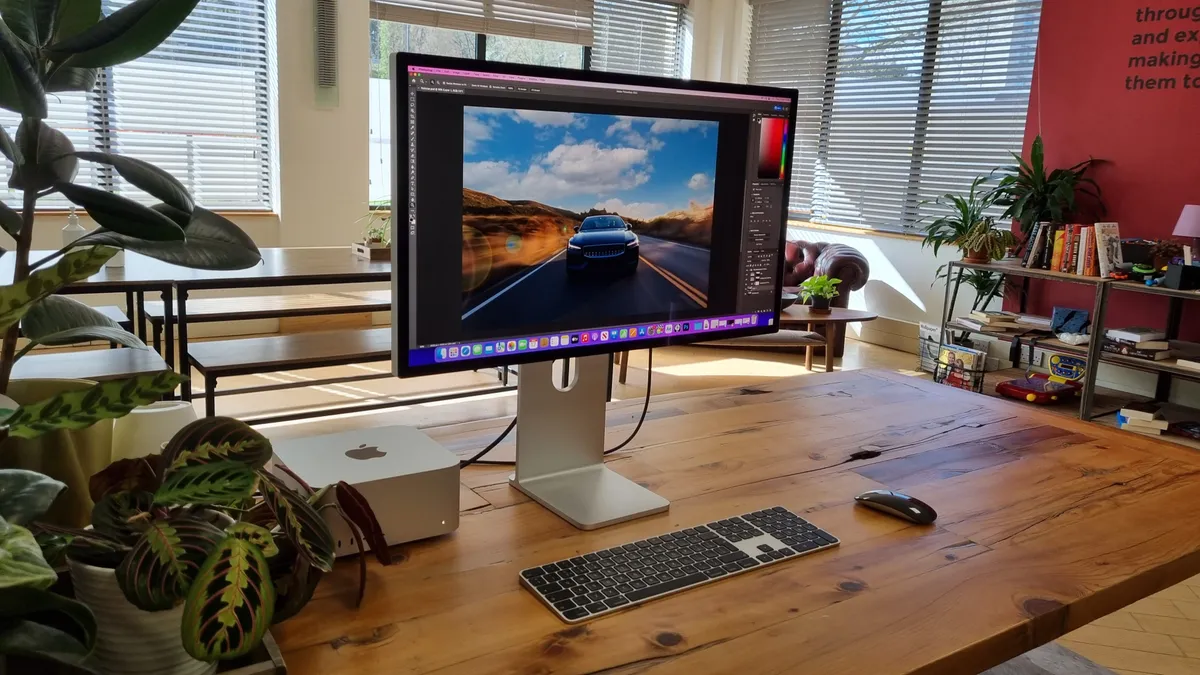


It wouldn't really be a list of monitors for the MacBook Pro without the Apple Studio Display, as it's still a fantastic choice that makes sense for most. No, it's not the best 5K display around, but for a monitor that perfectly pairs with the MacBook Pro, it’s pretty hard to beat. It features Apple's signature Retina-style levels of pixel density (218 pixels per inch, to be precise), with fonts and images appearing crisp and clean. And, of course, it has that excellent Apple style and build quality.
Connectivity is a definite strong point for the Studio Display, thanks to the Thunderbolt port with 96W Power Delivery for charging your MacBook Pro. There are also three USB-C ports for peripherals. On the display side, the panel has 98% coverage of the DCI-P3 gamut and a strong peak brightness of 600 nits.
Elsewhere, we especially liked the excellent 12MP ultra-wide webcam, which features a 122-degree field of view, a studio-quality three-mic array, and six speakers. Speaking of which, we found sound quality was far superior to pretty much any conventional PC monitor.
Limitations, then, would be the price. It’s still pretty expensive even for a 5K monitor, and that doesn’t include a height-adjustable stand. The 60Hz refresh rate, while not essential, can’t match that of the 120Hz on the MacBook Pro 14-inch and 16-inch laptops. And black levels and contrast are nowhere near what a monitor with local dimming or an OLED panel can achieve.
Still, for a 5K display with Retina-style pixel density and tight integration with your MacBook Pro, there are few other options.
- Read our full Apple Studio Display review
The best 6K monitor for MacBook Pro


Now this is the absolute peak of monitors, whether that be in size, connectivity, or visuals. The Dell UltraSharp 52 Thunderbolt Hub is the only monitor in this group to deliver a full 6K (6144 x 3456) resolution, making it the most detail-obsessed choice for MacBook Pro owners who demand absolute clarity in every pixel (and have the desk space).
During our hands-on testing, we found the UltraSharp 52 effortlessly improved productivity for research and editing workflows, with more than enough screen space to keep every window and app open without compromise. As you might imagine, our first reactions to seeing its size and spec list were genuine awe: 52 inches, sharp 6K, and Thunderbolt docking. This is not your typical monitor.
Connectivity is a real highlight, with every port you can ask for, thanks to the built-in Thunderbolt dock, but it's the sheer size of the display that stuns, making the most of its 6K (6144 x 2560) resolution for fine details no matter what's on display.
If you’re a pro user who prizes razor-sharp visuals, robust build, and a true single-cable desktop experience, the UltraSharp 52 is an investment worth considering—just make sure your desk can handle that monstrous size, as this panel is both massive and heavy.
- Read our full Dell UltraSharp 52 U5226KW review
The best ultrawide monitor for MacBook Pro
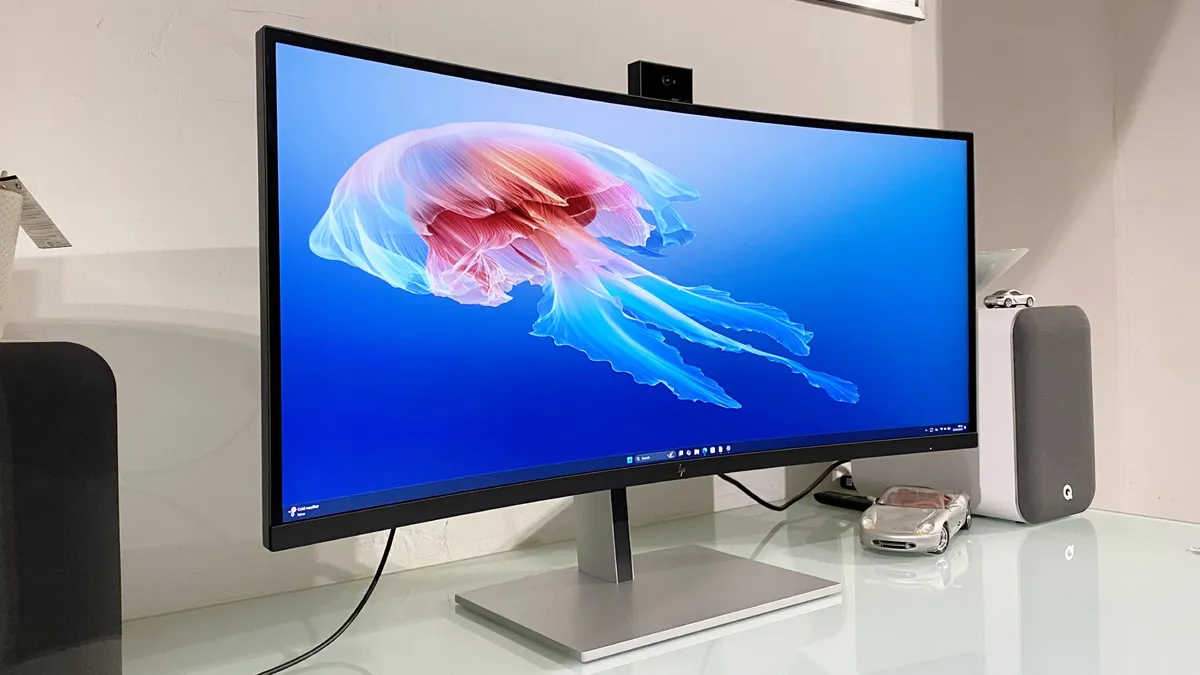


The HP Series 7 Pro 734pm is a productivity-focused ultrawide that gives MacBook Pro users a sweeping 34-inch IPS Black panel for organizing timelines, windows, and creative work across a seriously wide canvas.
That panel tech is a real plus, delivering richer contrast and truer colors than most mainstream ultrawides, so image detail doesn’t get lost at the edges. That's exactly what you want if your workflow depends on seeing more at once.
What really sets this monitor apart for MacBook Pro desks is the built-in Thunderbolt 4 hub. In our testing setup, single-cable docking worked seamlessly, with 100W power delivery for charging the laptop and enough bandwidth for displays and peripherals. You also get 98% DCI-P3 color coverage, which means color-critical photo and video work stays in sync with your MacBook’s output. No distracting mismatches.
The HP’s Thunderbolt 4 connectivity is a clear win for users who want a true docking station, but the ultrawide panel itself means multitasking in separate windows on just the one screen is a breeze. It's only made better with decent brightness and a 120Hz refresh rate for smooth visuals.
The trade-off here is that the HP’s 3440 x 1440 resolution can’t match the razor-sharp text or detail you’ll see on the best 4K or 6K panels, and you won’t find true HDR here. But if your priority is an ultrawide workspace with Thunderbolt docking and accurate color, it’s an excellent pick for streamlining your MacBook Pro setup.
- Read our full HP Series 7 Pro 734pm review
Best monitor for MacBook Pro compared
Model |
Screen size |
Resolution |
Color gamut |
Thunderbolt |
|---|---|---|---|---|
27 inches |
5120 x 2880 |
99% DCI-P3 |
Yes, Thunderbolt 4 |
|
27 inches |
1920 x 1080 |
99% sRGB |
No |
|
32in |
3840 x 2160 |
95% DCI-P3, 100% sRGB, 100% Rec.709 |
Yes, Thunderbolt 4 |
|
27 inches |
5120 x 2880 |
Wide color P3 |
Yes, Thunderbolt 3 |
|
32 inches |
6144 x 2560 |
99% DCI-P3, 99% Display P3 |
Yes, Thunderbolt 4 |
|
34 inches |
3440 x 1440 |
98% DCI-P3 |
Yes, Thunderbolt 4 |
Best monitor for MacBook Pro: FAQs

What is the best resolution for monitors with a MacBook Pro?
The MacBook Pro is Apple's machine for creators, and that means having excellent visuals for photo and video editing, 3D creative work, and more. To make the most out of what you work on, 4K (3840 x 2160) resolution is the way to go. That said, if you're using your MacBook Pro for anything else, like spreadsheets, writing documents or even coding, you'll be just fine with even a 1080p display. If you're after the highest pixel density, though, 5K and upwards is what you're after.
What Power Delivery should the monitor have to charge my MacBook Pro?
You'll see many monitors with Thunderbolt/USB-C Power Delivery (PD). This means you can plug your MacBook Pro into the monitor and it will charge the laptop while in use.
However, the right choice depends on your MacBook Pro's model and CPU. Check out the table below to see which one is right for your laptop.
MacBook Pro model |
Recommended minimum power delivery |
|---|---|
MacBook Pro 13-inch (M1, M2) |
70W |
MacBook Pro 14-inch (M3, M4, M5) |
70W |
MacBook Pro 14-inch (M1, M2, M3, M4, M5 Pro and Max) |
100W |
MacBook Pro 16-inch (M1, M2, M3, M4, M5 Pro and Max) |
140W |
Are there any specific connectivity options that I should look for in a monitor for my MacBook Pro?
The best monitors for a MacBook Pro will feature USB-C and/or Thunderbolt connectivity. These allow slick, single-cable connectivity that covers charging the MacBook, driving the display, and connecting peripherals.
Outside of that, you can find a monitor with a built-in USB-C hub that opens up several ports through the single USB-C used to send video to your monitor. Depending on the monitor, sometimes this can also be used to charge your MacBook Pro.
Are there any monitors that are specifically designed for use with the MacBook Pro?
Some monitors, such as the Apple Studio Display and Apple Pro Display XDR, are explicitly designed for use with Apple devices and mirror the wide color P3 gamut and Liquid Retina Display.
However, many high-quality monitors from other brands are also compatible with the MacBook Pro. Some monitors will work better with the MacBook Pro than others, but generally, any even semi-recent monitor will be compatible in one way or another with a MacBook Pro.
How to choose the best monitor for MacBook Pro
When choosing which monitor is best for your MacBook Pro, there are a few specs and details you'll want to check.
Not everyone will need the same specifications. For example, if you're mostly working with office apps, you may not need the broader color space coverage that's required for image or video editing. However you use your monitor, here's what we recommend looking out for.
- Resolution: macOS loves high-resolution displays. The more pixels, the better for rendering nice, clean fonts and providing plenty of image detail. Apple's own desktop displays, the Apple Pro Display XDR and Studio Display, have what's known as Retina pixel density. In practice, that means over 200 pixels per inch (PPI), which matches the screens in the MacBook Pro. Very few non-Apple displays can match that pixel density, but a 27-inch 4K display with 163 pixels per inch is a good baseline.
- Connectivity: USB-C or Thunderbolt with Power Delivery is the bare minimum when it comes to connectivity. We'd recommend at least 65W of power delivery and ideally 90W-plus for keeping your MacBook Pro fully powered. A USB hub with plenty of USB-A and USB-C ports is very desirable, too. Additional inputs like HDMI can be handy, and an Ethernet port can be useful for some office environments. The ability to daisy chain a second monitor is also an interesting option, as is a KVM switch if you're sharing the display with a second computer.
- HDR versus SDR support: HDR is a tricky technology. Many workflows don't require it. But it is becoming more widespread. A display with HDR capability tends to also offer increased colour coverage and generally improve image quality. However, the technologies that enable HDR rendering vary hugely, and some displays are much more effective than others. For that reason, unless you know your workflows require full HDR support, we recommend focusing on getting a display with good SDR performance. If it happens to also offer some HDR capability, great. But for most users, HDR probably isn't a top priority.
- Build quality and extras: It's easy to obsess over specifications like resolution and HDR performance. But the overall quality of a display and feature set can make a big difference, too. If you're paying big bucks, it's nice to have a display that feels worth the money and looks good with your laptop. Likewise, superficially lesser features like good speakers, a great webcam and a microphone array can make a big difference to the overall usability of a monitor. Having features like that built in can also help to reduce desk clutter and simplify docking and connectivity. For more extras, we've reviewed the best MacBook Pro accessories.
How we test the best monitors for MacBook Pro
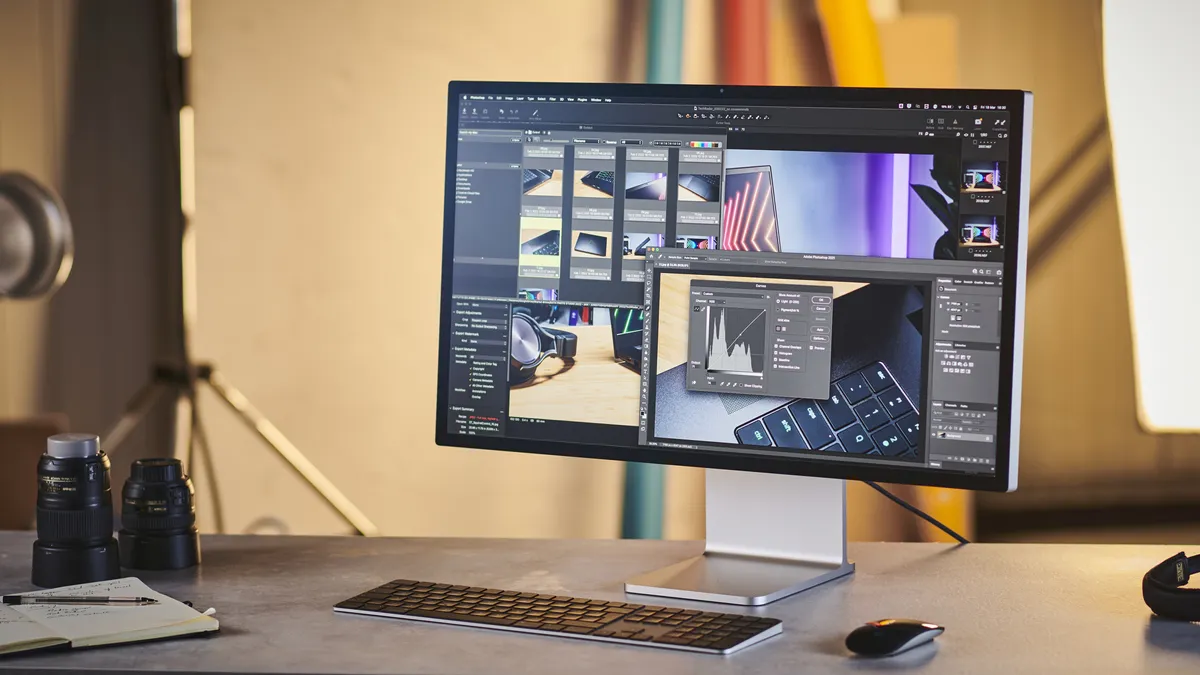
Our expert team of reviewers has tested a massive range of displays, including the best monitors for photo editing and the best monitors for video editing. So, we're experienced at knowing what to look out for to help you find the best dual monitor set-up to go with your laptop.
A decent monitor for your MacBook Pro isn't going to be cheap. So, you want to know you're making the right choice. That's why we test each display extensively. That starts with performance assessments of various aspects of image quality.
That includes brightness, refresh rate, and pixel response. We also consider colour accuracy, viewing angles, contrast, HDR performance, latency, and last but by no means least, resolution and pixel density. Display tech is increasingly varied and complex, what with new technologies like HDR, mini-LED backlights, and OLED panels revolutionising the industry. So, we keep on top of all of that for you, helping you to understand the difference between a few edge-lit dimming zones and a real full-array deal
Crucially, we also assess how well a display works with macOS. Once connected to a MacBook Pro, does it offer a full range of optimised scaling options, for instance? Next up is connectivity. We consider the range of ports on offer and whether single-cable docking with power delivery is included, along with USB hubs and other features like Ethernet, a KVM switch, and display daisy chaining.
We also consider any extra features like webcams and speakers. In theory, they can add significant value. But if they're not done well, you're probably just paying for things you'll hardly ever use. You might even end up paying twice if you find you need to buy a dedicated webcam or speakers.
Next up, there's build quality, design, and ergonomics. A monitor that looks great on the desk with your MacBook Pro is important. But good build quality matters, too. When you are investing a lot of money, you want a display to not just look good, but feel good and last the test of time.
Then there's ergonomics. At a minimum, a robust and stable stand with a good range of adjustability, including height and tilt, is important. The ability to rotate into portrait mode can be handy, too.
Of course, how all of those factors fit into the overall value proposition is the final measure. The MacBook Pro is a demanding machine. So, you're not going to get the best out of it with a budget display. But you can also spend a lot of money and not necessarily get a better display solution. We'll help you work out what's worth the money and what costs plenty but doesn't improve your macOS experience.
Find out more about our process in our guide on how we test, review, and rate on TechRadar Pro: professional and business monitors.
