




My team and I have put the best monitors for Mac mini to the test - and with the recent unveiling of the new Mac mini M6, I've made sure that every monitor right here will perfectly pair with every version of Apple's compact desktop.
For me, the glorious 32-inch 4K BenQ MA320U stands out as the top pick. This one impressed us with its superb color accuracy and Mac-specific features. Whether you're upgrading your existing setup or getting ready for the Mac mini M6, it ticks every box.
But I've hand-picked the full range here. Apple natively targets 109 and 218 pixel density (pixel-per-inch, or PPI for short). So, I've selected a range of displays here, from productivity panels that deliver native macOS scaling, full-size Retina displays, and those that take advantage of HiDPI scaling. Best of all, they all run via USB-C or Thunderbolt to get the most from your Mac mini.
For more top picks, see my guides to the best monitors for MacBook Pro and best monitors for Mac Studio.
Update: In our latest update, we've added the Dell S2725DC as a budget pick for everyday work, and moved the BenQ PD2706QN to the budget pick for creators thanks to its excellent color accuracy.
Best monitor for Mac mini overall


✅ You want a good-sized 4K monitor. At 32-inches, this screen offers plenty of real-estate for general tasks, and we found the resolution nicely detailed.
✅ You use your Mac mini with another Mac/Laptop. This is one of the best features on this monitor, you can run multiple devices through this, switching with just a touch.
❌ You want top-notch speakers. In our tests, the built-in speakers were somewhat tinny, and we recommend using headphones or external speakers.
❌ You are on a tight budget. While this display is by no means the most expensive, it is pricy.
The BenQ MA320U is a crisp 3840x2160, 32-inch display that plays beautifully with macOS thanks to DisplayPilot 2. The expansive display makes your Mac mini feel massive, making multitasking, research, or photo editing a breeze.
For those working within the Apple Ecosystem on other devices as well, the BenQ MA320U has a near-indistinguishable color palette to a MacBook Pro, meaning your work will look the same as if you were working directly on an Apple panel.
While there are not an abundance of ports on the back of the monitor, there are enough to be able to plug in a webcam, light bar, mic, iPad, or something else that would be helpful.
This monitor isn't perfect, there are some things that could be better, as there would be on any display, but for Mac users specifically, the MA320U hits it out of the park.
Read our full BenQ MA320U Monitor review
Best Mac mini monitor on a budget


✅ You want a brilliant business monitor without the price tag. One of the main reasons we love the Dell S2725DC is that it effectively does everything most people need from an affordable display.
✅ You want a fast refresh rate. This Dell monitor tops out at 144Hz, which is will make multi-tasking, where you're switching between windows and tabs, feel much more fluid.
❌ You need color accuracy. At 99% sRGB, it's fine for editing photos for your social media feed, but it won't faithfully produce print-ready images.
❌ You're a creative professional. Aside from the lack of color accuracy, it's also not a 4K monitor, which rules it out for video content production.
The Dell S2725DC is easily one of the best screens in its price range. If you're looking for a business monitor that pairs well with your Mac mini, this one earned the full five stars and an Editor's Choice award in our review.
At 109 PPI, the on-screen picture quality delivers clean, native macOS scaling without issue (or weird artefacts). Refresh rate hits 144Hz, which is silky smooth when multi-tasking, and there's even a pop-out USB hub, letting you connect USB-C and USB-A peripherals. The ports aren't as fast as Thunderbolt 5, but for the price, we're not complaining.
During use, we found the screen looked sharp and crisp, whatever device we hooked up to it. Going beyond the Mac mini, we tested this monitor on a MacBook, two iPads, and an iPhone via USB-C. And they all looked great on that 27-inch panel, so it'll fit neatly into any Apple setup you're running.
Now, there are some drawbacks at this price. It's QHD, not 4K resolution, and it maxes out at 99% sRGB color coverage. That means it's not suitable for creative professionals or general content creators. For a budget pick without the 4K price tag, the BenQ PD2706QN gets our vote. And the BenQ PD2770U is specifically calibrated for creative professionals. Both trounce the Dell on color accuracy.
But considering the cost - it's around $250 / £200 right now - we find it genuinely difficult to fault the Dell S2725DC for everyday work, calling it "a perfect budget business monitor for every kind of office."
Read our full Dell S2725DC review
Best budget Mac mini monitor for creators


✅ You want a pro-grade monitor for a lot less cost. For the price, this display offers near professional-level features and specs.
✅ You want broad color accuracy. While it might not be quite as high as Apple's Wide Color P3, which hits 99% DCI-P3, this one is close - 95% P3, with Delta E≤2. Perfect for photographers and designers.
❌ You want fast refresh rates. For certain tasks, you may need 120Hz, and you won't find that here. It's 100Hz, though, which is more than suitable for general use.
❌ You're a video editor. The BenQ PD2706QN has a QHD (2560 x 1440) resolution, and video editing professionals will want 4K.
Choosing a good budget display for the Mac mini can be a minefield, since a lot of cheaper displays won't properly scale. You might save some money, but the on-screen text and images can also appear fuzzy.
My pick is the BenQ PD2706QN, a 27-inch QHD monitor with 109 PPI, which means it perfectly scales with Apple's macOS. That might not be as smooth as a Retina Display's 218 PPI, but for a budget screen it's an ideal standard.
In our tests, the PD2706QN delivered spectacular results. There's an emphasis on skin-tone accuracy and shadow detail that absolutely held up during our review, where we began by editing photos of people.
We used it as a reference screen for a podcast recording, as a web design and coding monitor, and as a video playback display, (although it's not 120Hz, at 100Hz it still felt buttery smooth). Across the board, results were impressive - especially considering the price.
Build quality is very good - it doesn't feel ultra-premium like the Studio Display, but it doesn't feel cheap either. The Nano Matte display proved phenomenally precise, and colors felt sharp during day and night, no matter how much sunlight hit it. It also includes a USB-C Hub, which is one of the most important factors when selecting a Mac mini monitor, given the machine's streamlined port selection.
Overall, we found the BenQ PD2706QN shines as a daily driver for a range of tasks, and it's one of the cheapest color-accurate monitors suitable for Mac mini that we've ever tested.
Read our full BenQ PD2706QN review
Best mid-range monitor for Mac mini


✅ You're a business professional. Designed chiefly for productivity, this is one of best of its class, with great specs, high resolution, and plenty of productivity features.
✅ You connect a lot of peripherals. As ever with Dell, the USB-C Hub here is exceptionally good, letting you easily connect a full range of accessories you can't squeeze into the Mac mini.
❌ You want a monitor with integer scaling. At 163 PPI, it doesn't align with Apple's native integer scaling targets, forcing the mini PC to render a heavy canvas in the background to maintain UI legibility.
❌ You're using it in direct sunlight. This one surprised us, but the finish on the display led to reflections when in direct sunlight and nearby lamps shining on the screen.
The Dell Pro 27 Plus P2725QE is an incredibly effective monitor that sits comfortably in the mid-range.
By rights, it's a business monitor - one of the best we've tested, in fact. So, what really stands out here is, as with many Dell monitors we test, the USB-C Hub. Essential, I think, for those using Apple's Mac mini and MacBook laptops.
Image quality is excellent. Testing performance across photo editing, general browsing, and plenty of heavy productivity work, the monitor never missed a beat. While not the broadest color gamut, we found it offered terrific color accuracy overall.
There's really only one thing holding it back from being the top choice for Mac mini users. At 4K with a 163 PPI pixel density, - effectively, you're forcing the Mac mini to continuously render at scale. This won't be an issue for most tasks, but the graphical overload is better suited to the M4 Pro model over the base machine.
Read our full Dell Pro 27 Plus P2725QE review
Best Mac mini monitor for creators


✅ You're a creative professional. This monitor has exceptional color coverage that's essential for professional-level content creation.
✅ You want built-in calibration. A swiveling calibrator helps tune the monitor the the best accuracy for the color space you're using.
❌ You are after a no-frills display. This monitor is basically overkill for most users, with a features set that a suite of creatives might not use.
❌ You need a large display. At 27 inches the BenQ PD2770U might not be the biggest display for creatives who want a lot of screen space.
While an Apple Studio Display might appeal to a creative professional with a Mac mini, it's a pricey monitor. An great non-Apple option for creatives is the BenQ PD2770U, which is feature packed and comes with superb color accuracy; it even comes with a built-in color calibrator.
"To make a long story short, if you are in the creative space and you need color accuracy above all else, or if you find yourself reaching for or even wishing for a color calibrator regularly, then this is absolutely your monitor," explains reviewer Collin Probst. "If you are just looking for a 27-inch 4K monitor, this is 100% overkill, but it will do the job in a better and fancier way than you probably need. If image quality, screen resolution, and picture clarity are a part of your workflow, consider this one."
So that's a pretty solid recommendation for a monitor with a 27-inch 163 PPI and 99% DCI-P3 color accuray.
When testing out this display, we found 4K visuals to be excellent for editing videos, handling big photo projects and a lot more, including some administrative tasks as well.
The only downside is the feature set might not be put to the best use by all but the most dedicated of creative professionals, and the 27-inch screen size might be a bit small for some. It's also far from cheap, but not unreasonable for a pro-grade display.
In short, for creators with a Mac mini as thier main machine, the BenQ PD2770U is worth a closer look.
Read our full BenQ PD2770U review
Best Apple monitor for Mac mini




✅ You want full Apple compatibility. Coming from Apple, you can be confident that this screen is going to play very well with the Mac mini.
✅ You're a creative professional. The specs here are ideal for creative professionals, from its impressive 5K resolution to the wide color gamut.
❌ You're on a budget. Like a lot of Apple products, this display doesn't come cheap - even the stand is sold separately, and costs a lot.
❌ You don't need all the bells and whistles. Sure, the specs are great and performance is impressive, but a lot of Mac mini users likely won't need these.
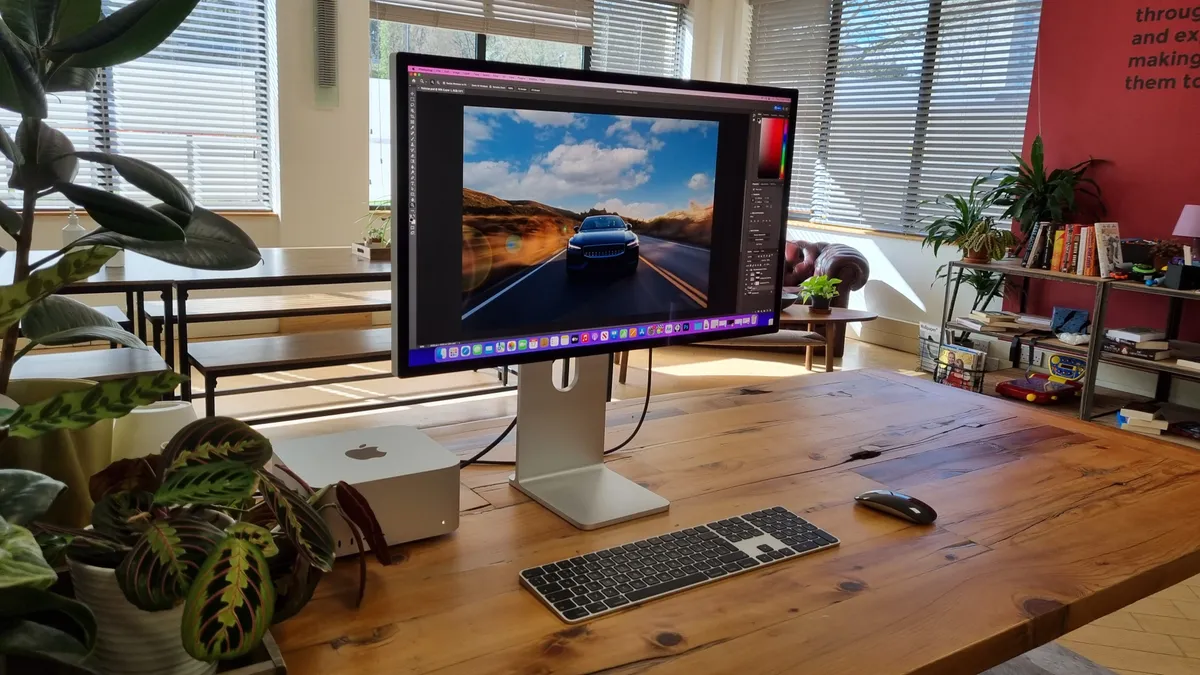
This is an excellent all-in-one solution for the Mac mini, since the Apple Studio Display boasts a built-in webcam, speakers, and microphone. And, since it's from Apple, it's fully compatible with the Mac mini's features.
With 5,120 by 2,880 pixels on a 27-inch panel, you're getting fully 218 pixels per inch. That's enough for MacOS to do its beautiful, high-DPI thing with fonts. Text really does look gorgeous on this monitor.
As a straight SDR monitor, the Studio Display is pretty sweet. It's rated up to 600 nits brightness, which is plenty, the colors are accurate and the viewing angles are fab. However, there's no HDR support of any kind, no local dimming or any of the other trick stuff that some monitors, including Apple's own Pro display XDR, have to increase dynamic range.
Still, connectivity is absolutely on point for using with Mac computers, including the mini. With three USB-C ports, it can act as a powerful hub for connecting peripherals and features likes the web cam are properly integrated with MacOS, so it supports Center Stage tracking technology. Nice. In typical Apple fashion, the speakers are also a zillion times better than any comparable screen.
The main downside is price. It's expensive for a 27-inch monitor with no HDR support. What's more, you have to pay extra if you want a stand with height adjustability. As standard, it only offers tilt. Ouch. The anti-reflective nano-texture screen cover is another pricey option. Oh and the bundled Thunderbolt cable for primary connectivity to the Mac mini is only 1m long. Longer cables are very pricey. All of which means the value argument for the Studio Display is tough to make. But if you can afford it and don't need HDR capability, this is still a very nice solution for the Mac mini.
Read our full Apple Studio Display review
Best business monitor for Mac mini


✅ You want wide connectivity and an integrated webcam. The highlight of this 27-inch display is the sheer range of ports and an excellent integrated webcam.
✅ You want good resolution and image quality. HP's monitor impressed us during tests, where we praised it as "a 4K productivity panel extraordinaire."
❌ You want a pixel density that matches Apple's target. At 163 PPI, pixel density here doesn't match the native 110 PPI or 218 PPI integer targets of Apple's machine.
❌ You're a video editor. Unfortunately, this display has a 60Hz refresh rate - not an issue when you're running office software, but noticeable if you're scrubbing through timelines.
There's something quite compelling about the HP Series 7 Pro 727pm, and if yhu're a business professional using the Mac mini in the office or home office, this is an easy recommendation.
For starters, the IPS Black panel is really quite glorious, resulting in very accurate colors during our tests. It also hits 98% DCI-P3 color coverage, which is close to Apple's own Wide Color P3 (or 99% DCI-P3). We found it "vibrant, punchy and accurate," in our review.
Connectivity is knocked right out of the park here - and the main reason why it's well-suited for Mac mini business users. HP has squeezed in Thunderbolt 4 with 100W PD, USB-C with 64W PD, HDMI and DisplayPort, ethernet, and a KVM switch. It's a productivity beast. And all that is coupled with an integrated webcam that's easily above average compared to similarl monitors.
Where HP's 4K monitor stumbles is the pixel density, which is 163 PPI. This means it doesn't match the native 110 PPI or 218 PPI integer targets, forcing the Mac mini to deploy resource-heavy fractional scaling to keep on-screen text and images readable. It's a minor mark against an otherwise excellent business monitor driven by high-speed Thunderbolt 4 connectivity.
If you'd prefer a larger, wider screen, see our HP Series 7 Pro 734pm review - it's effectively a 34-inch 120Hz version with almost identical specs.
Read our full HP Series 7 Pro 727pm review
Best curved ultrawide monitor for Mac mini


✅ You like curves. The big selling point for this monitor is the 40in curved screen, which in our view looks incredible.
✅ You want high resolutions and refresh rates. With a 5K resolution and 120Hz refresh rate, the screen is impressively versatile for a range of tasks from creation to gaming.
❌ You lack space. We don't often use the word 'overwhelming' to describe a monitor, but given the large size of this one, we did feel it could dominate certain workspaces.
❌ You run a lot of complex workloads. During tests, we noticed subtle screen issues, which makes us feel you'll want a machine with a high-end GPU for best performance running heavy workloads.
It's not just the ultrawide stylings of the Dell UltraSharp U4025QW that help it really stand out. This 40in 5K curved panel is stunning to look at, creating vibrant colors and crisp details.
The design is professional, as we'd expect from Dell, and we love the inclusion of a Thunderbolt hub - which is what really makes it stand out as one of the best monitors for a Mac mini or any other Apple device, really. We reviewed it using a MacBook Pro and the experience was outstanding, although under complex workloads, we did notice the screen will need a good graphics card to make full use of the display's capabilities. Excellent brightness, IPS Black Technology, and a high 120Hz refresh rate round out the headline features we loved seeing on this screen.
Of course, for an ultrawide of this size, it is expensive - although arguably a better choice than Apple's own Studio Display, particularly for those who need to pair the Mac mini with a fully fledged 5K business monitor. Overall, an immersive experience with a high price-tag.
Read our full Dell UltraSharp U4025QW review
Best 6K monitor for Mac mini


✅ You want the highest resolution for your Mac mini. At 6K, this is the maximum you can go with Apple's Mac mini, and LG is a high-performance display that delivers just that.
✅ You want high-speed connectivity. The UltraFine 6K Evo 32U990A boasts great connectivity, including an ultra-fast Thunderbolt 5 port.
❌ You really don't need 6K. Most Mac mini owners won't need this level of resolution, and you can save with 4K and 5K displays.
❌ You edit videos for a living. One spec we really didn't like was the 60Hz refresh rate, which can feel sluggish, especially when you're working on video timelines.
The Mac mini supports monitors up to 6K in resolution - and while almost nobody needs a display like that, the LG UltraFine 6K Evo 32U990A is a fine example for those that do.
Equipped with an IPS Black panel, we found the overall picture quality delivered exceptionally sharp visuals thanks to the 224 pixels per inch (well above the 218 PPI needed for Retina displays). Color coverage is similarly good, capable of 98% DCI-P3, with true 10-bit per channel color support for designers and photo editors.
That said, it's not perfect. The 60Hz refresh rate is frustrating for a screen like this, and for video creators, you may notice some sluggishness and ghosting while scrubbing through timelines. And the panel's contrast and HDR can't compete with OLED screens.
On the other hand, connectivity is excellent, with the monitor boasting dual Thunderbolt 5 ports with 96W of power delivery alongside DisplayPort 2.1, HDMI 2.1 and three USB-C ports.
For those that need that - and at this price you're going to have to really want it - this is a solid 6K display that lets you view 4K content with space left, which will be ideal for a lot of professional tasks.
Read our full LG UltraFine 6K Evo 32U990A review
Best monitor for Mac mini: Comparison
Model |
Screen size |
Resolution |
Color coverage |
PPI |
|---|---|---|---|---|
32in |
4K UHD (3840 x 2160) |
97% P3 / 99% sRGB |
140 |
|
27in |
QHD (2560 x 1440) |
99% sRGB |
109 |
|
27in |
QHD (2560 x 1440) |
95% P3 |
109 |
|
27in |
4K UHD (3840 x 2160) |
99% sRGB |
163 |
|
27in |
4K UHD (3840 x 2160) |
99% DCI-P3 |
163 |
|
27in |
5K (5120 x 2880) |
P3 Wide Color |
218 |
|
27in |
4K UHD (3840 x 2160) |
98% DCI-P3 |
163 |
|
40in |
5K2K (5120 x 2160) / 140 PPI |
99% P3 / 100% sRGB |
140 |
|
32in |
6K (6144 x 3456) |
98% DCI-P3 |
224 |
Best monitors for the Mac mini: Frequently asked questions
What is PPI and why is it important for Mac mini monitors?
PPI stands for pixels-per-inch. This is the measurement of pixel density. It's important, as Apple uses 109 PPI for standard scaling and 218 PPI for Retina displays, which at 2x the standard pixel density is sharper.
That's not to say it's an absolute requirement for monitors - you can still use a display with a pixel density that isn't a multiple of 109. You'll find many 4K panels possess 163 PPI, for example.
However, it will mean that your Mac mini needs to work harder behind the scenes to maintain legibility of on-screen text and images.
Can Mac mini work with any screen?
The Apple Mac mini will work with most modern monitors that have a HDMI or USB-C port, up to 6K resolution.
Does the Mac mini M1 support a 4K monitor?
Yes. Like modern Mac mini PCs, regardless of processor, the M1 model supports resolutions up to 6K. This round-up includes a full range of resolutions, from 4K to the maximum 6K.
What resolution is supported by Mac mini?
Most Apple Mac mini computers support resolutions up to 6K. This includes the 2024 Mac mini M4 and M4 Pro releases. However, the Apple Mac mini M2 Pro (2023) supports up to 8K resolutions. You can see more high-res displays in our round-up of the best 5K and 8K monitors.
How do I increase the resolution on my Mac mini?
You can adjust resolutions on a Mac mini by clicking the Apple menu and going to System Settings > Display. This is where you'll be able to make sure you're using your monitor's maximum resolution.
What do you need to connect a Mac Mini to a monitor?
Connecting a monitor to a Mac mini is a very simple task. All you need is a display with a USB-C or HDMI port and the approproiate cable. The Mac mini has two USB-C ports and a HDMI port, all capable of video output. This means the mini PC supports up to three monitors at 6K resolution.
How to choose the best Mac mini monitor for you
The Apple Mac mini is one of our favorite machines - it's easily one of the best mini PCs and best video editing Mac and MacBook options that we've tested. So, it's worth choosing a monitor that lets you make the most of the compact desktop's power.
Besides price and connectivity, ideally, you want a monitor that supports USB-C, Thunderbolt, or HDMI. Still, you must also consider other factors, like resolution and color accuracy, if you are a creative professional and display size looking for the best monitor for video editing, photo editing, or graphic design. You will also want above-average display sizes if you frequently use your Mac mini for entertainment or gaming.
There are no limitations to what you can choose unless you have limited space. Monitors with a 27-inch or larger screen are an excellent choice for work and entertainment. Monitors with a screen size under 24 inches are not usually the best 4K monitors - if they can even reach that resolution. So, if you wish to have excellent resolution and pixel density, a 24-inch monitor is the minimum for desk-based monitors. If you use your Mac mini for office work, you might go the extra mile or inches in this case and choose a 32-inch display size. An ultra-wide might be your best option for a Mac mini for entertainment and gaming.
Regarding resolution, a 4K monitor is the sweet spot these days. You can save money by going with a 2K, also known as QuadHD, which is an appropriate option, but you won't get the crisp text that your Mac mini is capable of. With Mac OS, DPI is everything, so HiDPI mode is essential. Luckily the Mac mini supports most monitors. It's just Mac OS which sometimes is finicky about enabling HiDPI mode on monitor resolutions that are not the Apple defaults. If you run into problems enabling HiDPI, we suggest you try BetterDummy, a free and open-source application that allows all M1-based Macs to enable HiDPI modes on all displays.
Finally, on connectivity, Apple's Mac mini with M1 silicon can connect one external display with a Thunderbolt 3 (USB-C) port at up to 6K resolution and one external display with its HDMI 2.0 port to a maximum of 4K. If your monitor has a DP connector, you'll need an inexpensive Thunderbolt 3 / USB-C to DisplayPort (DP) adapter.
How we test the best monitors for the Mac mini
Our team of expert reviewers have tested a massive range of displays, from the best monitors for photo editing and the best ultrawide monitors to the best business monitors - and you'll find many in this round-up on those pages, too.
The Mac mini M4,. like the M1 and M2 models, is capable of driving one monitor at 6K. A secondary monitor at 4K, meaning any monitor below 4K (UHD - Ultra High Definition), is a poor investment because your monitor will get old very quickly. You won't be able to use the maximum resolution your Mac mini can deliver fully. We included a 2K Quad-HD option for thin wallets and small budgets, but anything below 2K is already semi-obsolete.
Nowadays, a 27-inch screen is an excellent entry-level monitor for all purposes. Above that, a 32" (technically 31.5 in some models) adds some extra screen real estate for increased clarity and productivity, particularly for those working with spreadsheets or complex applications. However, 34 inches is the current sweet spot for ultrawide monitors where you can work in a generous 5:9 area and simultaneously watch a 16:9 video.
While there are monitors over 40 inches, we believe the best monitors for the Mac mini require a considerable viewing distance and too much space, making them less than ideal. We included several 27-inch displays, a 31.5-inch monitor for productivity, a 34-inch ultrawide for those who prefer a screen with the extra room of "5K2K" resolution (5120 x 2160), and those who use their Mac mini for multimedia and entertainment.
Based on the requirements above, we researched the market options and selected the best monitors in a wide range of prices, from Apple's own Pro Display XDR at the top with its 6K beauty and the same price as a motorcycle down to a decent yet workable QHD 2K workhorse that costs 20 times less yet delivers excellent results. All but one supports USB-C, and most support HDMI 2.0, allowing you to use them as your primary display or as a secondary display, like any of the best monitors for a dual set-up.
