


WARNING: Don't try anything you read here outside of your local network. Scanning and exploring distant ports or other people's networks is legally questionable, and could land you in very hot water. DON'T DO IT.
While regularly updating your system and having a firewall and antivirus software installed is essential, this isn't always enough to defeat information-gathering tools. Many of the standard tools used by network security professionals (and malicious hackers themselves) are freely available online.
They can easily reveal shocking details about your network, and using one gives you a better idea of both the need to secure yourself and what to secure. With a few mouse clicks, you can interrogate machines for what's running behind each open port, get details of the user's operating systems, and even find details of their network cards.
Here's how to do it, but there's an important caveat: this is only to be done on your own network. Scanning computers on the internet will get you into trouble.
All about Nmap
Nmap is the work of Gordon Lyon, known to the network security community as 'Fyodor'. What Nmap does is both simple and ingenious. It's essentially a port scanner that's designed to list open TCP and UDP ports on a running, networked computer.
Since its initial release in 1997, this simple functionality has been augmented to turn Nmap into a serious network analysis and attack tool. Nmap can find out far more about the target than just which of its ports are open.
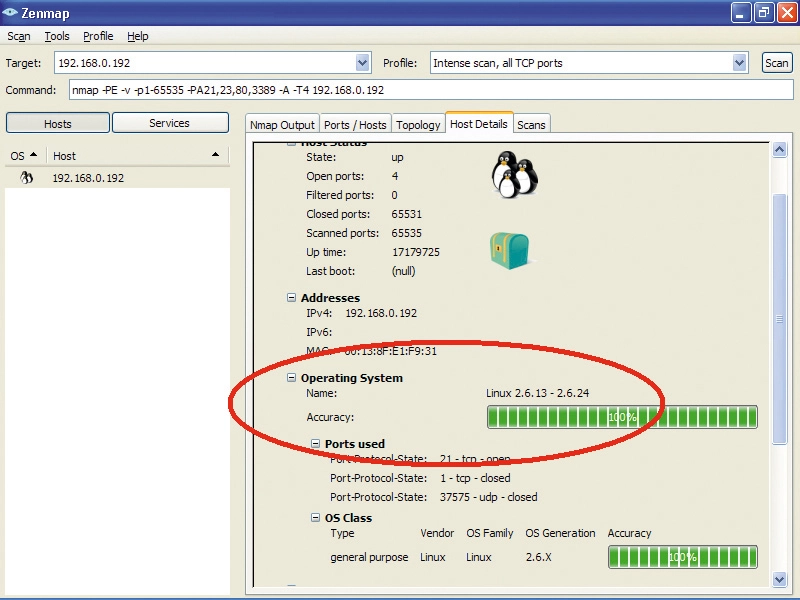
By sending special sequences of data packets and analysing the results sent back by the target's TCP/IP 'stack' software, Nmap can detect the operating system running on the remote machine with a high degree of accuracy. It can also tell the make and model of the network adapter, the uptime of Linux machines and even the version of the software that's connected to a specific port.
This makes this program very dangerous in the wrong hands, but it can also be very useful if you're trying to improve your own security by looking at your system through the eyes of a hacker.
Nmap began life on Linux, but we're going to use the Windows version, which has a graphical user interface that makes things a bit easier to negotiate.
Simple scanning
Download the Nmap installation executable and run it. As part of the installation process, the open-source packet-capture software Pcap will be installed. Nmap needs this software to run properly under Windows, so don't be alarmed when you're asked to confirm this.
If you have a previous version installed on your machine, the installation process will uninstall the old one first. Other than this, the whole installation process is a question of simply accepting the licence agreement, then repeatedly hitting 'Next'.
After this is done, you can run Nmap by firing up the Zenmap user interface, which you'll find on the Start menu. Maximise the initial window when it appears.
Let's now perform a basic scan of a machine. If you've not set up your 'hosts' file to map names to IP addresses, enter the IP of a target, otherwise enter its name into the Target input box at the top left of the interface.
In the Profile dropdown menu to the right, select 'Regular Scan' and press the 'Scan' button next to it. The scan takes a few seconds to complete, during which time Nmap's output is piped to the main pane of the user interface.
Launching it on a Linux system with the Apache 2 web server and VNC (remote desktop software) installed reveals almost instantly that port 80 is open for HTTP connections, and that port 5900 is open for remote desktop connections.
If this machine were out unprotected in the wilds of the internet, you could expect to see it being probed at least every few minutes by software with Nmap-like facilities in preparation for an attack.
There are several tabs on the main pane of the Zenmap interface. The Ports/Hosts tab enables you to list and sort the open ports on your network, while the Topology tab gradually draws you a diagram of your network as you scan more hosts. Click on the 'Fisheye' and 'Controls' buttons to zoom in and get a better view of the network layout.