


We have over ten years experience testing the best PDF editors across the full range of downloadable software, mobile apps, and online services for solo users and teams.
For most professionals, Adobe Acrobat Standard is the best choice. In our experience, it does everything most users require from PDF editing software. However, upgrading to Acrobat Pro unlocks more advanced tools like secure redaction and editable OCR, and is better for larger teams.
Professional-grade alternatives we recommend are Foxit, EaseUS, and pdfFiller. You'll see at a glance which features they have in the full reviews below to ensure they meet compliance regulations and your workflow. For anyone looking to design really eye-catching PDF files and marketing materials, Canva's PDF editor is a simple joy to work with, and is one of the best free PDF editors we've reviewed, although as a creative tool, it lacks the advanced features many businesses demand.

5 best PDF editors: Quick overview

The 5 best PDF editors we've tested
Why you can trust TechRadar We spend hours testing every product or service we review, so you can be sure you're buying the best. Find out more about how we test.
Adobe Acrobat Standard


Adobe provides different versions of its Acrobat software. The free-to-use Reader only allows you to read PDF documents. Acrobat Standard, Acrobat Pro, and Acrobat Studio offer an increasing number of tools and features you can use to edit, and manage your files.
With the Standard plan, you have the ability to edit text and images, password protect your files, organise your documents, fill in forms, and apply legally binding digital signatures. The Pro plan builds on that with the inclusion of more advanced tools, such as document comparisons, web form creation, and true sanitization and redaction tools for removing hidden data. Studio builds on Pro's foundation, adding AI tools which can help you summarise files, for instance.
Acrobat Standard will appeal to most customers who need to be able to edit a PDF, sign documents (and share for signing), or create forms. Its interface is well designed, and should cater for most general needs. If you need more features, there’s always Pro and Studio.
Read more about Adobe Acrobat Standard ▼
Features & performance ★★★★★
Adobe Acrobat Standard is a desktop app which gets installed on your computer, but as with all Adobe products, the entire installation process (including maintenance and upgrades) can be performed through their Creative Cloud app.
The interface itself is clean and easy to navigate, with a sidebar on the left to access all your files, a Tools tab to see at a glance all available features, and includes a sidebar to the right that contains the app’s most often used features.
Once you’re editing a document, you can perform multiple functions: you’re able to reorder and delete pages, annotate or even edit the existing text and images, and more, all thanks to the app’s handy right sidebar, coupled with additional tools in the toolbar at the top.
Acrobat Standard works incredibly well, and feels very intuitive, allowing you to do the work you need without it getting too much in the way.
Price & value ★★★★☆
As this is an Adobe product, it will come as no surprise that you can only use ‘Standard’ through a subscription. Frustratingly though, its bigger siblings, Acrobat Pro and Acrobat Studio, come with a 14-day free trial, but Acrobat Standard doesn’t. It is of course possible to grab the free trial for the more powerful apps and only use the tools available for Standard (you’ll find the interface is virtually identical), although you’ll have to remember to cancel your trial before you’re charged.
If you were to purchase Acrobat Standard on its own, it would cost you $13 per month on an annual, billed monthly plan - sign up for 12 months and pay monthly, like you would a phone contract. However, Adobe has a wide number of plans available, and if you already subscribe to their Creative Cloud Pro one, you’ll find Acrobat Pro is included in the bundle (and at $70 a month on an annual plan that’s a good thing too).
▶ Read our full Adobe Acrobat Standard review
Plan comparison
| Header Cell - Column 0 | Acrobat Standard |
Acrobat Pro |
Acrobat Studio |
|---|---|---|---|
Price |
$22.99 a month, $12.99 a month (annual billed monthly), $155.88 a year |
$29.99 a month, $19.99 a month (annual billed monthly), $239.88 a year |
$34.99 a month, $24.99 a month (annual billed monthly), $299.88 a year |
PDF editing |
✅ |
✅ |
✅ |
Filetype converter & export |
✅ |
✅ |
✅ |
Form-fill |
✅ |
✅ |
✅ |
eSign |
✅ |
✅ |
✅ |
Password protection |
✅ |
✅ |
✅ |
OCR |
❌ |
✅ |
✅ |
Redaction |
❌ |
✅ |
✅ |
Version comparison |
❌ |
✅ |
✅ |
AI assistant |
❌ |
❌ |
✅ |
Foxit PDF Editor


Foxit PDF Editor is an excellent tool, whether you use it online through your web browser or through its dedicated Windows and Mac applications. It offers a slew of tools in an elegant interface ranging from the basics (reordering, adding, or deleting pages), to the advanced (editing the content of a PDF, performing OCR on a scanned document, redacting sensitive information), all without breaking a sweat.
This is an excellent tool for businesses or those who wish to get the most out of a PDF editing tool - Foxit PDF Editor doesn’t hold anything back, providing a wealth of tools to cater for all needs (and a few additional ones for those needing that extra level of service - for a higher subscription cost). You could do a lot worse than using Foxit PDF Editor - but you can’t really do a lot better.
Read more about Foxit PDF Editor ▼
Features & performance ★★★★★
Foxit PDF Editor is both an online service and a dedicated app for Windows and Mac devices. You can can access all this from a single subscription.
The interface is simple and streamlined, with a menu-bar at the top of the interface. Here, you'll find core tools such as ‘Edit’, ‘Convert’, ‘Protect’ and ‘Share’. Click on any of them to reveal a row of icons beneath that menu, offering you the tools you need to perform the action you selected.
It's worth noting here that if you want to edit, sign, and convert PDF files on a mobile device, that's only available on Foxit PDF Editor +.
But Foxit PDF Editor pretty much covers most, if not all, the functions you’d need to make alterations to a PDF on desktop and in your browser. There’s even a built-in spellchecker and conversion tools. The ability to edit a PDF’s existing content feels the most advanced we’ve yet experienced: being able to link the various text boxes together so text can flow through them in sequence, is something we’d want all other such services to implement.
Price & value ★★★★☆
Foxit’s PDF software is only available through a subscription, with an annual contract billed monthly or paying for a year's access upfront.
The PDF Editor costs $11 a month or $130 a year (equivalent of $10.83 per month). Foxit PDF Editor+ is $14 a month or $160 a year (which works out to $13.33 per month), which puts the top end option on the high side, compared to its competitors. However, the upgraded version does have a 14-day free trial.
But you might not necessarily need Editor+. The standard PDF editor offers a slew of tools, from creating PDF documents, to editing them, converting them, and filling in forms. You’re even able to scan documents into an editable format through OCR, something Acrobat Locks behind the Pro and Studio plans. Editor+ adds, amongst others, the ability to sign and track documents, and being able to edit PDFs on your mobile device.
▶ Read our full Foxit PDF Editor
Plan comparison
| Header Cell - Column 0 | Foxit PDF Editor |
Foxit PDF Editor + |
|---|---|---|
Price |
$10.99 a month (annual billed monthly) or $129.99 a year |
$13.99 a month (annual billed monthly) or $159.99 a year |
PDF editing |
✅ |
✅ |
Filetype converter & export |
✅ |
✅ |
Form-fill |
✅ |
✅ |
eSign |
✅ |
✅ |
Password protection |
✅ |
✅ |
OCR |
✅ |
✅ |
Redaction |
❌ |
✅ |
Version comparison |
✅ |
✅ |
AI assistant |
✅ |
✅ |
EaseUS PDF Editor
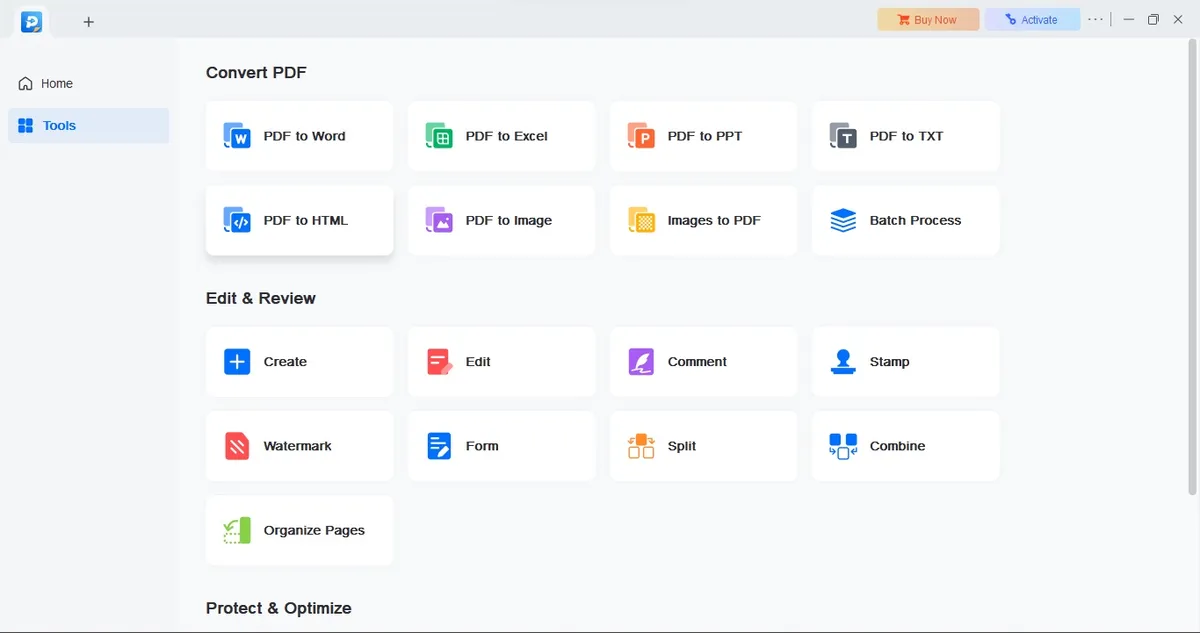


EaseUS offers a large portfolio of software and services for both Macs and PCs… except when it comes to EaseUS PDF Editor. Puzzlingly, this PDF editing software is PC-only. That's a shame for those running macOS because it's an excellent tool across the board.
EaseUS PDF Editor’s interface does exactly what you want an app to do: presents you with the tools you need when you need them, and gets out of your way so you can get on with your work. Here, you can edit files, manipulate and alter them with relative ease, and let’s not forget its good range of conversion capabilities. It also features some truly great OCR options. Overall, a top choice for Windows users.
Beyond that, what really stands out for us is the price. There's a free version with limited functionality, and a Pro version. And subscription costs for that are varied and very reasonable compared to others in the field, especially if you choose to pay yearly or go for the lifetime option.
Read more about EaseUS PDF Editor▼
Features & performance ★★★★★
There's a lot to like about this PDF editor - and it's one of those tools with a clean interface that lets you get on with the job. Open a PDF, and the software will take you straight to its ‘Read’ mode, but you’ll find other categories at the top of the interface, such as ‘Comment’, ‘Edit’, ‘Protect’, and ‘Convert’.
Should you need to make changes to content already present in an existing PDF, ‘Edit’ is the section you need. A bounding box appears on the zone you clicked on, enabling you to move it around, resize it, or delete it entirely. You can also rewrite the text contained within, one paragraph at a time. It’s all very clear and simple.
When it comes to converting between formats, EaseUS PDF Editor allows you to convert the PDF format to numerous others, such as Microsoft’s office suite, plain text, HMTL, and even into an image, or the other way round, turning an image into a PDF.
Actually, once you’ve done the latter, EaseUS’s OCR capabilities come into play. Select the language, the output format (it doesn’t have to be PDF), and EaseUS PDF Editor will get to work. The results were pretty decent.
Other tools are included too, such as being able to split a PDF’s pages into multiple files, or merge documents into one. You can even crop a document, should for instance, its borders were too wide, or you’d like to remove an unneeded sidebar. Essentially, pretty much everything you’d like to do to a PDF document, you can do with EaseUS PDF Editor.
Price & value ★★★★★
There are two types of PDF editor from EaseUS - a free version and the Pro version. And there are several subscription options on that Pro plan.
You have two subscription options: around $19.50 on a month-by-month basis which is one of the most expensive on this list, or $50 for the whole year (which is just over $4 a month). Compared to rivals in the space, choosing a yearly contract is an incredibly affordable option.
But if you’re looking for even better value for money, and are planning on editing PDFs for the foreseeable future, then the ‘Lifetime Upgrade’ could be very attractive: a one-off upfront fee of $80, which unusually includes free upgrades for life. What’s not to like?
▶ Read our full EaseUS PDF Editor review
Plan comparison
| Header Cell - Column 0 | EaseUS PDF Editor Free |
EaseUS PDF Editor Pro |
|---|---|---|
Price |
Free |
$19.95 a month, $49.95 a year, $79.95 one-off |
PDF editing |
✅ |
✅ |
Filetype converter & export |
✅ (first 3 pages) |
✅ |
Form-fill |
❌ |
✅ |
eSign |
❌ |
✅ |
Password protection |
❌ |
✅ |
OCR |
✅ (first 3 pages) |
✅ |
Redaction |
❌ |
✅ |
Version comparison |
❌ |
❌ |
AI assistant |
✅ |
✅ |
pdfFiller


pdfFiller was created and is maintained by airSlate inc, and offers PDF editing services not via an app, but through your favourite web browser. There are many such services, but in our experience, pdfFiller does it best.
Its tools are very well implemented, and coupling that with a highly responsive website, you can very easily forget you’re actually working in a web browser. The seamless integration with your contacts makes collaborating with others seamless. Not only can you create templates which you can reuse at will, pdfFiller also offers a wide range of its own forms and templates.
All in all, pdfFiller provides an excellent online PDF editor, whose possible only downside is a subscription service which can be on the high side if you choose the top tier plan.
Read more about pdfFiller ▼
Features & performance ★★★★☆
pdfFiller’s interface feels a busy. But everything you need to get started is right there in front of you. Access your own documents, the service’s templates, and communications with your contacts from the sidebar on the left, or check the various tools over on the right.
You’re able to import your contacts directly from Google, or just add them manually. In addition to being able to upload your documents from your computer, you’re also able to connect directly to online storage solutions such as Dropbox, Google Drive, Box, and OneDrive.
All the tools you’re after are here: re-ordering and deleting pages is done via the sidebar from which you can see thumbnails of all your documents’ pages (you can also duplicate or rotate your pages, or add additional ones too).
Editing a page is done thanks to a toolbar at the top from which you can annotate, fill in a form, or even alter a document’s existing content. The service is very well designed, and any work you perform on a file feels almost effortless.
Price & value ★★★★☆
As is standard for online services, pdfFiller is only available via a subscription. You’re offered three options: ‘Basic’, ‘Plus’ and ‘Premium’, and the higher up you go, the more tools get unlocked. For instance, ‘Plus’ allows you to password protect files, while ‘Premium’ offers custom branding.
Prices on a month-by-month basis are quite high, being $20, $30, and $40 respectively, but should you opt for an annual contract, your monthly bill would drop to $8, $12 and $15. The service also comes with a very generous 180 day money back guarantee.
But how can one try out its features, I hear you ask. Well, you can either activate the free 30-day trial, or simply scroll down the main page to find a dozen tools ready for you to immediately try out with any PDF you’d care to upload.
▶ Read our full pdfFiller review
Plan comparison
| Header Cell - Column 0 | pdfFiller Basic |
pdfFiller Plus |
pdfFiller Premium |
|---|---|---|---|
Price |
$20 a month, $8 a month (annual billed monthly) |
$30 a month, $12 a month (annual billed monthly) |
$40 a month, $15 a month (annual billed monthly) |
PDF editing |
✅ |
✅ |
✅ |
Filetype converter & export |
✅ |
✅ |
✅ |
Form-fill |
❌ |
✅ |
✅ |
eSign |
❌ |
❌ |
✅ |
Password protection |
❌ |
✅ |
✅ |
OCR |
✅ |
✅ |
✅ |
Redaction |
✅ |
✅ |
✅ |
Version comparison |
❌ |
✅ |
✅ |
AI assistant |
✅ |
✅ |
✅ |
Canva PDF Editor


We're big fans of Canva's browser-based platform in general - from its browser-based design tools to its PDF editor, which is effectively the same tool on an A4 / Letter-sized canvas. And considering it's free (with a Pro subscription available), it's surprisingly rich with features.
If you're focused on designing PDF editors, particularly for the likes of eBooks for your website, Canva's platform is arguably the easiest and most intuitive way of doing that. Drag and drop an element onto the canvas, add text, images, create forms, whatever. There's a host of pre-built shapes and stock images, too. Even if you've never created a PDF before, it's pleasingly simple.
However, it's not as rich with PDF-specific features as others we've tested. So, it lacks the likes of true redaction tools and OCR. We'd pitch this as a better tool for PDF creation than software for managing PDF files in the same way the likes of Acrobat can.
Read more about Canva PDF Editor ▼
Features & performance ★★★☆☆
When it comes to simply creating PDFs that looks great, Canva remains one of the top options. Along the left-hand side-bar, you'll find a wealth of elements that can be dragged onto a blank canvas and filled with colors, text, and media. For laying out eBooks, brochures, and flyers for your business, this is an excellent tool.
We'd recommend opting for the Pro subscription if you're working on branded content for your business though. This plan includes the absolutely essential brand kit, which is a hub for stowing the likes of brand colors and logos that keep your PDF documents uniformly designed.
Where it's going to fall down for some users is the on-going management of PDF documents. If the focus is on making eye-catching PDFs quickly, Canva is perfect. For core features like optical character recognition, capturing and collecting eSignatures, and redacting sensitive data, it's not suitable. You could slap a black box over sensitive data, but metadata isn't removed and it's not fully featured in the same way as others we've reviewed.
As chiefly a design platform, that's where the focus is. If that's what you're looking for from a PDF editor, though, we can't recommend Canva enough.
Price & value ★★★★★
Canva delivers exceptional value for money - and has done since we started using it years ago - since the main offering is completely free. And this isn't an especially hobbled version of free, either. There are a raft of design components that an be had without paying anything, and no watermarks either.
There are three subscription plans from Canva - Pro, Business, and Enterprise, but Pro will be the one most suitable for those who need a PDF editor. It costs $15 a month or $120 a year, and bundles in additional stock imagery, templates, and brand kits for maintaining uniformity throughout any documents you create.
▶ Read our full Canva PDF Editor review
Plan comparison
| Header Cell - Column 0 | Canva Free |
Canva Pro |
|---|---|---|
Price |
Free |
$15 a month, $120 a year |
PDF editing |
✅ |
✅ |
Filetype converter & export |
✅ |
✅ |
Form-fill |
❌ |
❌ |
eSign |
❌ |
❌ |
Password protection |
❌ |
✅ |
OCR |
❌ |
❌ |
Redaction |
❌ |
❌ |
Version comparison |
❌ |
❌ |
AI assistant |
✅ |
✅ |
Best PDF editors: Also tested
We rate the PDF editors above as the best around for a range of tasks, but we've tested and reviewed many more, including some of the best free PDF editors and best Adobe alternatives available. The following selection are equally capable PDF editing software that's worth exploring if our top 5 aren't quite the right fit.


Best PDF editor: FAQs
What is a PDF editor?
Generally, PDFs can only be read, so the format and look of the document is preserved whichever machine it’s accessed on. A PDF editor lets you create those documents, or make changes to the file's contents without using a word processor, which can be time-consuming and destroy the layout when viewed on other devices.
What does a PDF editor do?
it depends on the PDF editing software and the payment plan you're on. The changes you can perform range from the basics, such are reordering pages or deleting others, to cropping a file’s dimensions, to accessing the text and images contained in a document and rewriting parts of them. This is ideal to fix the odd typo, but you can also go much further and alter entire sections of a document.
What features should I look for in a PDF editor?
You need to look for a software package or an online service that works as you do. There are numerous companies out there, each with their own unique way of working, so the best advice is to make use of the free tiers, and free trials, and test the tools out. For example, for sending out documents to be filled in or capturing electronic signatures you'll want a feature-rich all-in-one platform like Adobe Acrobat. If you need to design professionally styled PDF documents for use on your website, Canva's PDF editor may be the better fit.
Can I edit a PDF for free?
Yes, you can. We've listed free PDF editors in this guide. The main different between a free and paid PDF editor is that you usually cannot edit existing text with a free version.
With a free version, you can usually reorder text, delete, remove pages, and fill in forms.
Are free PDF editors as good as paid ones?
In our experience, most free services - or those that offer a free tier - will allow you to do the basics, while the more advanced tools - such as editing the content of a PDF, OCR capabilities, and password-protecting your documents - are all too often locked behind a paywall.
But that doesn’t mean to say ‘free’ is always a limited version. Some free options are truly excellent, and we've included several in our section for those we've also tested. It all depends how well the software has been designed, and how well it suits your needs and workflow.
I'm redacting a document, what's the difference between masking and sanitization?
If you're using a PDF editor to redact sensitive data, the difference between 'masking' and 'sanitization' is the difference between hiding the information and destroying it from the file.
It's worth remembering not all software offers true sanitization - for example, you can mask in Acrobat Standard by drawing a black box to hide the data, but only Acrobat Pro lets you fully sanitize documents. Using this option automatically deletes invisible layers of sensitive information, including metadata and comments.
So, while most PDF editors let you add a black or white box over the information you want to hide, it may still be read with the right tools. That's because the text hasn't really been removed, it's simply been masked.
How can I check if my data has been redacted and sanitized?
Check your software: Most software providers will tell you whether you can redact and mask (e.g. Acrobat Standard) or if it offers full sanitization (e.g. Acrobat Pro).
Ctrl + A: By selecting all text in a PDF file and copying it across into a blank Microsoft Word or Notepad, the apparently redacted data will appear if not properly sanitized.
Ctrl + F: Use this to search the document for a target word you've tried to redact. If the word has simply been masked, the software will still find it.
Check file size: If an unredacted document and a redacted document are the same file size, it's possible the information is retained inside the file. But try the other methods first, they're far more reliable.
How we test the best PDF editors
We've tested hundreds of PDF and office software - and we take the same user-centric approach to testing, reviewing, and rating each one, whether we're rounding up the best PDF reader for Mac, best PDF reader for Windows, and best PDF reader for Android. When we test the best PDF editors, we measure the software against the same criteria that matters to users.
Interface & performance
First. we assess performance and platform - what operating systems they’re available on, the system requirements to run the editor, and how swiftly they open up PDF documents (especially larger ones).We check how simple the interface is, and how easy the overall user experience is.
Features & filetypes
The best PDF editors we've tested are accessible and intuitive to use - even those with more advanced offerings. We also test how well the product fits the intended audience. For example, a tool like Canva excels at creating and designing PDF documents, but it lacks true redaction tools that users and businesses require for protecting sensitive data. During our time with the software, we check how many file formats the software supports, whether there are security options like encryption and password protection, and other annotation and sharing features.
Price & value
We always look at how each software is priced, what payment plans are available, what you get for your money, and how those costs compare to other options. This lets us judge the true value of the PDF editor, and whether other options may be a better choice.
