
 Become a TechRadar Insider





Privacy settings you need to change

Windows 10 is here and by all accounts it's a smashing hit with a great new/retro look, Cortana's helping hand, plus all the performance enhancements of Windows 8.1 without the lingering interface problems. But for all the good Windows 10 brings, Microsoft's latest operating system has to collect a ton of data on its users, and that might not sit well for everyone.
Windows 10 can see everything from the websites you visit to where in the world you are to all the online purchases you make, and those are just the bits Cortana collates. By default, the OS is programmed to watch the words you type and listen to your speech so it can personalize the experience for you. These features can be convenient, but also raise privacy concerns.
Luckily, there are ways to curtail all of Windows 10's cyber sleuthing built right into the OS' privacy controls. However, cracking down on what Window 10 can see will come at the cost of some functionality and could potentially disable features you want to use (such as Cortana).

Smothered at setup

Even before you fully install Windows 10 there are a few ways to prevent your new operating system from accessing too much of your data. You should absolutely avoid simply going with the Express Settings in the setup process. Instead of taking the shortcut, pick Custom Settings so you can block access to things like location information, browser data and automatically connecting to suggested hotspots.
If you're feeling particularly antsy about sharing personal information, you can also create a local account that keeps more of your data offline than cloud-connected Microsoft account. Do this by electing to create a new account instead of signing in when you're prompted for some Microsoft account credentials.
Of course, going without a linked Microsoft account will prevent you from accessing OneDrive and make signing into your Xbox account a bigger hassle.
Fixing everything after the fact

Now, if you've already installed Windows 10 with express settings, it's not game over. You can easily tweak all the same Privacy Settings in the Control Panel.
Starting with the general privacy options, you should immediately switch off your Advertising ID, a feature that apps and websites use to pick out what type of ads you might like based on how you've used your PC. The good news is even if you leave this feature on, the ID number is not associated with your real name, email address or any other personal information.
Going down the list, the SmartScreen is an important feature you'll want to keep on because it actually protects you from potentially dangerous websites and installing malicious software. Likewise, the only reason to cut Windows 10 access to your language lists is if you want to start seeing ads in foreign languages.
Tracking your typing and writing might sound sketchy, but Microsoft assures Windows 10 monitors this to improve the accuracy of its autocorrect suggestions and handwriting recognition. Unless you're particularly paranoid of a key logger accessing this information, there's no real reason to deactivate it.
Location, location, location

Where you've been and your location data are some of the most important bits of information you should keep to yourself. As such it's not surprising to see some very granular privacy options in this category.
If you so choose, you can completely turn off Windows 10's ability to locate you as well as clear your location history. This route pretty much means you'll have to enter your zip code or address every time you want to check the weather or maps. So with this in mind, it's smarter to just fine tune what apps can see where you are.
Camera and microphone

Both the camera and microphone privacy settings pretty much follow the same template as location data options. You can either completely disable both inputs or choose which apps can record video and audio.
Don't look at my stuff

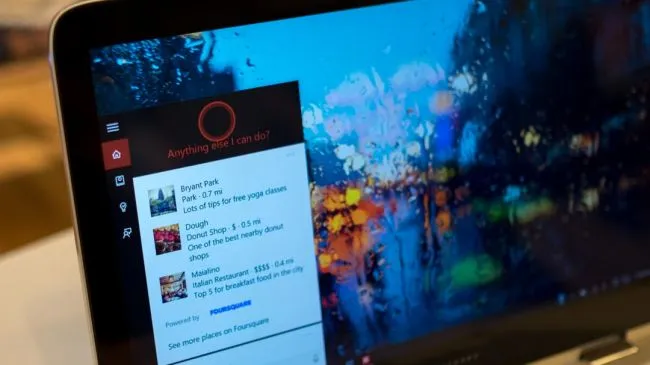
If there's one thing Windows 10 wants to do it's get to know you, and Cortana, the friendly assistant ask while it reminds you of upcoming appointments, among other things, is Windows 10's little helper, too. Thankfully, if this weirds you out, you can absolutely disable these functions in just a few clicks.
Head to "Speech, inking & typing" and click through to "Stop getting to know me." This will allow you to turn off Cortana and dictation.
If you'd rather keep Cortana around for some quick vocal searches and commands, there are more privacy options to drill down on exactly what the virtual assistant can and can't see. These options include account information such as your name and photo, friends and family in Contacts, Calendar events and Messages.
Allowing Cortana to access this information and store it in the cloud makes transitioning between Windows 10 devices a cinch. While that could be a huge plus for those with Microsoft accounts, it's really up to you on whether you're comfortable with Microsoft knowing every detail about your life.
To fully clear your history from Cortana and Windows 10, you'll also have to visit your Bing account settings on the web. After logging in, it's a simple matter of wiping your personal info, interests and Cortana information.
Blocking connections

Aside from keeping a close eye on what information Windows 10 sends back to Microsoft, you should also be aware of what your PC or laptop is sending over the air to mobile devices. By default, "Other Devices" privacy settings let your Windows 10 rig automatically connect and share information with other PCs, tablets and smartphones you own.
For those who want to keep easy device pairing, clicking on "Choose apps that can sync over the air" will let you dictate how data is shared between apps and devices. Likewise, app access to USB-connected accessories can also be restricted completely or on a case-by-case basis set forth by the user.
Calling Doctor Microsoft

Feedback and diagnostic data should more or less be left completely open for maintenance purposes. And really turning off sharing in these fields will just make it that much harder for you to report odd hitches in Windows 10 to Microsoft.
Wrangle your background apps

Last but not least, limiting the number of apps running in the background using the Background Apps section of the Privacy Options will go a long way to saving processing power as well as preventing any errant data from leaking out. Left unchecked, most applications running in the background will transfer data over the web, check for updates, send notifications, and do more even when you're not actively using the them.
Making Wi-Fi Sense

One of Windows 10's neatest yet most troubling features is Wi-Fi Sense, which allows you to connect to suggested Wi-Fi hotspots and share a network connection with your contacts. In order to do this, Windows 10 has the ability to automatically join wireless networks and to look at your Outlook, Skype and Facebook friends.
On top of the glaring privacy holes, you also can't control which of your contacts can access your network. So that means every person you talked to on Skype or emailed with Outlook can access printers and even other computers on the same network. Thankfully Facebook requires an extra verification step.
In case you're having trouble finding the Wi-Fi Sense settings, look for the "Advanced Settings" pane in the general Wi-Fi settings menu.
That's all, folks

With these tips, you can customize the information accessed by Windows 10, Cortana and Microsoft at large. Be warned that following these steps may result in less functionality and a few more inconveniences. But if privacy is important to you, it's well worth taking a look through your settings and customizing just how much information you're sending back to Microsoft.
- The best privacy software to keep you safe
