





Presented by

5 security features in Windows 11 Pro to keep you protected against even the smartest cyberattacks

Windows 11 Pro earns its keep on security more than most people realize.
Beyond the business-facing extras, the platform includes a set of protections aimed at the points where attacks usually break through: lost devices, stolen passwords, risky downloads, and convincing phishing attempts.
What makes that especially useful is the spread of cover across the whole machine, rather than one headline feature doing all the heavy lifting.
Some tools work quietly in the background, others step in at the moment you are about to do something risky, and so on. Together, they make up a powerful array of countermeasures to potentially devastating cyberattacks.
To help keep your PC and clients safe, let's take a look at five key features in Windows 11 Pro to get set up today.
Please note: All of the information is correct as of March 2026. Microsoft regularly updates its products, so some steps or features may change.
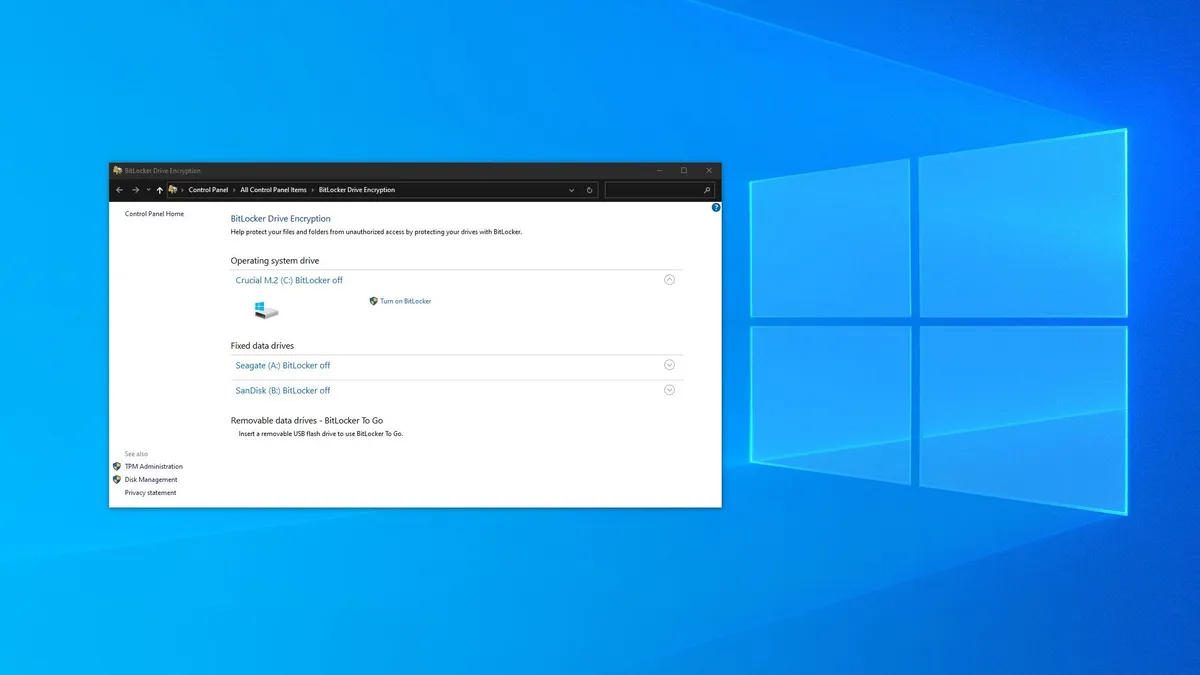
BitLocker
BitLocker is still one of the clearest reasons to choose Windows 11 Pro over plain old Windows 11 Home.
A stolen laptop is bad enough on its own, but it gets much worse when the person holding it can pull the drive, plug it into another machine, and browse straight through your files.
BitLocker shuts that route down by encrypting the contents of the drive, which is why it matters so much on work machines that carry contracts, invoices, downloaded documents, account data, or client material.
Its value is easiest to see on laptops that move around all week. A machine that travels between home, office, trains, cafes, and meetings has more points of failure than a desktop under a desk.
The sensible move is to set it up before the laptop leaves the house, then store the recovery key somewhere safe and separate from the device.
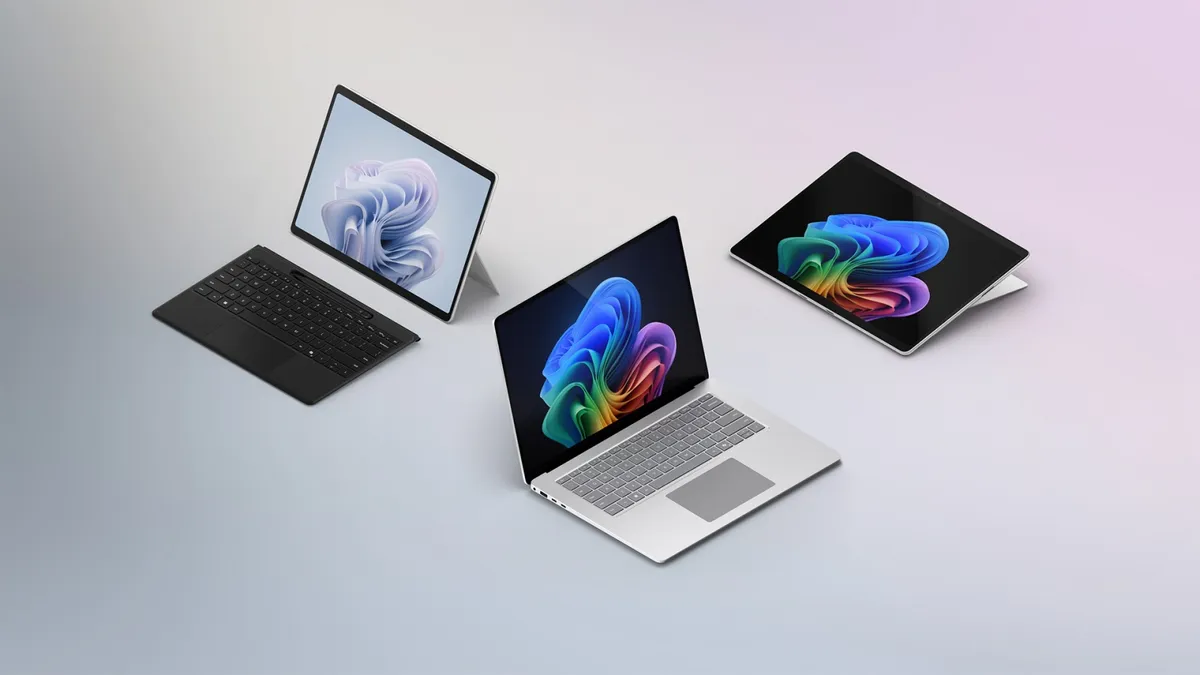
Windows Hello for Business
Windows Hello for Business tackles one of the oldest problems in PC security: the humble password.
If an attacker steals or tricks someone into handing one over, a huge part of the job is already done.
Windows 11 Pro gives you a way around that weak point by shifting sign-in towards a PIN or biometric check tied to the device itself, rather than a password that can be reused, guessed, or – even worse – phished.
A biometric check or device-bound PIN is much harder to lift and replay somewhere else, which makes credential theft less useful in the first place.
There's an everyday benefit, too. Sign-in feels faster, cleaner, and better suited to the way people actually use a laptop throughout the day, especially when they are moving between apps.
Smart App Control
Smart App Control is one of the more interesting security features in Windows 11 Pro because it aims to stop bad software before it gets a foothold.
Plenty of attacks still begin with something that looks harmless enough, so Smart App Control checks apps before they run and blocks ones that look untrusted or potentially dangerous.
Taking this approach feels better suited to modern attacks than waiting for something to land, then trying to clean it up afterwards, and puts more weight on reputation, code signing, and whether an app looks legitimate.
For people who install smaller utilities, download unfamiliar software, or occasionally stray outside the safest corners of the web, that can make a real difference.
The slight catch is that Smart App Control is not especially flexible: It is still designed around a clean Windows install, which makes it less universal than BitLocker or Windows Hello.
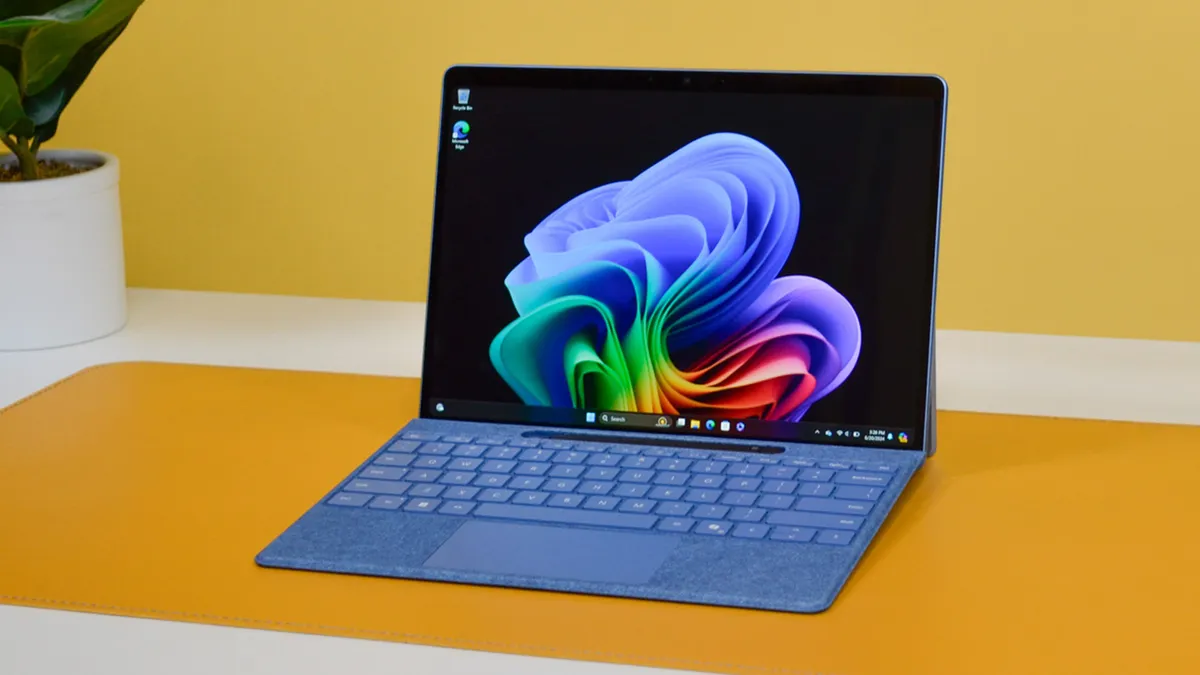
Windows Sandbox
Windows Sandbox earns its place the first time you need to open something you do not fully trust, which could be an installer from a small developer or an attachment that looks legitimate.
Instead of taking the risk on your main machine, you can open it in a sealed-off copy of Windows that disappears when you close it.
Using Sandbox means you do not need to decide whether a file looks safe enough to gamble on, and you get a clean, disposable space to test it first.
It is not a full virtual machine, and it does need compatible hardware with virtualization support. For quick checks, though, that is almost the point.
Sandbox launches fast, resets itself, and gives Windows 11 Pro users a simple way to keep unknown software at arm’s length.
Windows Firewall
Windows Firewall does not need much introduction, but that familiarity can make it easy to underrate.
In its simplest form, Firewall filters the traffic coming into and out of your PC, and it does it by app, port, protocol, and network type.
Its value goes beyond stopping random inbound connections, though. Firewall rules also control how specific apps and services talk to the network, which helps contain the damage from bad software.
There is nothing flashy about it, and that is partly the point. Windows Firewall works best when it is left enabled, treated seriously, and only opened up when there is a clear reason.
For Windows 11 Pro users, it remains one of the simplest examples of built-in security doing exactly what it should.