


Presented by

5 shortcuts to maximise your efficiency in Windows 11 Pro
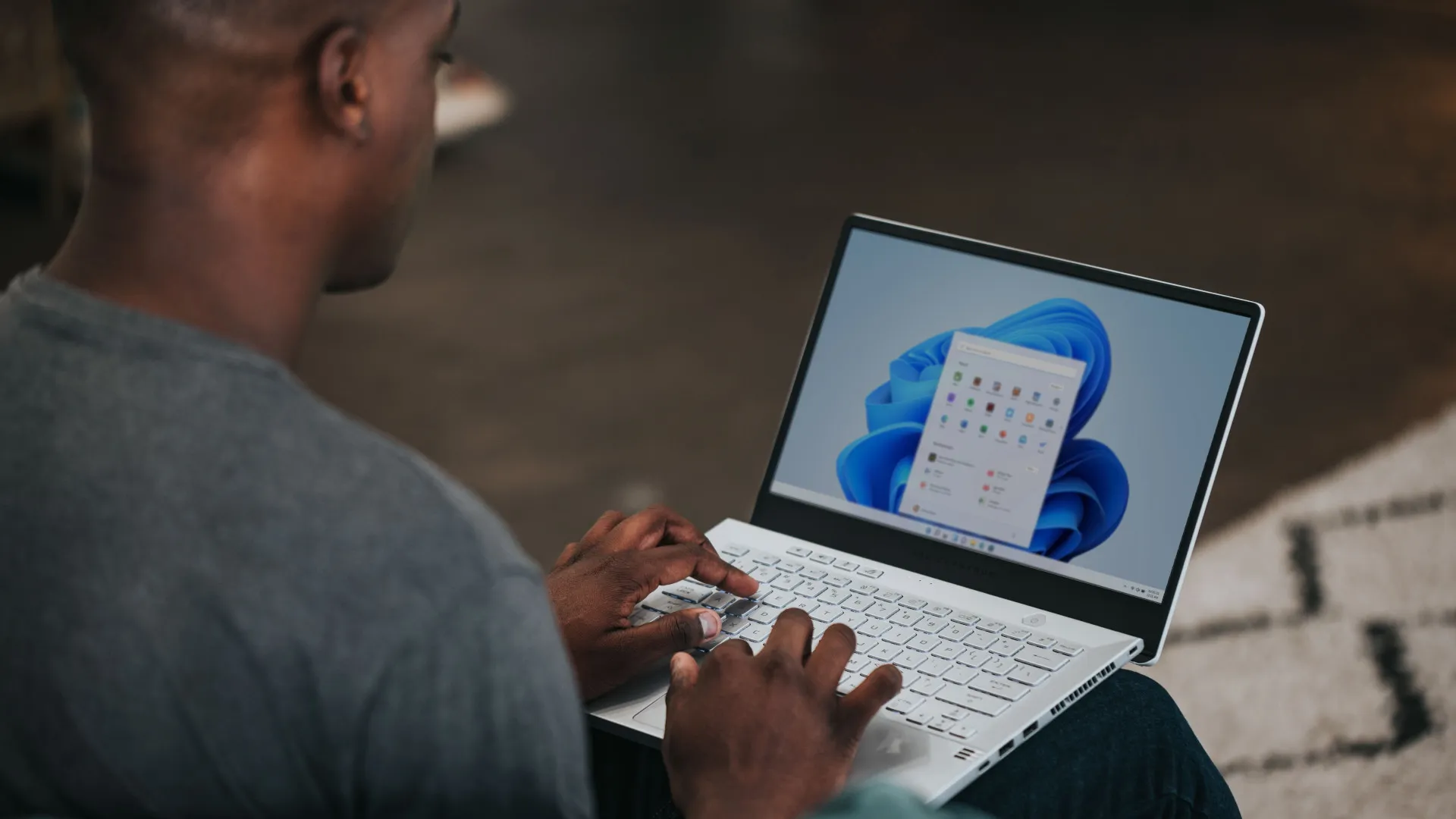
Windows 11 Pro comes with plenty of business-friendly extras, but one of the simplest ways to get more out of it is to spend less time reaching for the mouse.
Keyboard shortcuts remain one of the quickest ways to move around Windows 11, especially for everyday jobs like arranging apps, switching contexts, and getting to core tools without digging through menus.
Whether you are working on one of the best Windows laptops, a dual-screen desk setup, or a more powerful office PC, a handful of well-chosen shortcuts can make the whole experience feel smoother.
So, let's take a look at my top five Windows 11 Pro keyboard shortcuts to make your work extra efficient.

Open Snap Layouts faster
If you regularly juggle a browser, a document, and a chat app at the same time, Windows key + Z is one of the quickest shortcuts to learn.
It opens Snap Layouts, letting you choose a ready-made window arrangement in a couple of taps instead of manually dragging everything into place, and Windows 11 still supports this as the keyboard route into the layout menu.
The shortcut is a simple way to make multitasking feel more controlled, especially when you are comparing notes or working across multiple apps.
It's is even more useful on a larger display or one of the best business monitors, where the extra space makes those preset layouts much more practical in day-to-day work.
Clipboard history
If you copy and paste all day, Windows key + V can save more time than you might expect. It opens Clipboard history, so instead of relying on the last thing you copied, you can pull back older snippets, links, and images.
Windows still supports this shortcut in its main keyboard shortcut reference, and the feature is designed to be turned on the first time you use it if it is not already enabled.
The shortcut is especially useful for jobs that involve moving between emails, documents, browser tabs, and chat apps, where the same few bits of text tend to get reused throughout the day.
Separate your work with Virtual Desktops
When one desktop starts to feel crowded, virtual desktops are an easy way to give different parts of your day their own space.
Windows key + Ctrl + D creates a new desktop, while Windows key + Ctrl + Left arrow and Windows key + Ctrl + Right arrow let you move between them quickly and easily.
In practice, this is an easy way to keep one desktop for focused work, another for meetings or messaging, and a third for background admin.
The shortcut suits smaller-screen setups particularly well, where screen space is tighter and visual clutter builds up faster.
Move windows between monitors instantly
For anyone working across two screens, Windows key + Shift + Right arrow moves the active window to the monitor on the right, while Windows key + Shift + Left arrow sends it to the one on the left.
Both shortcuts are still part of Windows 11’s current keyboard shortcut set, and they are much faster than dragging a window across manually.
It is a small shortcut, but a very useful one, and when you are shifting a document or browser tab onto a second display in the middle of work.
The same habit also makes sense on a setup built around one of the best business monitors, where extra screen space is there to be used properly.
Access essential system tools
Windows key + X opens the Quick Link menu, which is one of the fastest ways to reach core system tools without digging through Start.
The shortcut gives you a direct route to areas such as Task Manager, Terminal, Device Manager, Settings, and installed apps.
Where earlier shortcuts help with layout and organisation, this one is more about access. Instead of bouncing through Start and Settings to find the right control, you get a compact list of system-level options in one place.

Bonus: Open Task Manager directly
Not every shortcut is about getting work done faster – some are there to rescue your flow when something goes wrong.
Ctrl + Shift + Esc opens Task Manager directly, which means you can get straight to the tool you need if an app freezes or startup items are slowing things down.
It is the kind of shortcut you may not use every hour, but when you do need it, it saves several extra clicks and a fair bit of frustration.