


Secure passwords can be tricky to create and remember, especially when you have dozens of accounts to protect. Luckily, today’s best password managers simplify the process by generating and storing strong, unique passwords and automatically autofilling login forms.
We think NordPass is the best password manager for most people thanks to its user-friendly interface and seamless cross-platform compatibility. If you’re looking for something different, RoboForm is our top choice for mobile users, with easy one-tap autofill. If sharing passwords securely is your main priority, Keeper supports credential syncing across all major platforms and browsers.
We’ve also rounded up the best password managers for families and the best business password managers for SMBs.
3 Best Password Managers: Quick List
The best password managers of 2026:
Why you can trust TechRadar We spend hours testing every product or service we review, so you can be sure you're buying the best. Find out more about how we test.
Best password manager overall

NordPass sits at the top of our password manager rankings – just like its sister product, NordVPN, tops our list of the best VPNs. NordPass is easy to use, whether you're new to password managers or not, and makes it easy to create strong, unique passwords that are then stored in a secure vault that only you can access.
NordPass features:
- Unlimited password storage
- Password health check
- Login monitoring
- Secure credential sharing
- Data breach alerts
- Email masking
All of those secure passwords can then be used to autofill online forms and fields with a single click (or tap). We liked NordPass' password health check tool, too, which comes in handy if you've imported passwords you made yourself, and that might not be as secure as they could be. The checker lets you know if your passwords have been reused and if any have been involved in a breach, giving you plenty of time to update them.
You can store more than passwords in your NordPass vault, too. You also have the option of storing, managing, and syncing passkeys and documents (like IDs, contact details, business files, and more), so they're secure and retrievable no matter which device you're using.
Passwords stored in your browser can be transferred into your NordPass vault automatically – though this is currently limited to Chrome and Firefox. The process is nice and easy, and NordPass likewise supports importing credentials from other password managers, like Bitwarden, Dashlane, and more. All you’ll need to do is export the passwords to a CSV (or similar) format.
NordPass' security is top-notch, and XChaCha20 encryption is at the heart of it. This encryption method is less prone to human error than the AES-256 encryption used by most password managers, and prevents unauthorized access to your vault and the credentials stored within.
We also appreciated NordPass' emergency access feature – though it's the kind of tool you hope to never need. It allows you to assign a friend or family member as an emergency contact and grant them access to your vault in an emergency situation. It's a nice failsafe to have that ensures that your accounts and any important data therein aren't locked away if you're dealing with a crisis situation.
Most password managers alert you about data breaches involving your credentials, but we found that NordPass' breach insights are especially timely. NordPass monitors the dark web for cyberattacks and, in addition to real-time alerts, provides actionable advice on what you should do next to recover your online privacy. This can range from a simple password reset to card cancellation steps, depending on the severity of the breach.
Unlike 1Password, NordPass does offer a free tier you can use to try the service out before committing to a long-term subscription. However, this free plan limits you to a single active session, and advanced NordPass features (like email masking) are locked behind a paywall.
Read our full NordPass review.
Best password manager for mobile

RoboForm is our top pick for mobile, but its apps are intuitive regardless of the device you're using. Creating strong passwords only takes a click, but the star of the show is the two-factor authentication app and its compatibility, which adds an extra layer of security to your credentials.
RoboForm features:
- Store and share passkeys
- Breach and compromise monitoring
- Two-factor authenticator
- Cloud backup
- Emergency access
- Local-only mode
One of our favorite quality-of-life features is the integration of folders in the RoboForm vault. They're an easy way to organize passwords in whichever way makes the most sense – for example, creating separate folders for work and personal passwords. These folders can also be securely shared from within the RoboForm app.
RoboForm's Local-only mode is a great addition for those who are especially privacy-conscious. Enabling it ensures your data (and backups) are stored only on your device, not on RoboForm's servers, reducing the risk of your details being exposed in cloud-based breaches. The trade-off, however, is that you can't easily access data on other devices.
The suite of features is nicely rounded off by RoboForm's two-factor authentication (2FA) that can be added to a vault or credential before sharing it. The 2FA requires you to provide two types of proof of identity before gaining access to the data, and RoboForm's 2FA is supported across email, SMS, authenticator app, passkey, trusted device, and hardware security key – an impressive list. Plus, RoboForm’s advanced authenticator is available to users on the free plan.
With RoboForm, you can import passwords from all of today’s most popular browsers, including Chrome, Safari, Edge, Firefox, and Opera. We're also impressed by how many password managers RoboForm is compatible with. So, if you’re making the switch from LastPass, Dashlane, NordPass, etc., all you need is the CSV file of your credentials.
RoboForm uses AES-256 encryption to protect your passwords, which is a robust encryption method often referred to as 'military-grade', as it's the same encryption used by the U.S. government to keep classified files safe from the likes of brute-force and dictionary attacks, and unauthorized access.
Like NordPass, RoboForm constantly monitors password health via its Security Center. It detects weak, duplicate, and compromised credentials, alerting you if any data is found in a breach or on the dark web. We like that these notifications are paired with suggestions on how to re-secure your accounts and, best of all, RoboForm also gives you a heads-up if you enter sensitive data or financial details on a website with a domain that doesn’t match the one saved in your vault. It’s a handy failsafe that can keep you away from bogus phishing sites and AI fakes.
While RoboForm’s roster of features isn’t lacking by any means, NordPass still offers the lion’s share – and RoboForm lacks any email masking capabilities. So, if spam emails are a concern, you might be better off with NordPass or Bitwarden.
Read our full RoboForm review.
Best password manager for sharing

Keeper is an easy-to-use password manager and a popular choice for businesses, but personal and family plans are also available. You can generate super-secure passwords with a click and have Keeper vet any passwords you’ve created manually.
Keeper uses the word ‘unlimited’ to describe a lot of its features: unlimited password storage across an unlimited number of devices, with unlimited syncing for passwords. We’re glad to see that the reality lives up to the promises. It’s a great solution for families or anyone with a lot of devices, accounts, and logins.
Keeper features:
- Seamless password sharing
- AI-powered autofill
- Emergency access
- Built-in Time-based One-time Password (TOTP)
- Biometric authentication
- Support for wearables
As you’d expect from a top-notch password manager, Keeper’s autofill feature works reliably across mobile and desktop devices – as well as smartwatches. The Keeper browser extension works well, too, with separate organizational tabs for addresses, financial details, and even IDs. It makes retrieving this information a lot easier (and safer) if you're away from home and need to pull up your passport details.
The One Time Share feature is another standout. If you need to share a login, you can do so via email, QR code, SMS, or AirDrop, and set an expiration time on the link to reduce the risk of exposure. Each shareable link works on just a single device, too, and recipients don't need to download Keeper or have an active subscription of their own.
You also have the option of protecting vault entries with Time-based One-time Passwords (TOTP). This can be done directly via the app on a per-record basis, and adding a two-factor code to these records provides extra peace of mind that your credentials will remain safe even if you lose your device.
Like RoboForm, Keeper makes it easy to import passwords from virtually any browser you can think of. In fact, the Keeper Importer Tool automatically imports any unprotected passwords and stores them in the vault. This kind of streamlined process is especially useful if you and your family use different browsers and want to secure them in a centralized location. Plus, if you’re moving on from a different password manager, RoboForm can import credentials from a long list of tools; it’s as easy as exporting your data as a CSV file.
Keeper boasts some of the best security compliance we’ve seen, including GDPR, HIPAA, and SOC 2 – and though that may be more noteworthy to businesses, it still ensures that your sensitive data is handled properly. In terms of encryption, Keeper uses industry-standard AES-256 to keep your passwords safe from third parties and cyberattacks.
It's worth noting that Keeper keeps a lot of features behind a paywall as optional extras. This includes the likes of data breach reports and secure file storage. This isn't massively unusual, but considering that NordPass and RoboForm include similar tools in their basic plans, it's more egregious.
Read our full Keeper Security review.
Best free password manager

Bitwarden’s free tier is virtually unbeatable in terms of features, and if you upgrade to a paid plan, you’ll enjoy some of the most budget-friendly pricing on the market. The free Bitwarden plan comes with unlimited devices and password storage, free sharing to one other user, email aliases, and more.
The final cherry on top is that Bitwarden doesn’t prevent you from syncing your vault across all of your devices, unlike other free password managers (including the free versions of RoboPass and Dashlane).
Bitwarden features:
- Email alias integration
- Breach monitoring
- Passkey support
- Self-hosting options
- TOTP-integrated authenticator
- Up to 1GB encrypted file attachment
Upgrading to a premium plan unlocks more features, including encrypted sharing for text and files, and up to 5GB of encrypted file attachments. If you need extra storage, you have the option of adding more in 1GB increments, though it comes at an additional cost. Conveniently, files can be attached and sent from within the Bitwarden app, and are then encrypted and decrypted locally – meaning attachment contents are protected during transport and storage.
One of the more unique features is offline access to your vault. Bitwarden caches a copy of your vault on your device, so whether you run into internet issues or regularly travel and can't count on a consistent connection, you'll still have access to your vault – while maintaining end-to-end encryption.
Importing existing logins with Bitwarden is simple and quick, and you can import data from browsers, including Chrome and Firefox, as well as other password managers, including NordPass and 1Password – so long as the manager supports exports.
Bitwarden's open-source design means anyone can audit its code and pinpoint potential vulnerabilities – so long as they have the technical know-how. Independent researchers regularly comb through the code, too, and this kind of auditing illustrates a firm commitment to transparency. Plus, like our other top picks (aside from NordPass), Bitwarden uses AES-256 encryption to protect your vault from third-party snooping and cyberattacks.
Bitwarden also highlights weak passwords and unsecure websites, and the Data Breach Report does a reliable job of informing you about any email addresses involved in known breaches. Armed with these details, you can take steps to re-secure your credentials and avoid scam sites.
Like RoboForm, Bitwarden’s free tier is more of a pure password manager than a full cybersecurity suite – though it covers the basics excellently. Paying for a premium plan unlocks more tools, and priority customer support is likewise reserved for paying customers, meaning folks on the free tier may have to wait longer to troubleshoot issues – or try their luck with the AI chatbot.
Read our full Bitwarden review.
Best password manager for families
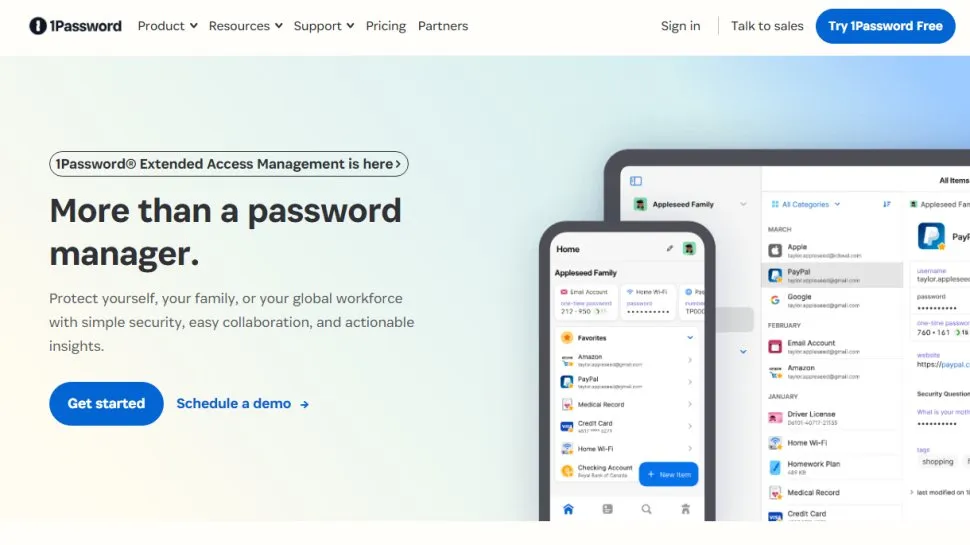
1Password’s Family dashboard is an incredibly useful tool, giving you a place to manage up to five people on your plan, each of whom gets their own private vault. We also found 1Password to be one of the easiest password managers to use, along with NordPass. So, if you need a tool that everyone will understand (even the kids), 1Password is a great choice.
1Password features:
- Unlimited vaults
- Secure sharing with expirations
- Breach alerts
- Emergency access
- Credential strength checks
- Developer tools included
If you need to share logins between family members, or even just send the Wi-Fi code, you can set an expiration date on the link that’ll prevent unauthorized access after a set time. It pairs well with the 1GB of encrypted storage you get to play with and the ability to store passkeys, payment cards, notes, and all your credentials in your vault. Like NordPass, we appreciate 1Password’s sensible organization system with more than two dozen categories to choose from.
We like that 1Password provides a place to store one-time passwords, too. Consolidating these codes into a single spot makes logging into tools for work that much more convenient.
One of the more unique features we encountered during our testing is 1Password's Travel Mode, which allows you to remove access to selected vaults by marking them 'Safe for travel'. In practice, this comes in handy if you're travelling and crossing borders and want to protect data (personal or professional) during border inspections or other security checks.
With 1Password, you have the option of importing passwords from browsers and other password managers, including Chrome, Safari, Edge, Firefox, LastPass, Bitwarden, Dashlane, Keeper, and more – all you need is the exported CSV file.
1Password’s Watchtower feature (a partnership with HIBP) effectively flags data breaches as well as weak or reused passwords, giving you plenty of time to shore up your security and generate a strong replacement. We like that the phishing prevention alert pops up when you try to access and input data into a website where the URL doesn’t match the one in your vault, too, steering you away from potentially unsecure or compromised sites.
All of your credentials and anything you share is protected by AES-256 encryption, which is par for the course. However, if you want to further safeguard your data, you can add Two-Key Derivation and use a secure remote password to encrypt it in transit.
A minor gripe we encountered when vetting 1Password was the slightly frustrating login process. We were prompted to use our master password as normal, then authorize it with a secret key, verifying our identity. It's a more cumbersome process than we’ve experienced with other managers, and we think it could be streamlined.
Read our full 1Password review.
Also tested

Comparison table
| Row 0 - Cell 0 | NordPass |
RoboForm |
Keeper |
Bitwarden |
1Password |
Unlimited password storage |
Yes |
Yes |
Yes |
Yes |
Yes |
Autofill |
Yes |
Yes |
Yes |
Yes |
Yes |
Password health report |
Yes |
Yes |
Yes |
Yes |
Yes |
Import from browsers |
Yes |
Yes |
Yes |
Yes |
Yes |
Secure password sharing |
Yes |
Yes |
Yes |
Yes |
Yes |
MFA |
Yes |
Yes |
Yes |
Yes |
Yes |
Encryption |
XChaCha20 |
AES-256 |
AES-256 |
AES-256 |
AES-256 |
Email mask |
Yes |
No |
No |
Yes |
Yes |
Biometrics |
Yes |
Yes |
Yes |
Yes |
Yes |
Data breach scanner |
Yes |
Yes |
Yes (paid add-on) |
Yes |
Yes |
Emergency access |
Yes |
Yes |
Yes |
Yes |
Yes |
How to choose a password manager
The best password managers give you a heads-up about unsecure passwords in need of an update and any data breaches you’ve been involved in, all so you can ensure that your login details are as secure as possible (without having to remember endless strings of numbers, letters, and special characters, too).
However, with so many password managers to choose from – and so many different plans available – finding your ideal fit can be tricky. With that in mind, here are the key factors to keep in mind when weighing up your options:
- Security. This is the big one – and we've done our due diligence to ensure that every password manager we recommend adheres to best practices in terms of securing your vault and personal data. This means utilizing industry-standard encryption to prevent unauthorized access to your credentials and two-factor authentication (2FA) to help prevent hackers from accessing your account if they somehow manage to steal your master password. We also recommend sticking to password managers that regularly undergo third-party audits by independent security firms.
- Features. A password manager's bread and butter is secure storage for your credentials and other important data, but some password managers have extra features. Consider whether these are valuable to you – you may make use of data breach alerts, for example, but not need a built-in VPN or cloud storage.
- Compatibility. Consider which devices you'll use your password manager with and make sure that there's a suitable app. Most password managers work with desktop and mobile devices, and some, like Keeper and 1Password, even work with smartwatches.
- Price. There are password managers available at all price points – including free options. However, you'll find that some features are often locked behind paywalls. Weigh up whether it's worth it to pay more for these tools: will you use them? Then, consider which plan you need. Is it just you who'll use the manager, or do you need a family package for everyone in the house?
How we test
TechRadar's team of cybersecurity experts has years of experience vetting today's top password managers, and we put 10 of them to the test to determine our top ten.
During the testing process, we installed and used the password manager on as many platforms as possible to ensure our results are consistent and conclusive. Then, we used each password manager in our day-to-day lives just as a regular user would. This gives us a real-world feel for each manager, though we'll also put them in every kind of situation we can cook up, in an attempt to reveal any shortcomings that may have otherwise gone unnoticed.
FAQs
Should I use a dedicated password manager or my browser’s password manager?
If you stick to a single device, a browser-based password manager can do a reasonable job of storing and securing your credentials. Browser tools are convenient and can save, generate, and autofill passwords, particularly when your devices all use the same account and platform.
However, a dedicated password manager is usually more flexible. A standalone service can keep website and app logins in one vault across platforms, and may add secure sharing, vault organisation, alerts and family controls.
What security features should I look for in a password manager?
Look for strong vault encryption, a unique master password, multifactor authentication, and clear recovery or emergency-access options. Useful extras include password-health or breach alerts, passkey support, secure sharing, and reliable syncing across your preferred browsers and devices.
The service’s security features matter, but so does how you use them. Make your master password complex and unique, enable multifactor authentication, keep the app and browser extension updated, and understand the recovery process before storing important credentials.
Are free password managers safe to use?
Yes, free password managers are safe, provided you stick to reputable names. The biggest downside to using a free password manager is that, often, they have fewer features compared to their paid counterparts.
Before opting for a free password manager, be sure to check that it offers multifactor authentication and autofill features, and is compatible with your devices.
Do password managers support passkeys?
Many password managers now support passkeys, but the capabilities and device support differ by provider. NordPass, RoboForm, Bitwarden, Dashlane, 1Password, and Proton Pass boast passkey-related support, making them great options to start with if you want to reduce reliance on passwords.
Check whether the service can save and use passkeys on your browser and operating system, and whether they will sync to the devices you own. Passkeys only work on sites that offer them, so you will still need secure storage and autofill for conventional passwords, recovery details, and other account information.
Do password managers work with apps and across devices?
Most leading password managers work with mobile apps as well as websites, but compatibility and autofill behaviour vary by service, browser, and operating system. A manager normally uses a browser extension on desktop and an app on Android or iPhone to save, sync and fill credentials across supported devices.
21 October, 2026
We've overhauled this guide, freshening up our recommendations with more in-depth summaries. We've also included a feature comparison table to help you decide between products, and have expanded our 'How to choose' and FAQ sections.
- You've reached the end of the page. Jump back up to the top ^
