
 Become a TechRadar Insider





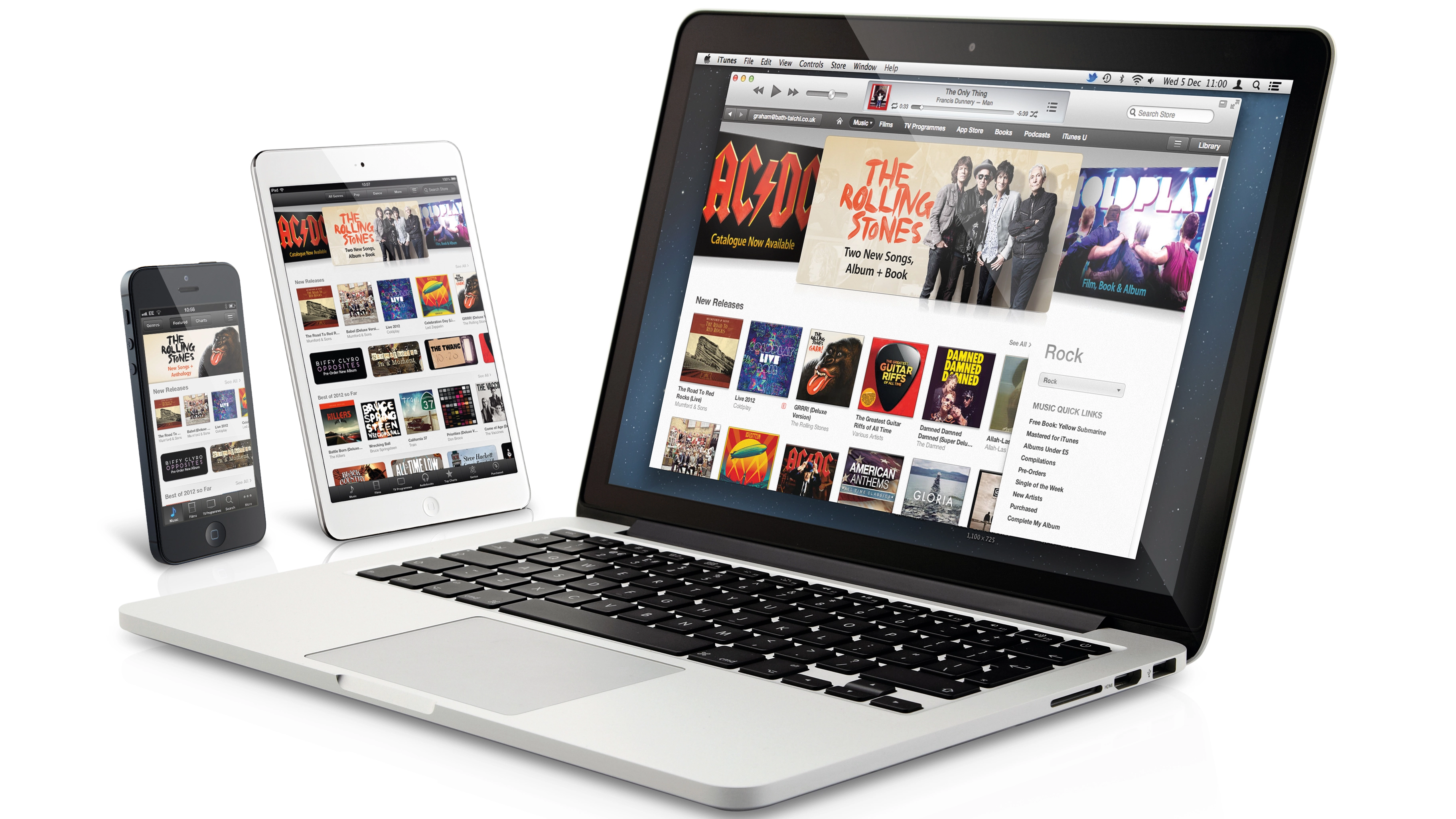
The iTunes app has taken on more and more roles since it started life as a simple jukebox. It's now responsible for syncing iOS devices, downloading and storing movies and TV shows as well as music, and even matching your music collection with iCloud.
iTunes had started to get a little bogged down with all these tasks so Apple has given it a major overhaul.
iTunes 11 has all sorts of new features as well as a fresh new look and feel, which makes managing your media easier than ever.

The system requirements are a little higher than before and you'll need OS X 10.6.8 as a minimum, and an Intel processor in your Mac. Users of OS X 10.7 or 10.8 will find it in Software Update, and anyone still on Snow Leopard can grab it from apple.com/itunes/download.
The interface is a little different but don't let that fool you: it's faster, smarter and easier to use. There's the Up Next feature for example, which shows you previous and upcoming tracks and lets you jump to them easily.
And a great new Mini Player that has search and multiple AirPlay volume controls built right in. We think it's a big improvement on the last version of iTunes and we know you'll love it too. Read on to find out all you need to know about iTunes 11…
1. Media type chooser

In the new default view you can choose to see only the media type you want, instead of all your libraries at once, which is often useful. Click on the Library chooser and toggle between music, movies, TV shows, books, apps and ringtones. If you use the Show Sidebar command to return to a more traditional view, you can see all the media libraries in a list, just like in previous versions of iTunes.
2. AirPlay volume settings

As well as setting iTunes' master volume with the main volume slider, you can send audio over AirPlay in different ways. If you choose Single, your audio plays on your Mac. If you have any AirPlay-compatible devices like an Apple TV or Airport Express you are able to choose Multiple, and send the audio to those devices too. What's really great is that you can set the volume of each audio stream independently.
3. Up Next and Previous

This new feature lets you see what's queued to play next and if you click on the clock icon, what has been played previously. You can play any track by clicking on it as well as re-ordering them, so you're not limited to a specific play order. Right-click on tracks in the library to add them to Up Next, making you a DJ. This new feature is supported in the latest Apple TV software as well as the latest iOS Remote apps.
4. Advanced search

Searching your media libraries just got a whole lot better in iTunes 11. When you start typing in the search field, the program immediately scours even the largest libraries for relevant tags. Results are displayed by Artist, Album, Song and Playlist, and movies and TV shows are included too. If there are lots of results returned for your libraries, the Search window simply shows the top hits and gives you the option to view more results within any given category, meaning that everything stays nice and tidy.
5. Downloads

iTunes 11 works well with iCloud, and now has a Downloads button and window. The button becomes visible whenever you download content, be it from iTunes Match, a new purchase or a re-download of previously purchased material. Click the button to reveal the Downloads window, where you can disallow simultaneous downloads.
6. Movies and TV shows

If you choose to view movies or TV shows, iTunes is now pretty good at picking up their metadata and choosing background colours automatically based on artwork, which it also does for albums. If media are properly tagged, it's able to sort them into seasons for you, and again there are links to the Store if you want, for example, to complete any series you may not already have. There's an Unwatched tab too, to quickly show you stuff you haven't yet viewed.
7. Mini Player

One of the best new features is the iTunes Mini Player. Click this button and you get a small, sleek and unobtrusive window that controls playback. Better still, it has some integrated controls like full library search, Up Next and Previous and full volume and AirPlay controls available from its small window. It puts the most important playback features of iTunes right at your fingertips and takes up very little screen space, which is especially useful for laptops.
8. iTunes Store

Click on the Store button to be taken to the newly redesigned iTunes Store to preview, buy or rent content as well as managing your Apple ID settings, billing information and so on. In this view the Search field changes to search the Store rather than your library. Music and videos in your library also have a new option to jump directly to that artist, band or series on the Store, which you can access by right-clicking on content.
9. iTunes Match

iTunes Match is still there, but in the new view it has its own dedicated tab. In the old view, which you can still use, it lives in the list down the left-hand side. You can turn iTunes Match on or off from the Store menu in iTunes, as well as manually updating it to reflect changes you have made. Remember that the library on your Mac remains the master, and things that you change, add or delete here will be reflected across your iOS devices and other Macs signed in with the same Apple ID.