


Presented by

5 things you probably didn't know Windows 11 Pro can do for you

Windows 11 Pro is designed for situations where a PC isn’t just a personal device, but a work tool that needs to be secure, manageable, and dependable.
For many users, the difference only becomes obvious when requirements change – you’re handling sensitive data on the move or you need to test software without putting your main system at risk, for example.
The point isn’t that Pro magically makes Windows faster or “more powerful”, but that it unlocks the kinds of controls that reduce day-to-day risk and friction, making your work life just a little easier.
For small businesses and hybrid workers, those details can be the difference between a minor annoyance and a genuine incident.
To help you make sense of Windows 11 Pro, whether you've just upgraded or are a long-term user, we've found five features that are easy to overlook, but immediately practical for professional use.
Please note: All of the information is correct as of March 2026. Microsoft regularly updates its products, so some steps or features may change.
BitLocker
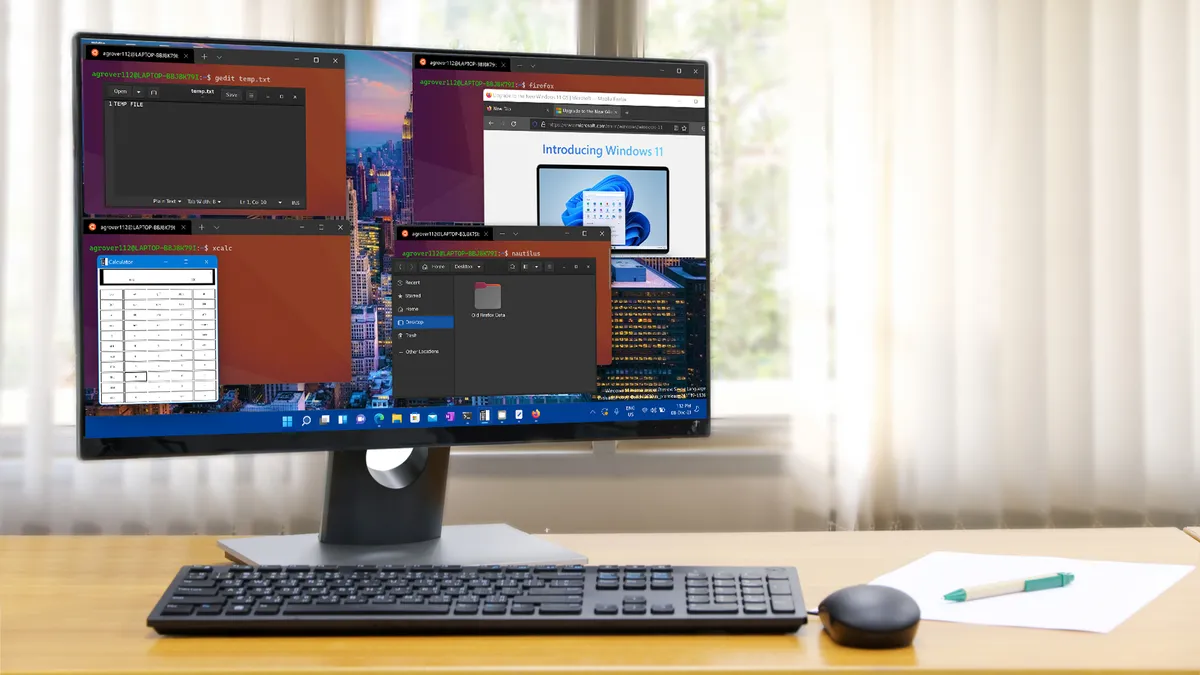
If you use your Windows PC for work, BitLocker is one of the most valuable upgrades that comes with Windows 11 Pro.
In simple terms, the tool encrypts the data on your drive so that, if the device is lost or stolen, the files aren’t simply there for the taking.
Even with a strong Windows sign-in, unencrypted storage can still be accessed by removing the drive or booting the machine from external media.
On modern PCs, BitLocker typically works with the TPM (Trusted Platform Module) to store encryption keys securely.
Day to day, it’s largely invisible: you sign in as normal, and the drive remains protected in the background. The part to take seriously is recovery.
BitLocker generates a recovery key during setup, and you’ll want to make sure it’s stored somewhere safe and retrievable (for a business device, that usually means an organization-controlled location, not a single person’s notes app).
To turn it on, open Settings and search for “BitLocker”, then follow the prompts to enable encryption for the system drive.
Windows Sandbox
Windows Sandbox gives you a quick way to run software in an isolated, temporary Windows environment.
One way to think of it as a clean, disposable desktop: you can launch it, install a tool, open a file, verify what it does, and then close it again.
Once you exit, the Sandbox session is discarded, taking any apps, files, and changes with it.
To use it, enable Windows Sandbox via Turn Windows features on or off, restart if prompted, then launch it from the Start menu.
If the option isn’t available, or it fails to start, the usual culprit is virtualization: make sure it’s enabled in your PC’s BIOS/UEFI, and that you have enough free memory for a second Windows environment to run alongside.

Hyper-V: run proper virtual machines
Hyper-V is Windows 11 Pro’s built-in virtualization platform, and it’s one of the most useful tools to have in your back pocket if you ever need to experiment without consequences.
Rather than installing software directly on your everyday Windows setup, you can create a virtual machine (VM), install a separate operating system inside it, and keep the whole environment self-contained.
For IT work, that means safer testing, cleaner troubleshooting, and a reliable way to recreate “fresh install” conditions without wiping your actual PC.
Open Control Panel → Programs → Turn Windows features on or off, tick Hyper-V, restart if prompted, then launch Hyper-V Manager to create your first VM.
Make sure hardware virtualization is enabled in BIOS/UEFI, and be realistic about resources: VMs are happiest when you have plenty of RAM and spare CPU headroom, especially if you plan to run more than one at a time.

Remote Desktop hosting
Remote Desktop is one of the most practical reasons to choose Windows 11 Pro, because it lets your PC act as a host for incoming connections.
In plain terms, you can leave your main machine in the office (or at home), then connect to it from another Windows PC, a Mac, or a mobile device, and work as if you were sitting in front of it.
Set-up is straightforward: Go to Settings → System → Remote Desktop, switch it on, and note the PC name you’ll connect to.
You can also add specific user accounts that are allowed to sign in remotely, which is useful if a shared workstation needs to be accessed by more than one person, such as a family PC.
Treat Remote Desktop as a business feature, not a convenience toggle, and if you enable it, keep access restricted to trusted networks, use strong account security, and leave Network Level Authentication enabled.
Local Group Policy Editor
Windows 11 Pro includes the Local Group Policy Editor (gpedit.msc), which is essentially a front-end for a huge number of Windows settings that either don’t exist in Home, or are awkward to manage without third-party tools.
While this doesn't sound particularly sexy, the big advantage is consistency. Group Policy lets you apply settings in a structured way, with clear descriptions, and you can roll changes back if they don’t behave as expected.
It’s particularly useful on machines that are shared, used for client work, or need to behave predictably over time, rather than gradually drifting as apps and updates pile up.
To open it, press Windows + R, type gpedit.msc, and use the tree on the left to browse policies. If you’re making changes on a business-critical PC, take a quick note of what you changed and where, so you can retrace your steps later.